> ## Documentation Index
> Fetch the complete documentation index at: https://docs.theoptimizer.io/llms.txt
> Use this file to discover all available pages before exploring further.

# Multi-Ad Account Upload

> Upload the same campaign structure across multiple Facebook ad accounts in a single publish operation.

export const ArcadeVideoButton = ({id, title = "Watch interactive demo", label = "Watch Video"}) => {
  const [open, setOpen] = useState(false);
  return <div style={{
    display: 'inline-block'
  }}>
      <button type="button" onClick={() => setOpen(true)} style={{
    display: 'inline-flex',
    alignItems: 'center',
    gap: '8px',
    backgroundColor: '#3e47ec',
    color: '#ffffff',
    border: 'none',
    padding: '10px 18px',
    borderRadius: '8px',
    fontSize: '15px',
    fontWeight: '600',
    cursor: 'pointer'
  }}>
        <svg xmlns="http://www.w3.org/2000/svg" width="16" height="16" viewBox="0 0 24 24" fill="white">
          <polygon points="5,3 19,12 5,21" />
        </svg>
        {label}
      </button>

      {open && <div onClick={() => setOpen(false)} style={{
    position: 'fixed',
    top: 0,
    left: 0,
    width: '100%',
    height: '100%',
    backgroundColor: 'rgba(0, 0, 0, 0.85)',
    zIndex: 9999999,
    display: 'flex',
    alignItems: 'center',
    justifyContent: 'center'
  }}>
          <div onClick={e => e.stopPropagation()} style={{
    width: '90%',
    maxWidth: '1100px',
    aspectRatio: '16 / 9',
    borderRadius: '12px',
    overflow: 'hidden',
    position: 'relative'
  }}>
            <iframe src={`https://demo.arcade.software/${id}?embed&embed_mobile=tab&embed_desktop=inline&show_copy_link=true`} title={title} frameBorder="0" loading="lazy" allowFullScreen allow="clipboard-write" style={{
    width: '100%',
    height: '100%',
    border: 'none',
    colorScheme: 'light'
  }} />
          </div>

          <button type="button" onClick={() => setOpen(false)} style={{
    position: 'fixed',
    top: '20px',
    right: '24px',
    background: 'rgba(255,255,255,0.15)',
    border: 'none',
    color: '#ffffff',
    fontSize: '24px',
    lineHeight: 1,
    width: '40px',
    height: '40px',
    borderRadius: '50%',
    cursor: 'pointer',
    display: 'flex',
    alignItems: 'center',
    justifyContent: 'center'
  }}>
            ✕
          </button>
        </div>}
    </div>;
};

export const ArcadePopoutModal = ({id, title = "Interactive demo"}) => {
  const [isPopout, setIsPopout] = useState(false);
  const iframeRef = useRef(null);
  useEffect(() => {
    function onArcadeIframeMessage(e) {
      if (e.origin !== 'https://demo.arcade.software' || !e.isTrusted) return;
      if (!iframeRef.current || !iframeRef.current.contentWindow) return;
      if (e.data.event === 'arcade-init') {
        iframeRef.current.contentWindow.postMessage({
          event: 'register-popout-handler'
        }, '*');
      }
      if (e.data.event === 'arcade-popout-open') {
        setIsPopout(true);
      }
      if (e.data.event === 'arcade-popout-close') {
        setIsPopout(false);
      }
    }
    window.addEventListener('message', onArcadeIframeMessage);
    return () => window.removeEventListener('message', onArcadeIframeMessage);
  }, []);
  return <div style={{
    position: 'relative',
    paddingBottom: 'calc(54.4737% + 41px)',
    height: 0,
    width: '100%'
  }}>
      <iframe ref={iframeRef} src={`https://demo.arcade.software/${id}?embed&embed_mobile=tab&embed_desktop=modal&show_copy_link=true`} title={title} frameBorder="0" loading="lazy" allowFullScreen allow="clipboard-write" style={{
    position: isPopout ? 'fixed' : 'absolute',
    top: 0,
    left: 0,
    width: '100%',
    height: '100%',
    zIndex: isPopout ? 9999999 : 'auto',
    colorScheme: 'light'
  }} />
    </div>;
};

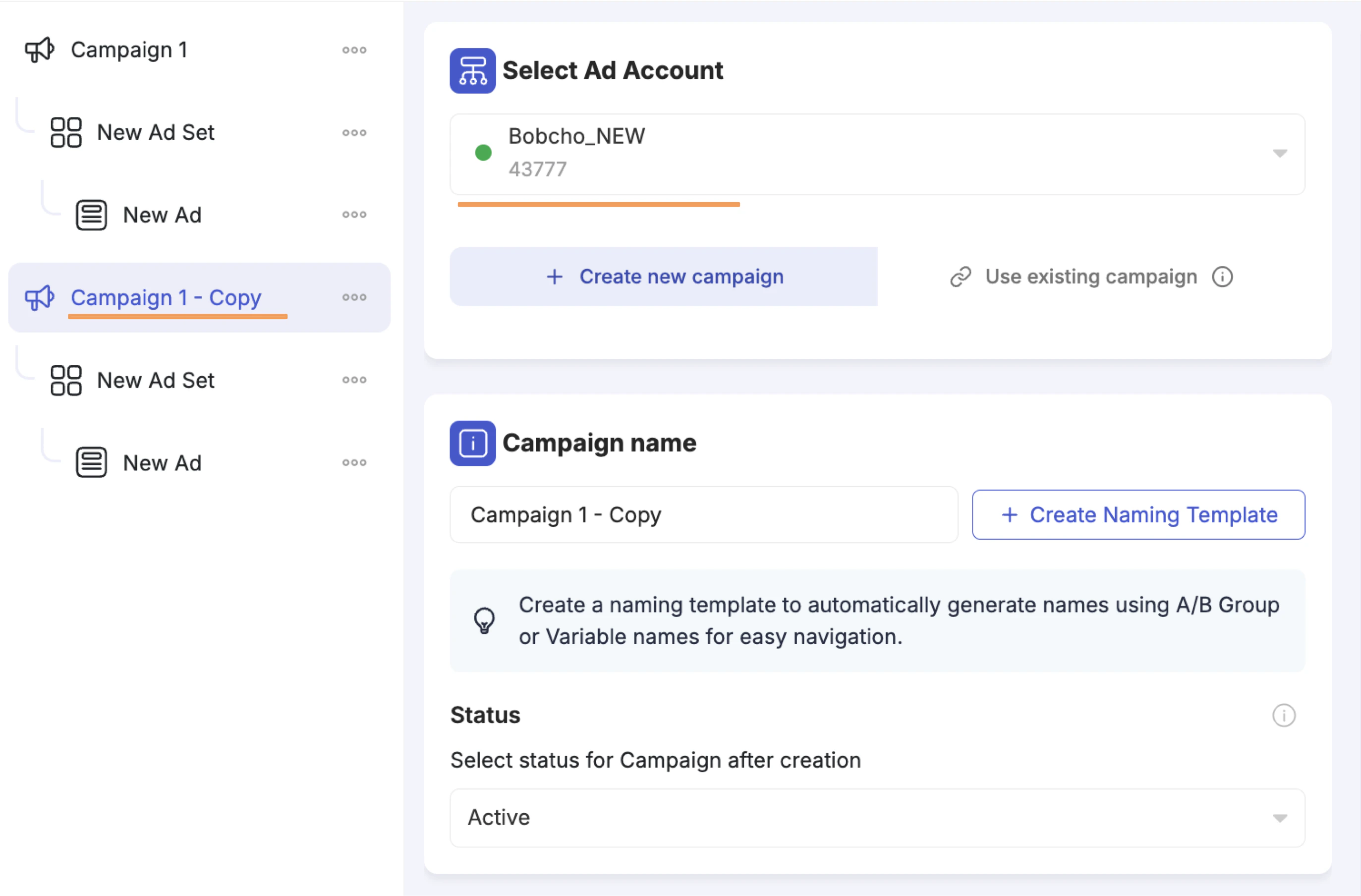
If your strategy involves testing the same campaigns across multiple Facebook ad accounts — to diversify delivery, take advantage of the learning phase independently per account, or reduce Facebook's initial randomness — the Campaign Creator supports this natively.

<Frame>
  <img src="https://mintcdn.com/theoptimizer/ZHMpEyoJnNrJjwpl/images/upload-into-multiple-ad-accounts-fb-launcher.png?fit=max&auto=format&n=ZHMpEyoJnNrJjwpl&q=85&s=9444f429c2337be91a90766d12bb5140" alt="Multi-account campaign tree — Campaign 1 and Campaign 1 - Copy, each assigned to a different ad account" width="2746" height="1808" data-path="images/upload-into-multiple-ad-accounts-fb-launcher.png" />
</Frame>

<div style={{ position: 'relative', width: '100%', paddingBottom: '56.25%', height: 0 }}>
  <iframe style={{ position: 'absolute', top: 0, left: 0, width: '100%', height: '100%' }} src="https://www.youtube.com/embed/FJM7bs2egXw" title="Launch the Same Campaign Into Multiple Ad Accounts at Once — Facebook Campaign Creator" frameBorder="0" allow="accelerometer; autoplay; clipboard-write; encrypted-media; gyroscope; picture-in-picture" allowFullScreen />
</div>

<Steps>
  <Step title="Build your full campaign structure">
    Complete your campaign configuration, including any groups, Restructuring settings, and other options.
  </Step>

  <Step title="Duplicate the top-level campaign">
    In the left panel, click the three-dot menu (⋯) on the top-level campaign and click **Duplicate**. This creates an exact copy of the entire structure — campaign, ad sets, ads, all variation groups, and Restructuring settings.
  </Step>

  <Step title="Change the Ad Account on the duplicated copy">
    Click the duplicated campaign and change the **Ad Account** to the new account you want to launch in.
  </Step>

  <Step title="Update account-specific fields if needed">
    If the new account uses different Facebook Pages, Instagram Accounts, or Pixels, navigate to the ad set and ad levels to update those fields.
  </Step>

  <Step title="Repeat for additional accounts">
    Repeat the duplication and account-change steps for as many ad accounts as needed.
  </Step>

  <Step title="Publish">
    Click **Publish**. All copies are launched together. Each campaign structure is pushed to its respective ad account, and all operations appear separately in the Campaign Creation Queue.
  </Step>
</Steps>

<Note>
  If your Facebook Pages, Instagram Accounts, and Pixels are shared across ad accounts, you typically only need to change the ad account selection — everything else carries over automatically.
</Note>
