> ## Documentation Index
> Fetch the complete documentation index at: https://docs.theoptimizer.io/llms.txt
> Use this file to discover all available pages before exploring further.

# Dynamic Naming Templates

> Auto-generate campaign, ad set, and ad names from placeholders — keeping naming consistent and meaningful across hundreds of variations.

export const ArcadeVideoButton = ({id, title = "Watch interactive demo", label = "Watch Video"}) => {
  const [open, setOpen] = useState(false);
  return <div style={{
    display: 'inline-block'
  }}>
      <button type="button" onClick={() => setOpen(true)} style={{
    display: 'inline-flex',
    alignItems: 'center',
    gap: '8px',
    backgroundColor: '#3e47ec',
    color: '#ffffff',
    border: 'none',
    padding: '10px 18px',
    borderRadius: '8px',
    fontSize: '15px',
    fontWeight: '600',
    cursor: 'pointer'
  }}>
        <svg xmlns="http://www.w3.org/2000/svg" width="16" height="16" viewBox="0 0 24 24" fill="white">
          <polygon points="5,3 19,12 5,21" />
        </svg>
        {label}
      </button>

      {open && <div onClick={() => setOpen(false)} style={{
    position: 'fixed',
    top: 0,
    left: 0,
    width: '100%',
    height: '100%',
    backgroundColor: 'rgba(0, 0, 0, 0.85)',
    zIndex: 9999999,
    display: 'flex',
    alignItems: 'center',
    justifyContent: 'center'
  }}>
          <div onClick={e => e.stopPropagation()} style={{
    width: '90%',
    maxWidth: '1100px',
    aspectRatio: '16 / 9',
    borderRadius: '12px',
    overflow: 'hidden',
    position: 'relative'
  }}>
            <iframe src={`https://demo.arcade.software/${id}?embed&embed_mobile=tab&embed_desktop=inline&show_copy_link=true`} title={title} frameBorder="0" loading="lazy" allowFullScreen allow="clipboard-write" style={{
    width: '100%',
    height: '100%',
    border: 'none',
    colorScheme: 'light'
  }} />
          </div>

          <button type="button" onClick={() => setOpen(false)} style={{
    position: 'fixed',
    top: '20px',
    right: '24px',
    background: 'rgba(255,255,255,0.15)',
    border: 'none',
    color: '#ffffff',
    fontSize: '24px',
    lineHeight: 1,
    width: '40px',
    height: '40px',
    borderRadius: '50%',
    cursor: 'pointer',
    display: 'flex',
    alignItems: 'center',
    justifyContent: 'center'
  }}>
            ✕
          </button>
        </div>}
    </div>;
};

export const ArcadePopoutModal = ({id, title = "Interactive demo"}) => {
  const [isPopout, setIsPopout] = useState(false);
  const iframeRef = useRef(null);
  useEffect(() => {
    function onArcadeIframeMessage(e) {
      if (e.origin !== 'https://demo.arcade.software' || !e.isTrusted) return;
      if (!iframeRef.current || !iframeRef.current.contentWindow) return;
      if (e.data.event === 'arcade-init') {
        iframeRef.current.contentWindow.postMessage({
          event: 'register-popout-handler'
        }, '*');
      }
      if (e.data.event === 'arcade-popout-open') {
        setIsPopout(true);
      }
      if (e.data.event === 'arcade-popout-close') {
        setIsPopout(false);
      }
    }
    window.addEventListener('message', onArcadeIframeMessage);
    return () => window.removeEventListener('message', onArcadeIframeMessage);
  }, []);
  return <div style={{
    position: 'relative',
    paddingBottom: 'calc(54.4737% + 41px)',
    height: 0,
    width: '100%'
  }}>
      <iframe ref={iframeRef} src={`https://demo.arcade.software/${id}?embed&embed_mobile=tab&embed_desktop=modal&show_copy_link=true`} title={title} frameBorder="0" loading="lazy" allowFullScreen allow="clipboard-write" style={{
    position: isPopout ? 'fixed' : 'absolute',
    top: 0,
    left: 0,
    width: '100%',
    height: '100%',
    zIndex: isPopout ? 9999999 : 'auto',
    colorScheme: 'light'
  }} />
    </div>;
};

When you are generating dozens or hundreds of variations, naming becomes critical. Dynamic naming templates auto-generate meaningful campaign, ad set, and ad names based on your actual settings — so you never end up with fifty identically named items.

***

## How to Create a Naming Template

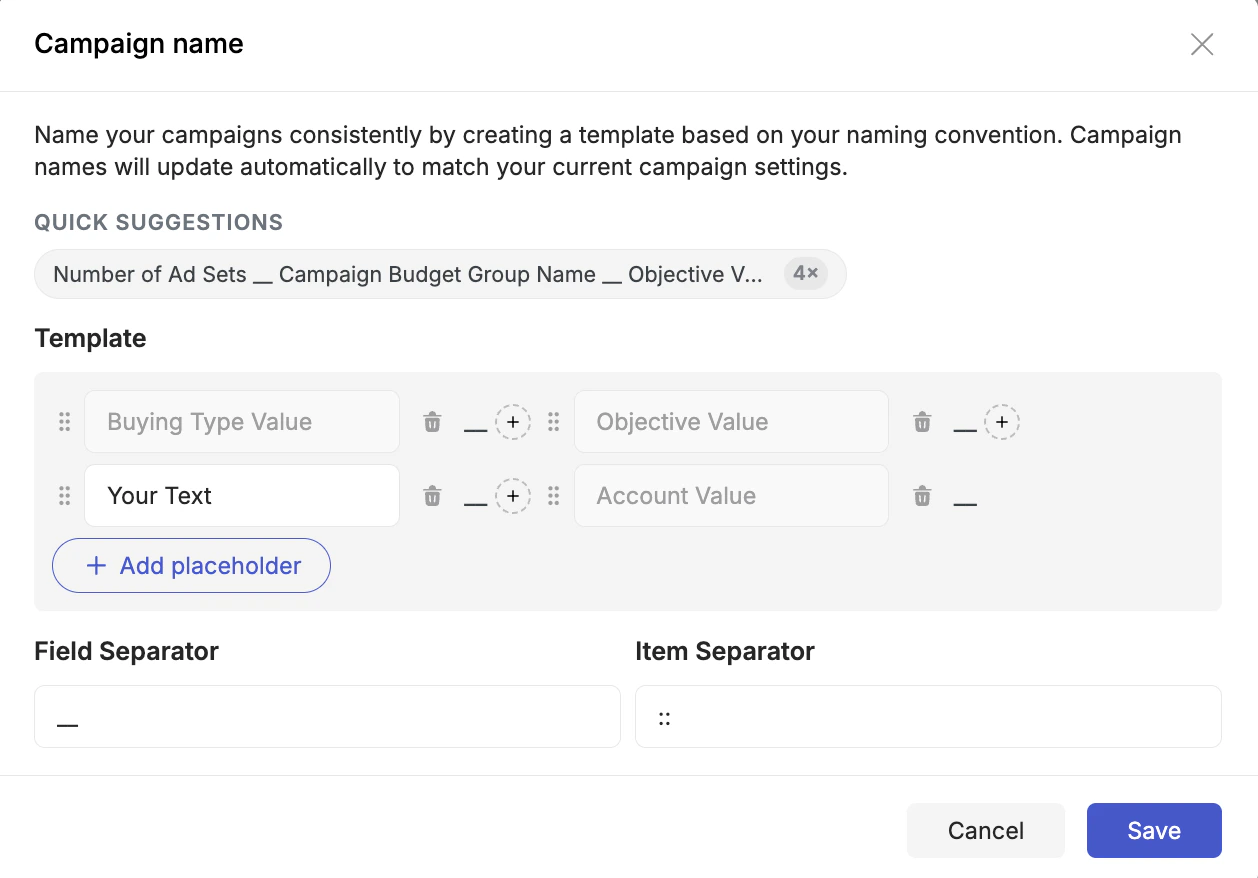
Click **+ Create Naming Template** next to the name field at any level (campaign, ad set, or ad). The template builder opens.

<Frame>
  <img src="https://mintcdn.com/theoptimizer/ZHMpEyoJnNrJjwpl/images/naming-templates-fb-campaign-launcher.png?fit=max&auto=format&n=ZHMpEyoJnNrJjwpl&q=85&s=6b4f4cb5a904c3267f3e9c90931bcfcc" alt="Campaign naming template builder — placeholders, separators, and quick suggestions" width="1258" height="878" data-path="images/naming-templates-fb-campaign-launcher.png" />
</Frame>

In the template dialog:

1. **Quick Suggestions** — the top of the dialog shows one or more pre-built combinations of placeholders based on common naming conventions. Click any suggestion to instantly apply it as your starting template. You can then add, remove, or reorder placeholders from there.
2. **Add placeholders** — click **+ Add placeholder** to insert any dynamic value into the name. Placeholders appear as draggable tiles in the template grid — drag them to reorder.
3. **Mix in static text** — any tile you type free text into becomes a fixed string that appears in every name. Use this for prefixes, brand codes, or any text you always want in the name.
4. **Set separators** — the **Field Separator** controls what appears between placeholders (e.g., `_`, `-`, `|`, or a space). The **Item Separator** controls what appears between multiple values within a single placeholder (e.g., when a placeholder resolves to a list).
5. **Save** the template.

The name field at that level will now auto-populate with the resolved values when variations are generated. Names are live — they update as you add groups or change settings.

***

## Available Placeholders

Available placeholders include Targeting, Placement, Budget, Bid Amount, Bid Strategy, Account Value, Objective Value, Buying Type, and many more. A few worth calling out:

**Group names** — inserts the name you gave each variation group (e.g., "Budget \$25" or "US Audience"). This is one of the most useful placeholders because group names are under your control — meaningful group names produce meaningful campaign names automatically.

**Nested names** — lets you include the ad set name inside the campaign name, or the ad name inside the ad set name. The system resolves these at generation time, so each campaign's name can include the ad set it contains.

**Cross-level placeholders** — you can reference group names from a different level in a template. For example, when building the **Ad Set naming template**, you can insert the **Ad (Creative) group name** as a placeholder. This means an ad set that contains ads from the "EN" creative group will include "EN" in its name automatically, even though the creative group belongs to a lower level. This is useful for keeping all levels of your campaign structure consistently named when groups span levels.

**Incremental index** — adds an auto-incrementing number (1, 2, 3, ...) to each variation. The simplest guarantee of unique names across all generated items.

<Tip>
  At minimum, add an **index placeholder** to your naming template. This guarantees unique names even if all other settings are identical across variations.
</Tip>

<Tip>
  Use the **Quick Suggestions** at the top of the template builder as a starting point. They combine the most commonly useful placeholders and save time compared to building a template from scratch.
</Tip>

***

## Transformation Functions

Each placeholder tile in the naming template can have a **transformation function** applied to it. Click the **F** button on any placeholder tile to open the transformation menu. Transformations modify the resolved value of a placeholder before it appears in the name.

Available transformations:

| Function           | What it does                                          | Example                                      |
| ------------------ | ----------------------------------------------------- | -------------------------------------------- |
| **Upcase**         | Converts the value to ALL CAPS                        | `en-lp01` → `EN-LP01`                        |
| **Downcase**       | Converts the value to all lowercase                   | `EN-LP01` → `en-lp01`                        |
| **Capitalize**     | Capitalises the first letter                          | `united states` → `United states`            |
| **Trim**           | Removes leading and trailing whitespace               | `US` → `US`                                  |
| **Split**          | Splits the value by a delimiter and returns all parts | `EN-LP01` split by `-` → `EN`, `LP01`        |
| **First**          | Returns the first element after splitting             | `EN-LP01` split by `-`, first → `EN`         |
| **Last**           | Returns the last element after splitting              | `EN-LP01` split by `-`, last → `LP01`        |
| **Index N**        | Returns the Nth element after splitting (zero-based)  | `EN-LP01` split by `-`, index 1 → `LP01`     |
| **Join**           | Joins multiple values with a delimiter                | `["EN", "LP01"]` join by `_` → `EN_LP01`     |
| **Find / Replace** | Replaces a substring within the value                 | `EN-LP01`, find `-`, replace `_` → `EN_LP01` |
| **Prepend**        | Adds a string before the value                        | `EN` prepend `lang_` → `lang_EN`             |
| **Append**         | Adds a string after the value                         | `EN` append `_ads` → `EN_ads`                |
| **Slugify**        | Converts the value to a URL-safe lowercase slug       | `United States` → `united-states`            |

<Tip>
  Transformations are especially useful with group names and cross-level placeholders. For example: apply **First** (split by `-`) to a Destination group named `EN-LP01` to extract just `EN` for the campaign name — keeping names short and consistent without creating separate groups.
</Tip>
