> ## Documentation Index
> Fetch the complete documentation index at: https://docs.theoptimizer.io/llms.txt
> Use this file to discover all available pages before exploring further.
# Save and manage reports
> Save a report so it's one click away, keep a copy, switch between saved reports, and understand what a saved report remembers.
A report you build stays a draft until you save it. Once saved, it appears under **Your reports** on the [Reports home page](/reports/overview#your-saved-reports), and opening it restores exactly the setup you saved.
***
## Save a report
Click the name at the top of the page — it reads *Untitled* on a new report — and type a name. A report can't be saved without one.
Optionally, add a description on the line below. It appears under the name in the list of reports and on the shared version.
Click **Save report**.
After the first save, the button reads **Save**. It stays disabled until you change something, and an **Unsaved changes** marker appears next to it as soon as you do.
 ### What a saved report remembers
* The network, breakdown and grouping — including tag selections and custom groups
* The filters
* The date range. A relative range, such as *Last 14 days*, keeps rolling forward
* The table columns
* The chart's metrics, and whether the chart is shown or hidden
* The display currency, if you picked one
The heatmap color isn't part of the report. It's remembered by your browser and applies to every report you open there.
***
## Save a copy
### What a saved report remembers
* The network, breakdown and grouping — including tag selections and custom groups
* The filters
* The date range. A relative range, such as *Last 14 days*, keeps rolling forward
* The table columns
* The chart's metrics, and whether the chart is shown or hidden
* The display currency, if you picked one
The heatmap color isn't part of the report. It's remembered by your browser and applies to every report you open there.
***
## Save a copy
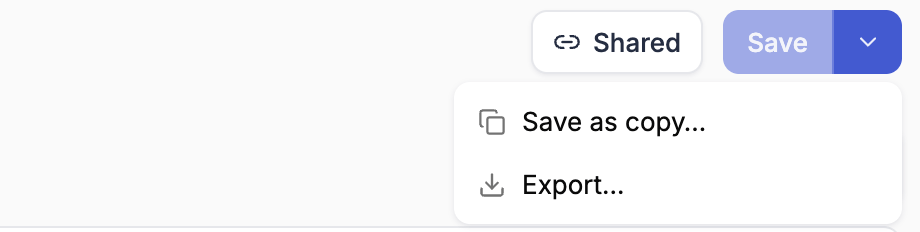 To keep the original and save your changes as a new report, click the arrow next to **Save** and choose **Save as copy…**. Give the copy a name and click **Save copy**. The original keeps its last saved state.
The same menu holds **Export…**. See [Export](/reports/build-a-report#export).
To copy a report without opening it, use **Duplicate** in its **⋯** menu on the Reports home page.
***
## Switch between reports
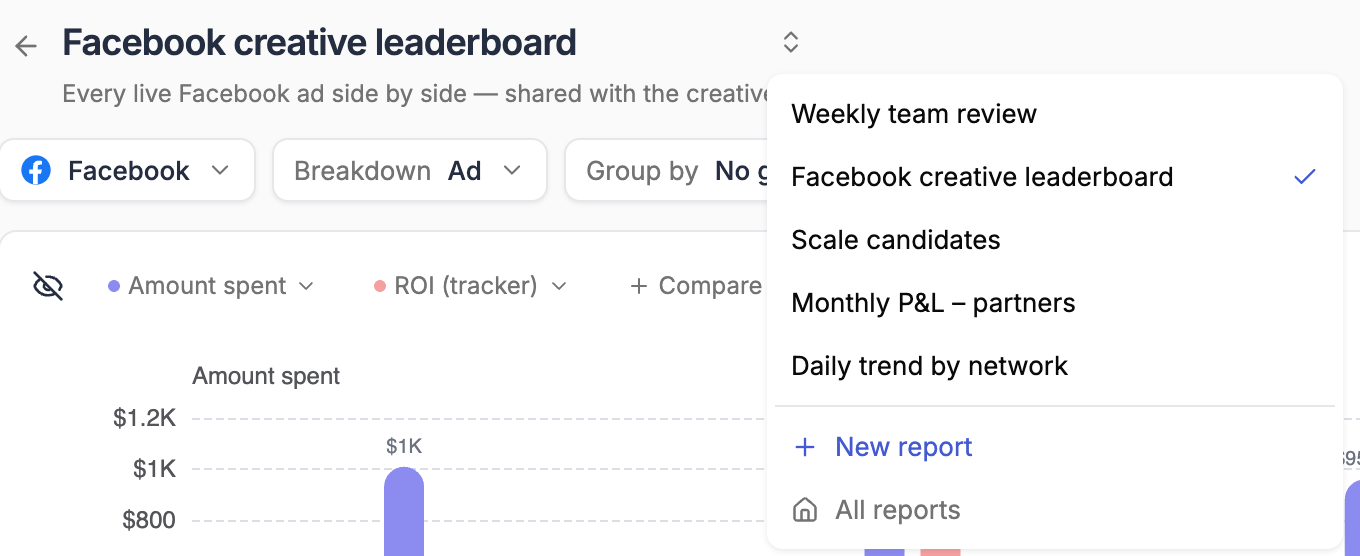
Click the arrows next to the report's name to open the report switcher. It lists your saved reports, with a check next to the one that's open, plus:
* **New report** — start a blank report
* **All reports** — go back to the Reports home page
The back arrow to the left of the name also takes you back to the Reports home page.
To keep the original and save your changes as a new report, click the arrow next to **Save** and choose **Save as copy…**. Give the copy a name and click **Save copy**. The original keeps its last saved state.
The same menu holds **Export…**. See [Export](/reports/build-a-report#export).
To copy a report without opening it, use **Duplicate** in its **⋯** menu on the Reports home page.
***
## Switch between reports
Click the arrows next to the report's name to open the report switcher. It lists your saved reports, with a check next to the one that's open, plus:
* **New report** — start a blank report
* **All reports** — go back to the Reports home page
The back arrow to the left of the name also takes you back to the Reports home page.
 ***
## Saving a report that's shared
If a report has a share link, saving it publishes your changes to everyone who has the link. Before it saves, TheOptimizer asks you to confirm and lists what viewers will see change.
***
## Saving a report that's shared
If a report has a share link, saving it publishes your changes to everyone who has the link. Before it saves, TheOptimizer asks you to confirm and lists what viewers will see change.
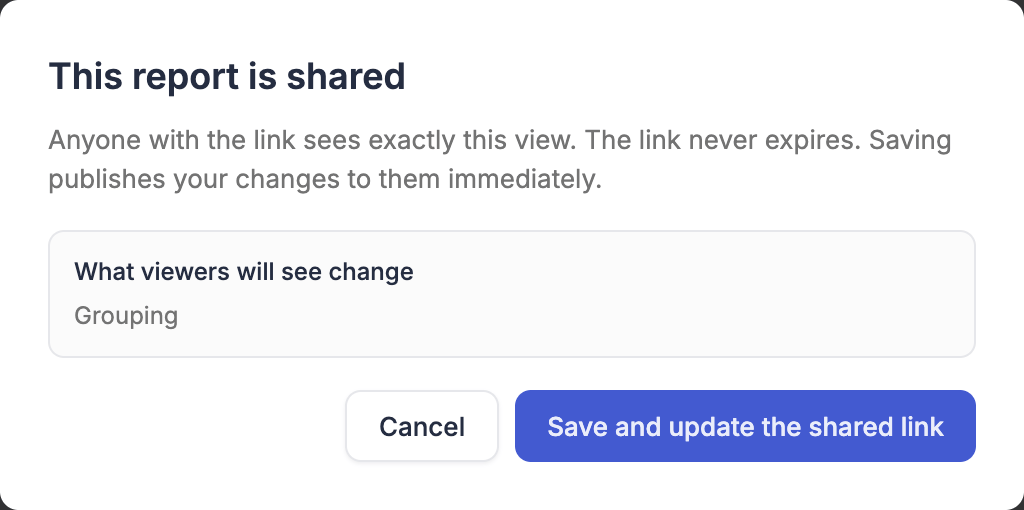 * Click **Save and update the shared link** to publish the changes
* To leave the shared version as it is, click **Cancel**, then use **Save as copy…** instead
See [Share reports](/reports/sharing) for everything about share links.
***
## Delete a report
On the Reports home page, open the report's **⋯** menu and choose **Delete**. Deleting is permanent, and any share link the report had stops working.
* Click **Save and update the shared link** to publish the changes
* To leave the shared version as it is, click **Cancel**, then use **Save as copy…** instead
See [Share reports](/reports/sharing) for everything about share links.
***
## Delete a report
On the Reports home page, open the report's **⋯** menu and choose **Delete**. Deleting is permanent, and any share link the report had stops working.