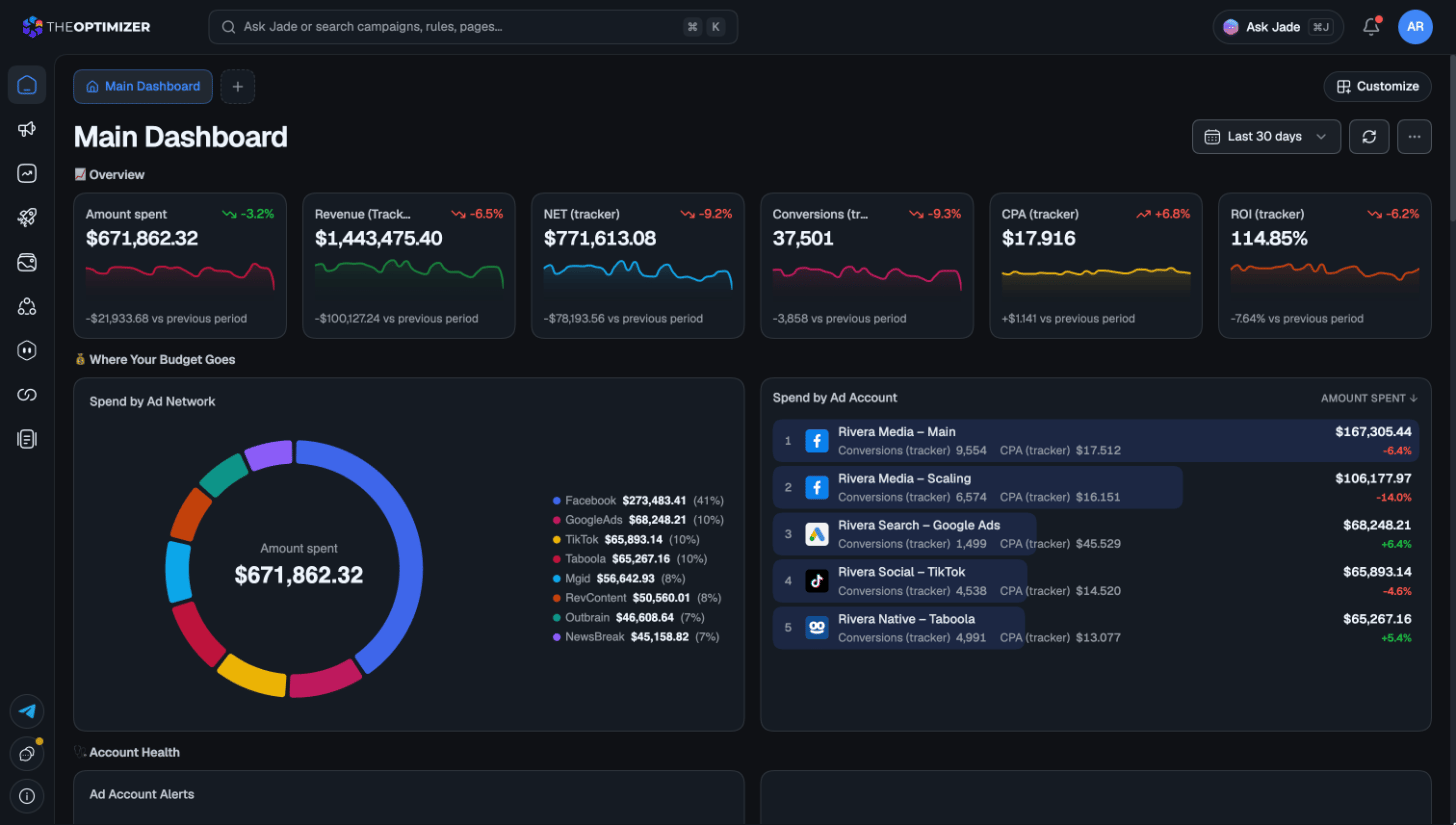
The Welcome page
After you sign up, you land on the Welcome page. It’s built around Jade, your AI copilot: ask anything about your setup or your campaigns in the box, or start from one of the suggested questions under it — What should I optimize first?, How did yesterday go?, Which ads lose money? Jade reads your live data and changes nothing without your approval.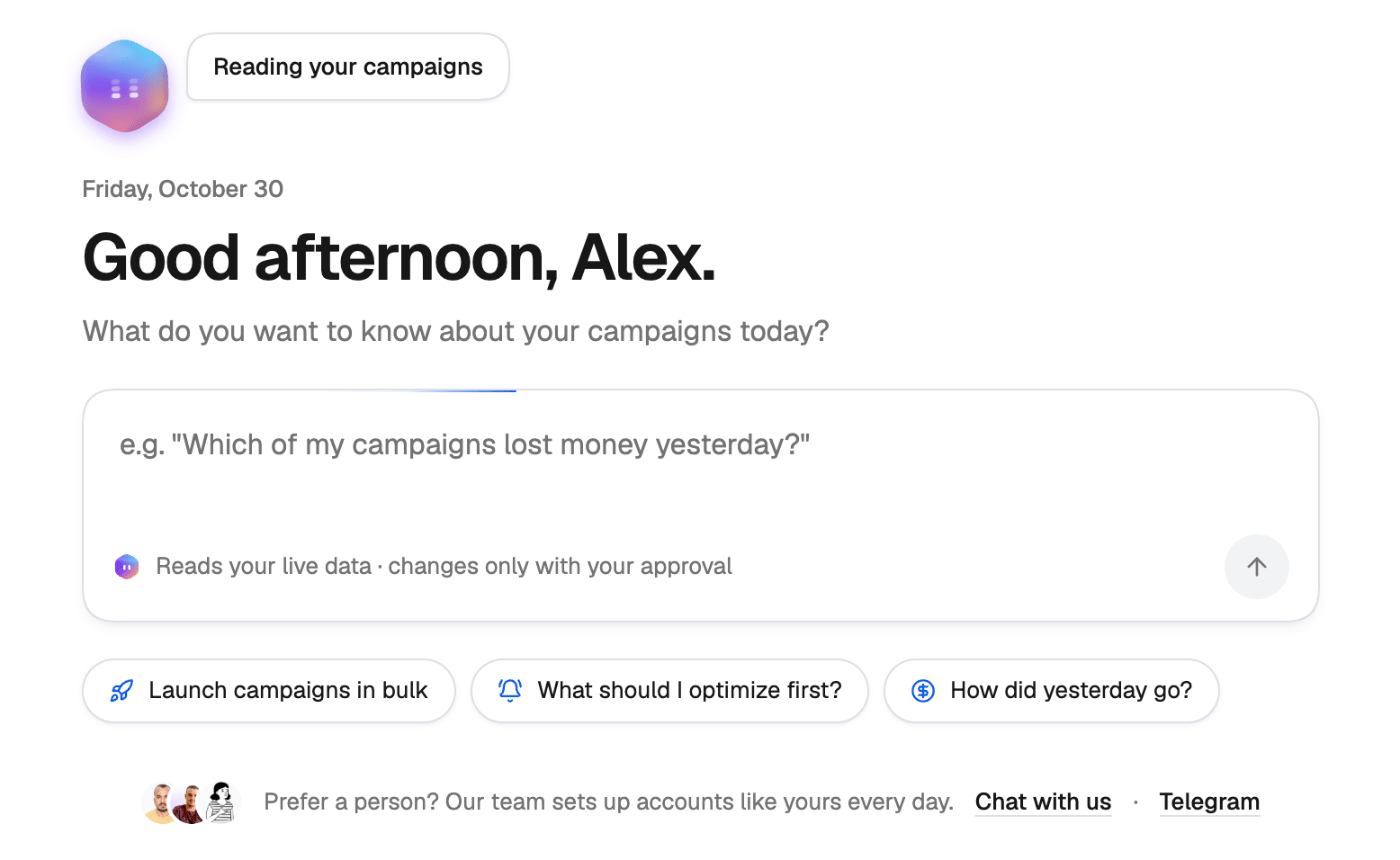
The left navigation
The rail on the left takes you to each section:
Hover an icon to see its name.
Command palette
Click the search bar at the top of any page, or press ⌘K (Mac) / Ctrl+K (Windows), to open the command palette — a Spotlight-style search for the whole platform.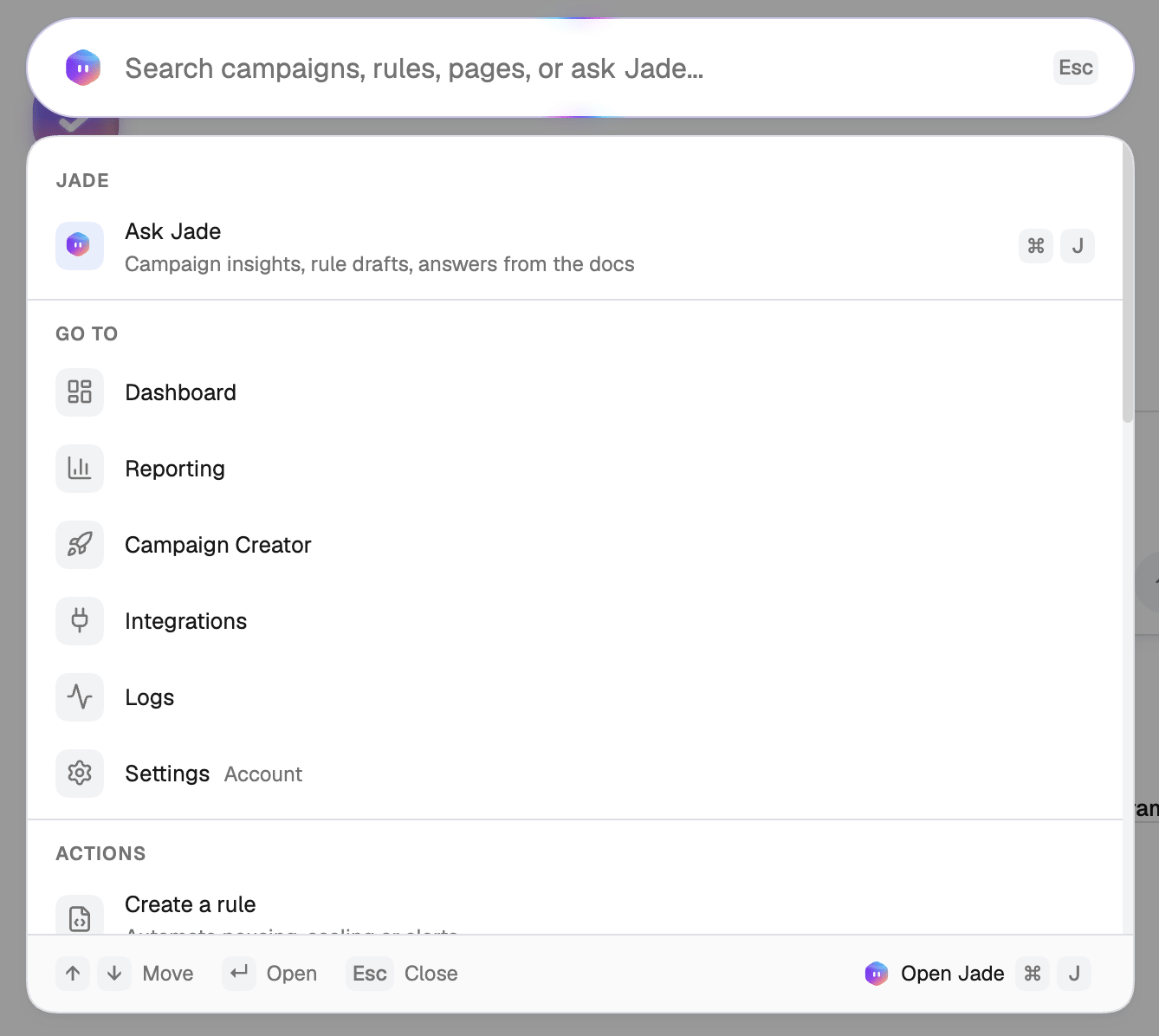
- Go to any page, or jump straight to a campaign, rule or smart list by typing part of its name.
- Run an action, such as Create a rule.
- Ask Jade — type a question and press Enter when nothing matches, or press ⌘J to hand what you’ve typed to Jade.
In the Campaign Manager, the filter bar has its own shortcut: ⌘G / Ctrl+G. See Navigate using your keyboard.
Ask Jade
Ask Jade in the top bar — or ⌘J / Ctrl+J from anywhere — opens Jade in a panel on the right, next to whatever you’re working on. Jade sees the page you’re on, so you can ask about what’s in front of you without spelling it out. See Jade, your AI copilot.Empty screens that point to the next step
When a section has nothing in it yet — no rules, no scheduled tasks, no notification channels, no campaigns launched — it doesn’t just show an empty table. It explains what the section is for and offers the next step: create your first rule, start from a strategy, describe what you want to Jade, or connect a channel.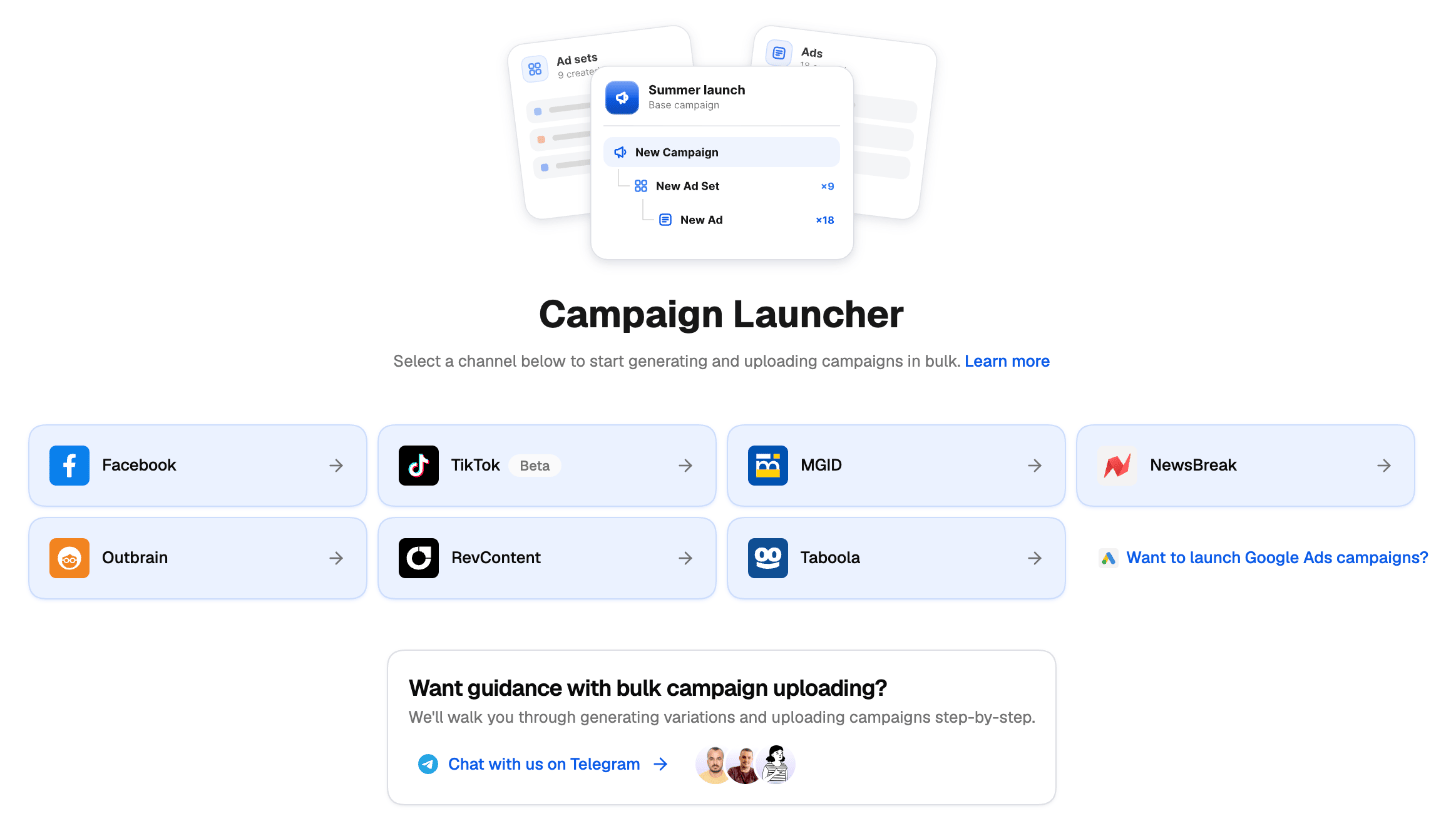
Light, dark or system theme
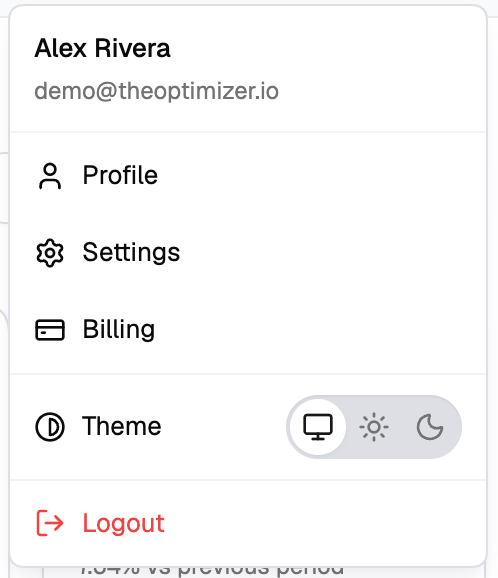
TheOptimizer comes in a light and a dark theme. To choose:1
Open the profile menu
Click your avatar in the top-right corner.
2
Pick a theme
Next to Theme, choose System (the monitor icon), Light (the sun) or Dark (the moon). The change applies immediately, and the menu stays open so you can compare.