
Save a report
1
Name the report
Click the name at the top of the page — it reads Untitled on a new report — and type a name. A report can’t be saved without one.Optionally, add a description on the line below. It appears under the name in the list of reports and on the shared version.
2
Save
Click Save report.

What a saved report remembers
- The network, breakdown and grouping — including tag selections and custom groups
- The filters
- The date range. A relative range, such as Last 14 days, keeps rolling forward
- The table columns
- The chart’s metrics, and whether the chart is shown or hidden
- The display currency, if you picked one
Save a copy

Switch between reports
Click the arrows next to the report’s name to open the report switcher. It lists your saved reports, with a check next to the one that’s open, plus:- New report — start a blank report
- All reports — go back to the Reports home page

Saving a report that’s shared
If a report has a share link, saving it publishes your changes to everyone who has the link. Before it saves, TheOptimizer asks you to confirm and lists what viewers will see change.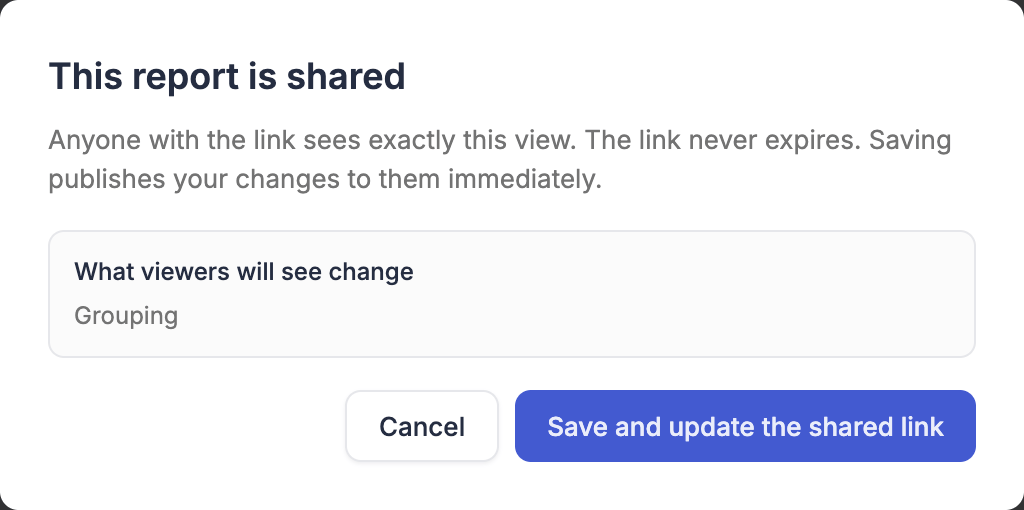
- Click Save and update the shared link to publish the changes
- To leave the shared version as it is, click Cancel, then use Save as copy… instead