
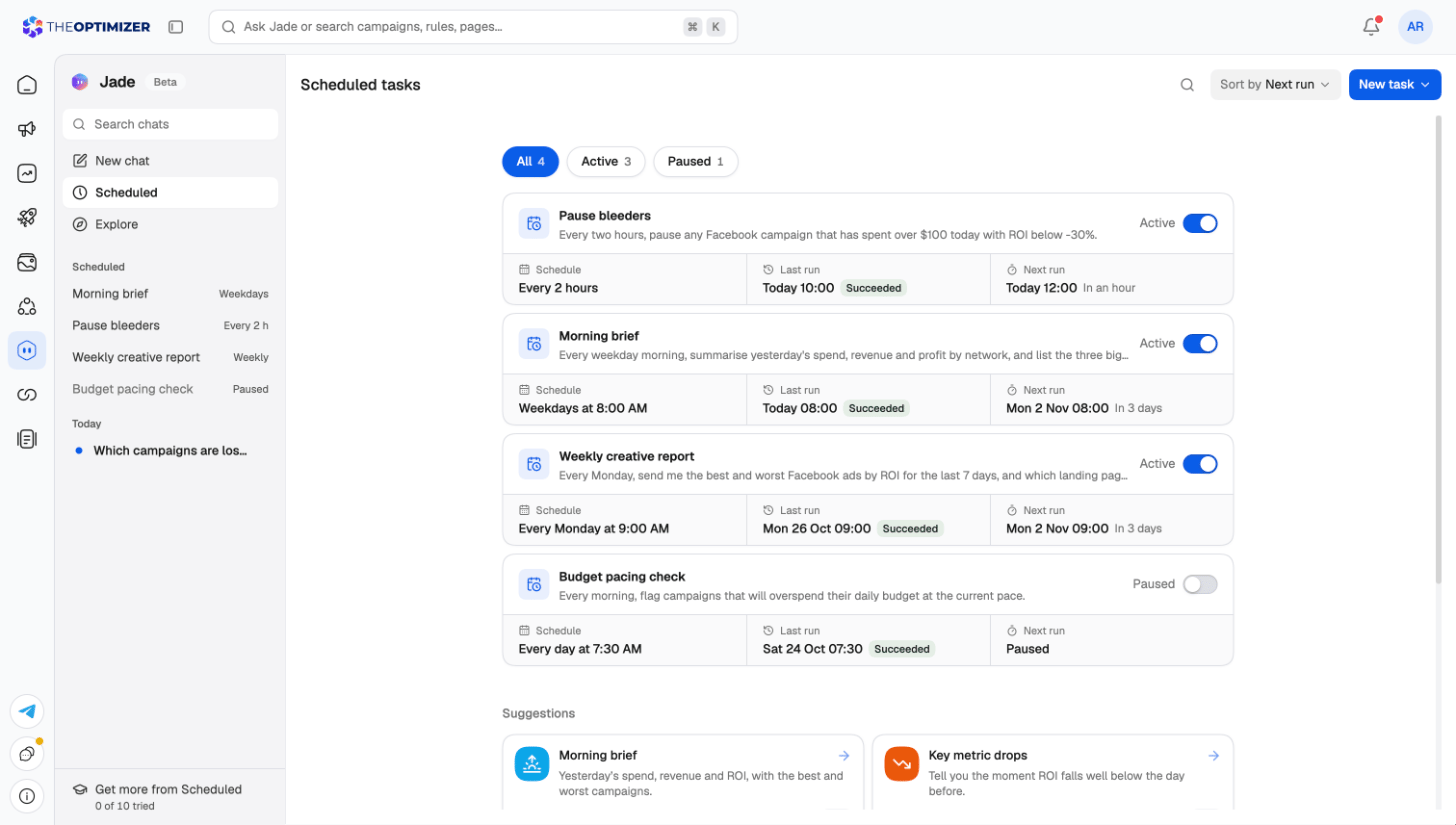
Where to find them
Click Jade in the left navigation, then Scheduled. The page lists every task with its schedule, its last run and its result, and when it runs next. Use the toggle on a card to pause or resume a task.- Filter the list with All, Active and Paused (and Needs you / Completed when a task is in that state).
- Sort by next run, last run or name, and use the search icon to find a task by name.
- Under your tasks, Suggestions offers ready-made ideas to start from.
Creating a task
Click New task at the top right of the page and choose how to start:- Create with AI — describe what you want and Jade drafts the task for you.
- Set up manually — fill in the form yourself.
Setting up a task manually
1
Name the task
Give it a name you’ll recognise in the list, such as Morning performance brief.
2
Write the instructions
Describe what the task should do, in plain English. Type @ to add campaigns, ad accounts, tags, traffic sources, trackers or metrics as chips — this keeps the task to exactly the items you name. A task that names none can reach all of your accounts.Not sure what to write? Click Ideas to pick from a library of alerts, briefings and automations media buyers rely on. Picking one fills in the name, instructions, frequency and permission for you; finish the instructions with the campaigns or accounts it should apply to.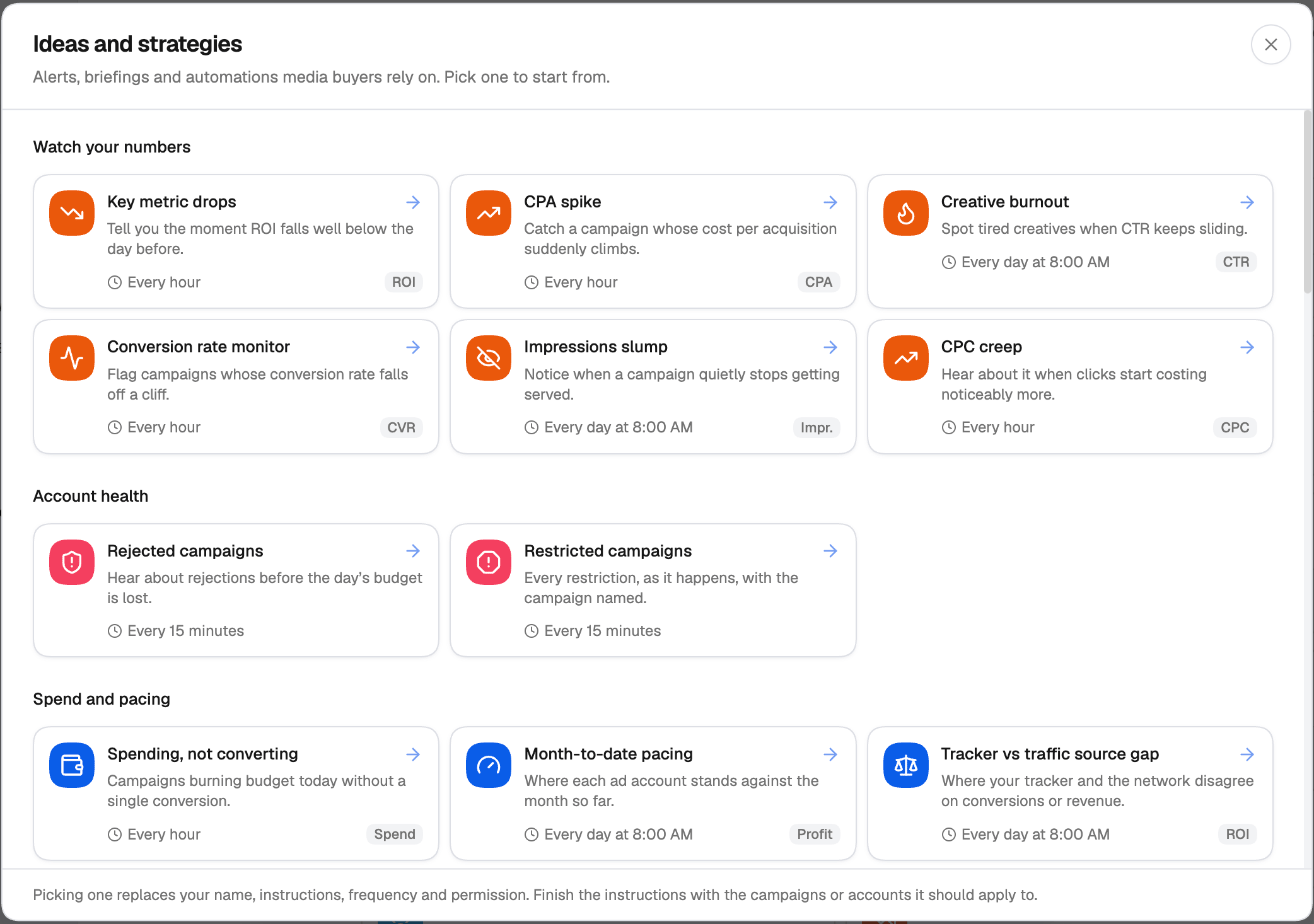
3
Choose the permission
Under the instructions, choose what the task is allowed to do. See Permissions below.
4
Set the frequency
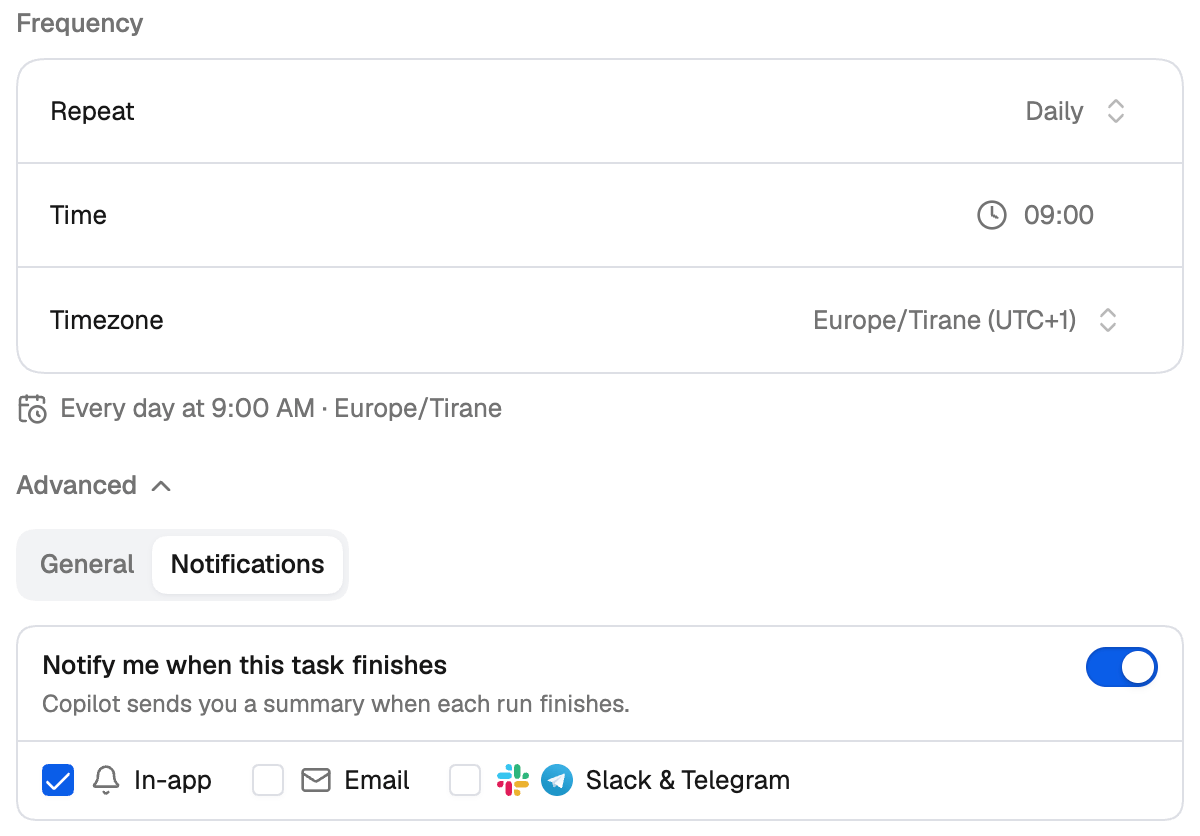
Choose how often it repeats — Manual, Interval, Daily, Weekdays, Weekly or Custom — then the time and timezone. A line under the fields reads the schedule back to you in words, for example Every day at 9:00 AM · Europe/Tirane. Manual tasks run only when you click Run now.
5
Choose notifications (optional)
Open Advanced → Notifications to choose where the summary of each run is sent. See Notifications.
6
Create
Click Create. The task runs at its next scheduled time.
Permissions
Every task runs with one of two permissions: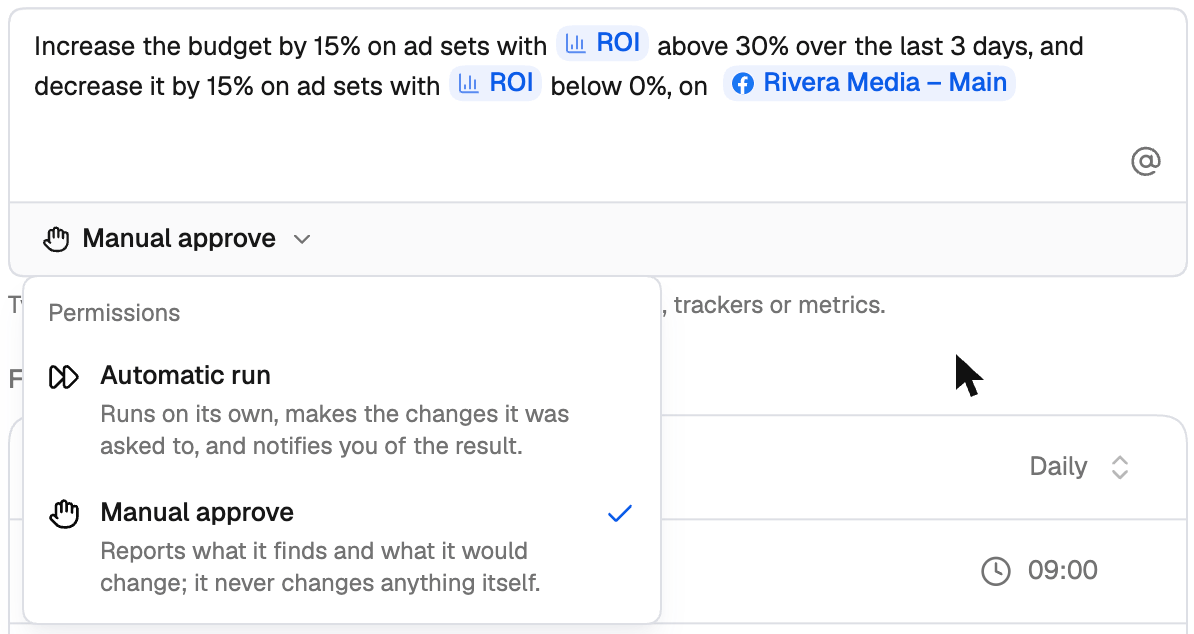
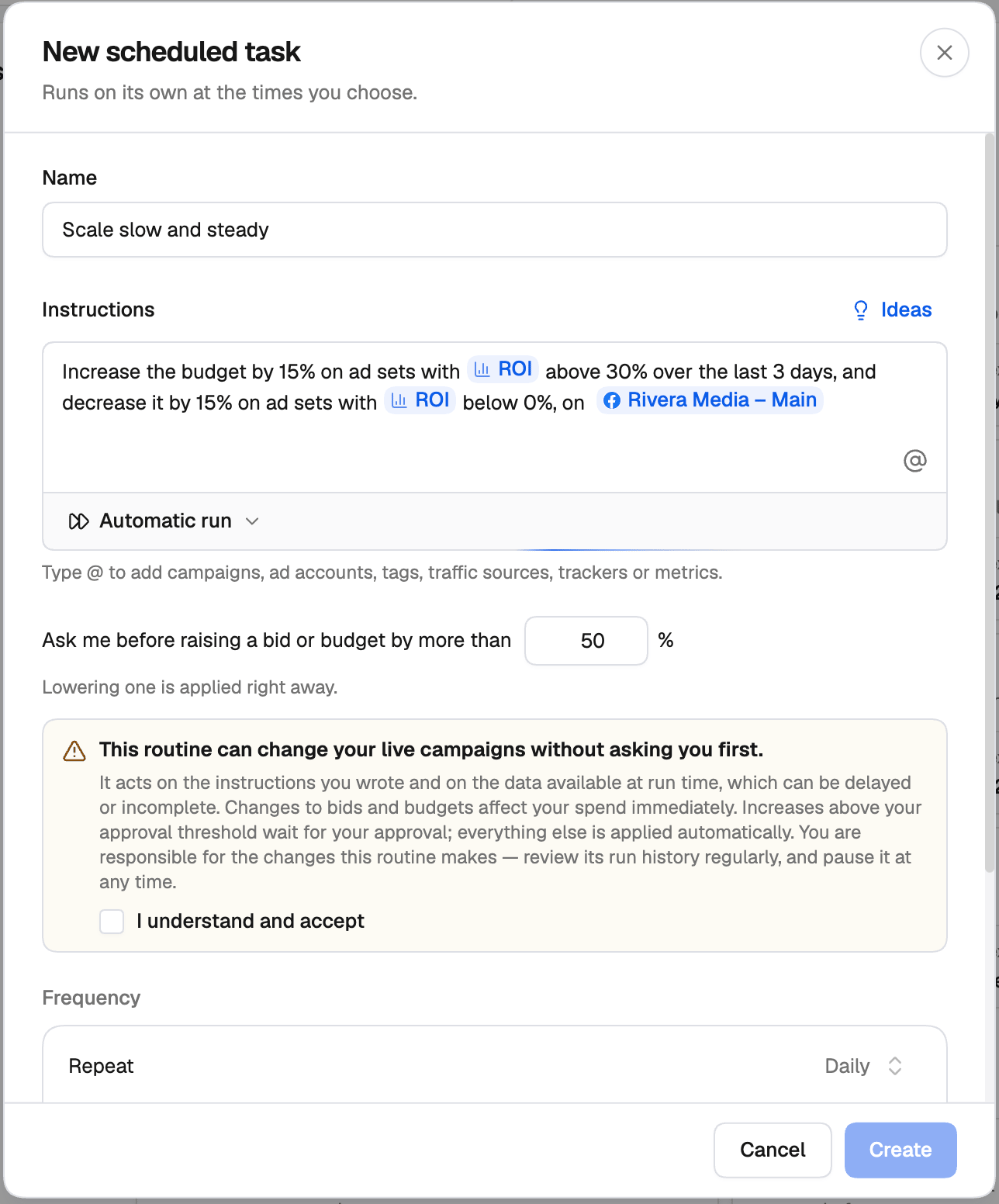
Approving bid and budget increases
When you choose Automatic run, two more settings appear:- Ask me before raising a bid or budget by more than … % — any raise above this threshold is held for your approval instead of being applied. Lowering a bid or budget is applied right away.
- A notice explaining that the task can change your live campaigns without asking you first. Tick I understand and accept to save the task.
Notifications
Open Advanced → Notifications in the task form and turn on Notify me when this task finishes to get a summary each time a run completes. Choose one or more channels:- In-app
- Slack & Telegram — sent to the channels you’ve connected under Settings → Notifications. See Notifications.
One ongoing chat, or a new chat per run
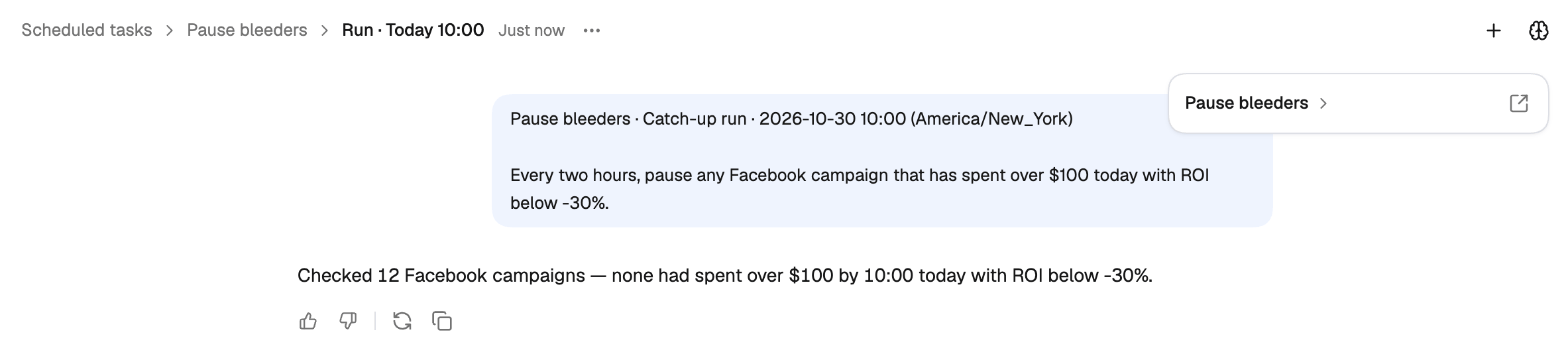
Every run is a conversation with Jade that you can open and read. Under Advanced → General, Start each run in a new chat decides how runs are grouped:- On — every run opens as its own conversation.
- Off — every run continues one conversation, so Jade can compare each run with the ones before it.
Run history
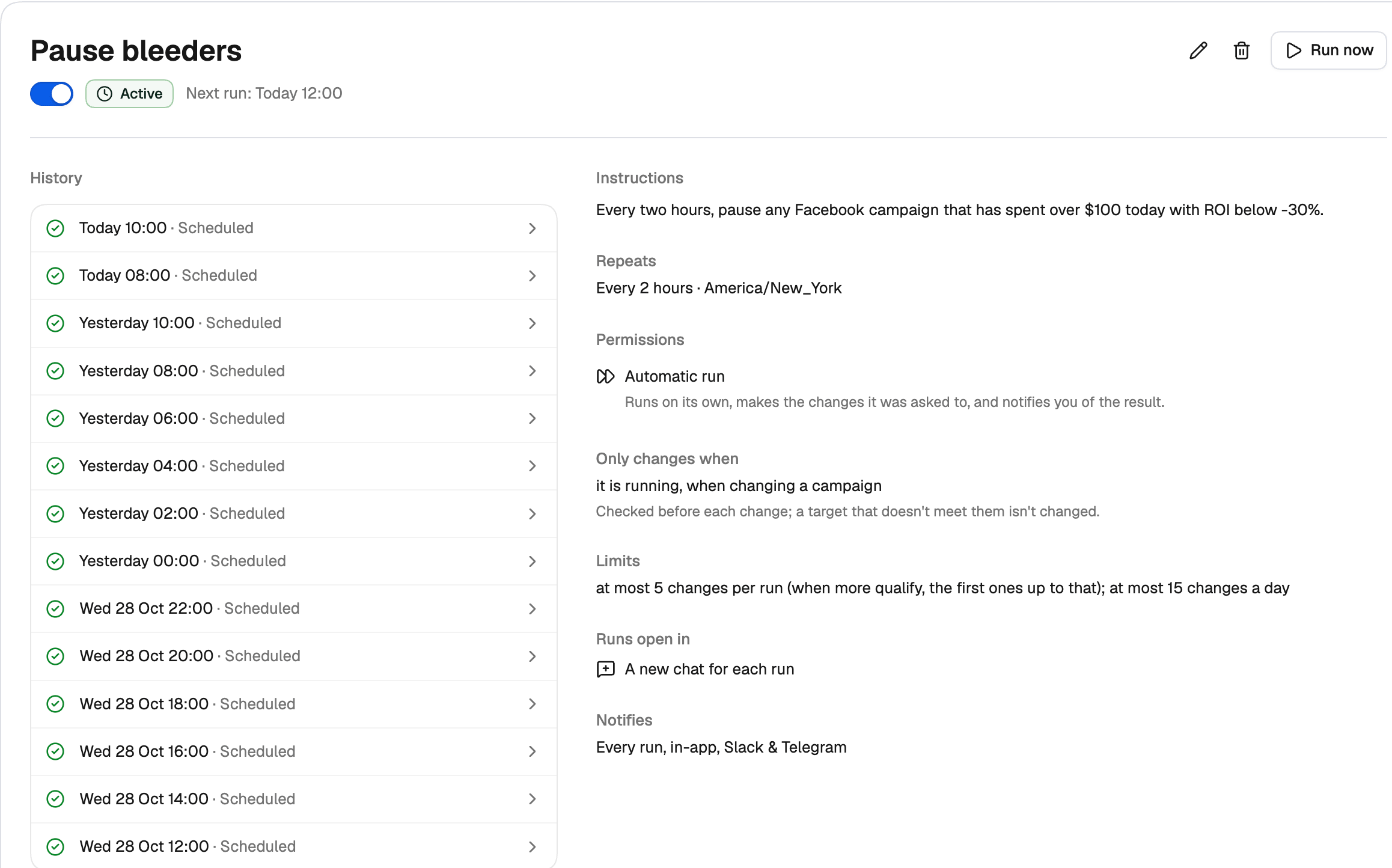
Click a task to open it. The top shows its status, the next run, and the Edit, Delete and Run now buttons. Below:- History lists every run with its time, how it started (Scheduled or Run now) and its result — succeeded, partly succeeded, failed, skipped, waiting for approval, and so on.
- The right-hand side summarises the task: its instructions, schedule, permission, limits, and where it notifies you.
Things to try
Ask Jade for any of these in a chat:- A dry run — “Do a dry run of my scheduled task ‘Pause bleeders’: tell me what it would change, without changing anything.”
- Only hear about problems — “Check my campaigns every weekday at 9am and tell me only if something looks wrong. Email me as well.”
- A cap on changes — “Pause ads with more than $50 spend and no conversions every 2 hours, but never change more than 10 ads in one run.”
- What changed since last time — each run receives the previous run’s summary, so a task can report only what’s new.
- A one-off — “Tomorrow at 8am, send me last week’s ROI by ad account. Just once.” The task runs once, then pauses itself.
- A CSV — “Every Monday at 8am, pull last week’s spend, revenue and ROI by campaign and attach it as a CSV.”
Related
- Jade, your AI copilot
- Rules guide — rules evaluate conditions on a fixed schedule; scheduled tasks follow written instructions and can combine several steps.
- Notifications — connect Slack and Telegram.