
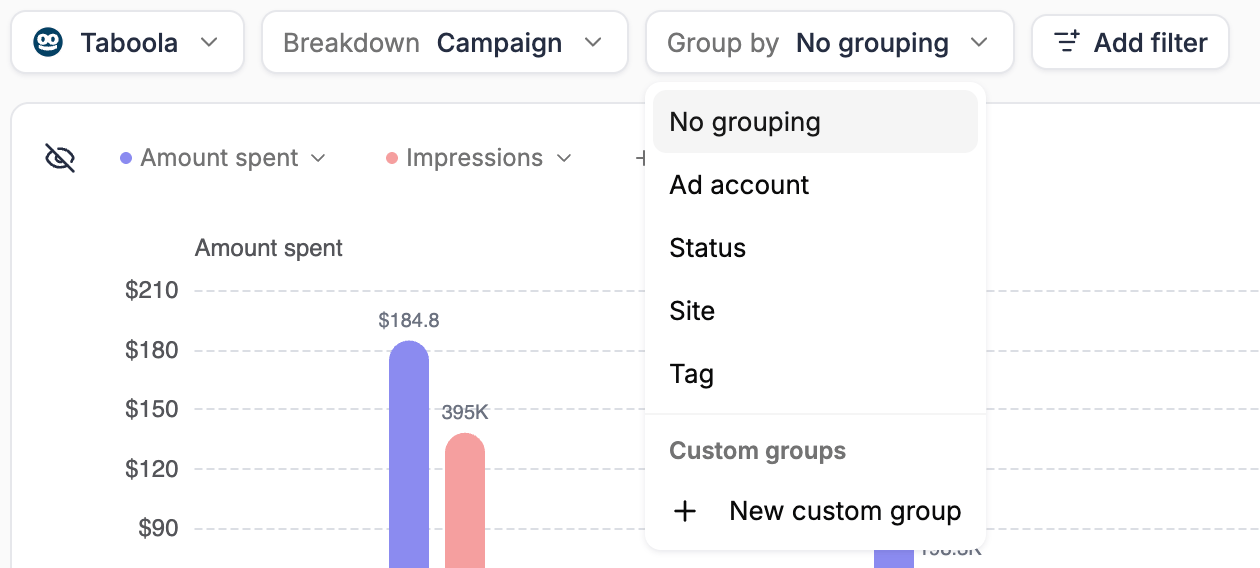
What you can group by
The options depend on the breakdown — each one only offers the groupings that make sense for its rows.
Some breakdowns add options of their own:
- Ad level — Landing page groups ads that point to the same URL. On Facebook, Ad name groups ads that share a name, so you can see how one creative performs across every ad set it runs in
- Any level below campaign — Campaign rolls ad sets, ads, sites or widgets up into the campaign they belong to
- Campaign on a native network — the network’s placement level, such as Site on Taboola. See Group by placement
Team member appears only when your plan includes team members. It groups ad accounts by the team members who have access to them — an account several members share appears in each of their groups.
Group by tag
Choosing Tag opens a picker listing every tag in use at the current breakdown — campaign tags for campaigns, ad account tags for ad accounts, and so on. Each tag you select becomes one group.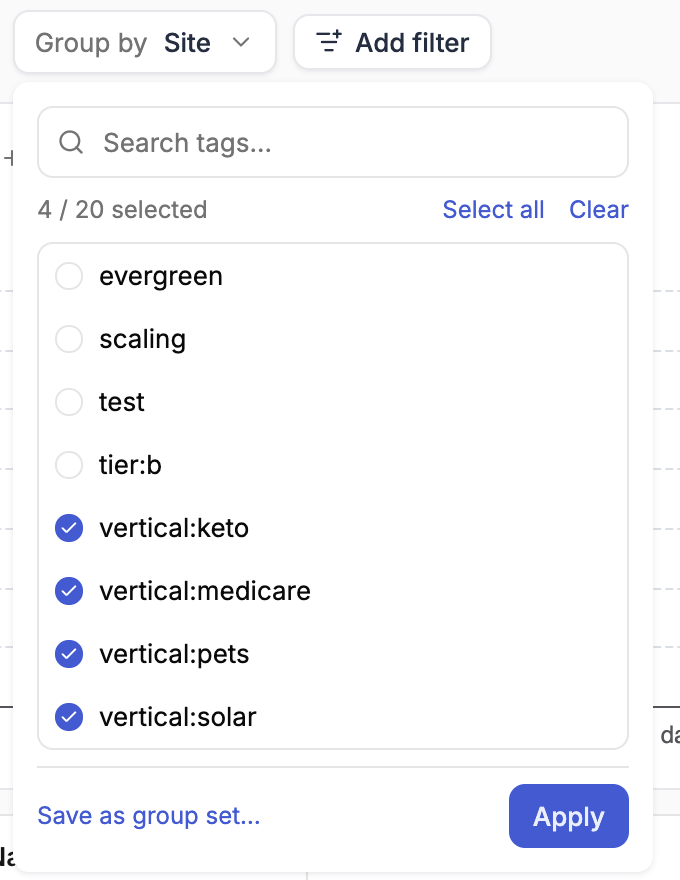
- Search the list, or use Select all and Clear
- Select up to 20 tags. The counter at the top shows how many you’ve picked
- Click Apply to group the report
Group by placement
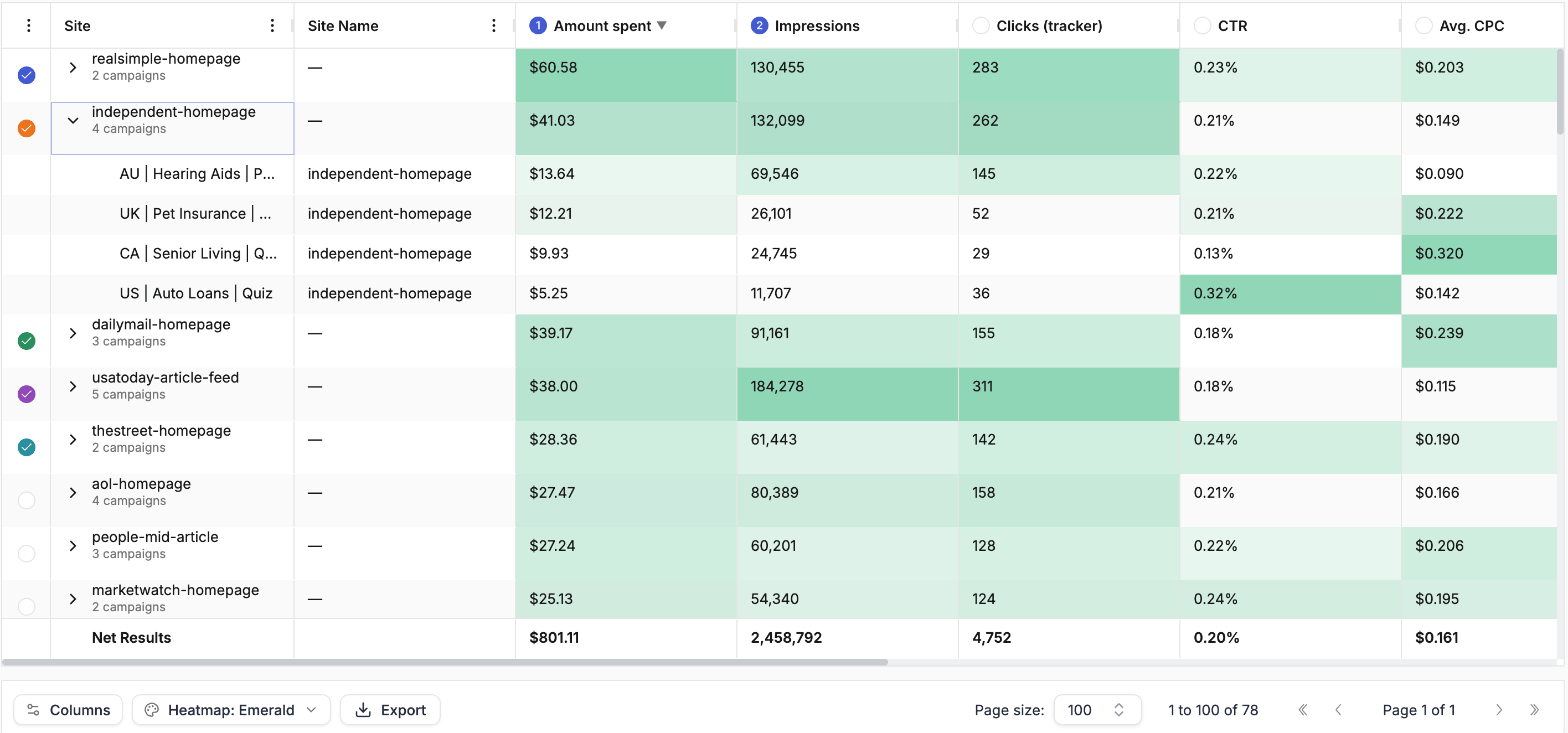
On native networks, a campaign’s traffic comes from sites, publishers or widgets — whatever the network calls its placements. To see which placements carry your campaigns:1
Pick a single native network
Choose the network, for example Taboola, from the network control.
2
Choose the Campaign breakdown
Set Breakdown to Campaign.
3
Group by the placement level
Open Group by and choose the network’s placement level, for example Site.
Custom groups
Custom groups let you define your own buckets with conditions, for when tags or statuses don’t match how you think about your campaigns. Typical examples are funnel stages, verticals, geos taken from your naming convention, or testing versus scaling campaigns. A set of custom groups is called a group set. Group sets are available on the Campaign breakdown, a network’s own levels, and the Ad account breakdown.Create a group set
1
Open the group builder
Open Group by and choose New custom group under Custom groups.
2
Name the set
Type a name for the group set at the top of the dialog, for example Funnel stages.
3
Define each group
For each group, give it a name and a color, then click + Condition to add the rules a row must match. Conditions can use a row’s Name, its Status or its Tags — for example Campaign Name starts with US. The count on the right, such as 2 campaigns, shows how many rows the group matches right now.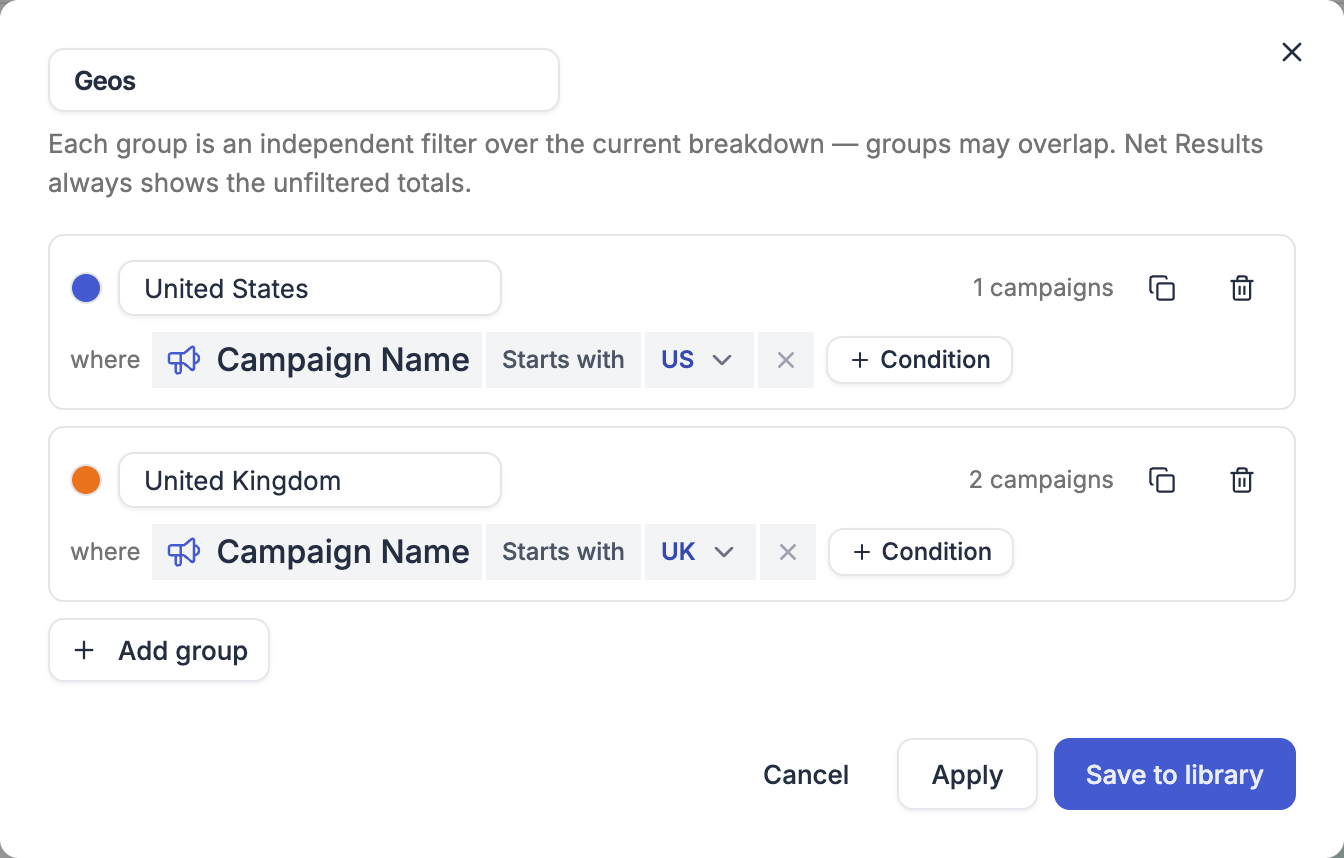
4
Add more groups
Click Add group for each additional bucket, up to 20. Use the duplicate icon to copy a group and adjust it.
5
Apply or save
Click Apply to use the groups in this report right away without keeping them, or Save to library to keep the set and reuse it in any report.
Each group is an independent filter over the report’s rows, so groups can overlap — a row that matches two groups is counted in both. Net Results always shows the unfiltered totals, not the sum of the groups.
Manage saved group sets
Saved group sets are listed under Custom groups in the Group by menu. Hover a set to reveal its actions:- Edit — change the set’s groups. Every report using the set picks up the change
- Duplicate — copy the set as the starting point for a new one
- Delete — remove the set. Reports that use it fall back to no grouping
Related
Build a report
Network, breakdown, filters, dates, currency, chart, columns and export.
Share reports
Which groupings a shared link can show.