
Create a share link
1
Save the report
Only saved reports can be shared, so the Share button stays disabled until you’ve saved.
2
Open the share settings
Click Share at the top of the report. You can also choose Share… from the report’s ⋯ menu on the Reports home page.
3
Choose when the link expires
Under Link expires, pick 7 days, 30 days, 90 days or Never. New links expire after 30 days unless you change it.
4
Choose what viewers can do
Turn on the permissions you want to give. See What viewers can do.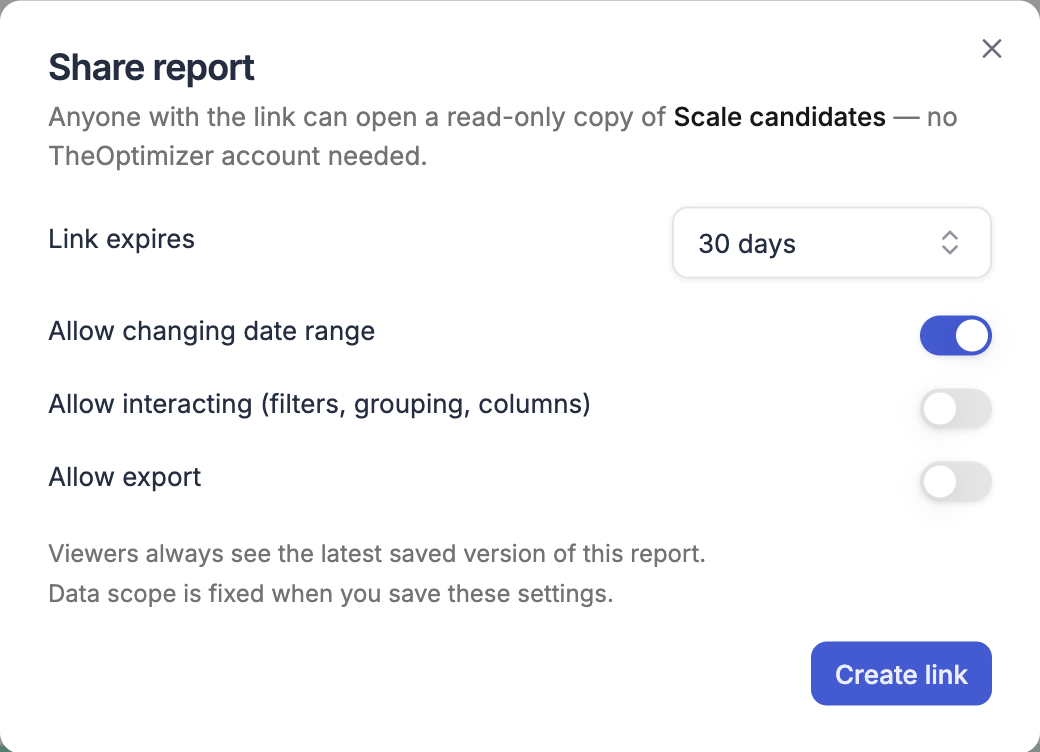
5
Create and copy the link
Click Create link, then Copy, and send the link to whoever should see the report.
What viewers can do
New links allow changing the date range, and nothing else. Changes a viewer makes only affect their own view — they never change your report.
Viewers always see your report’s filters, listed at the top of the page, but can’t change them — even when interacting is allowed.
What viewers see
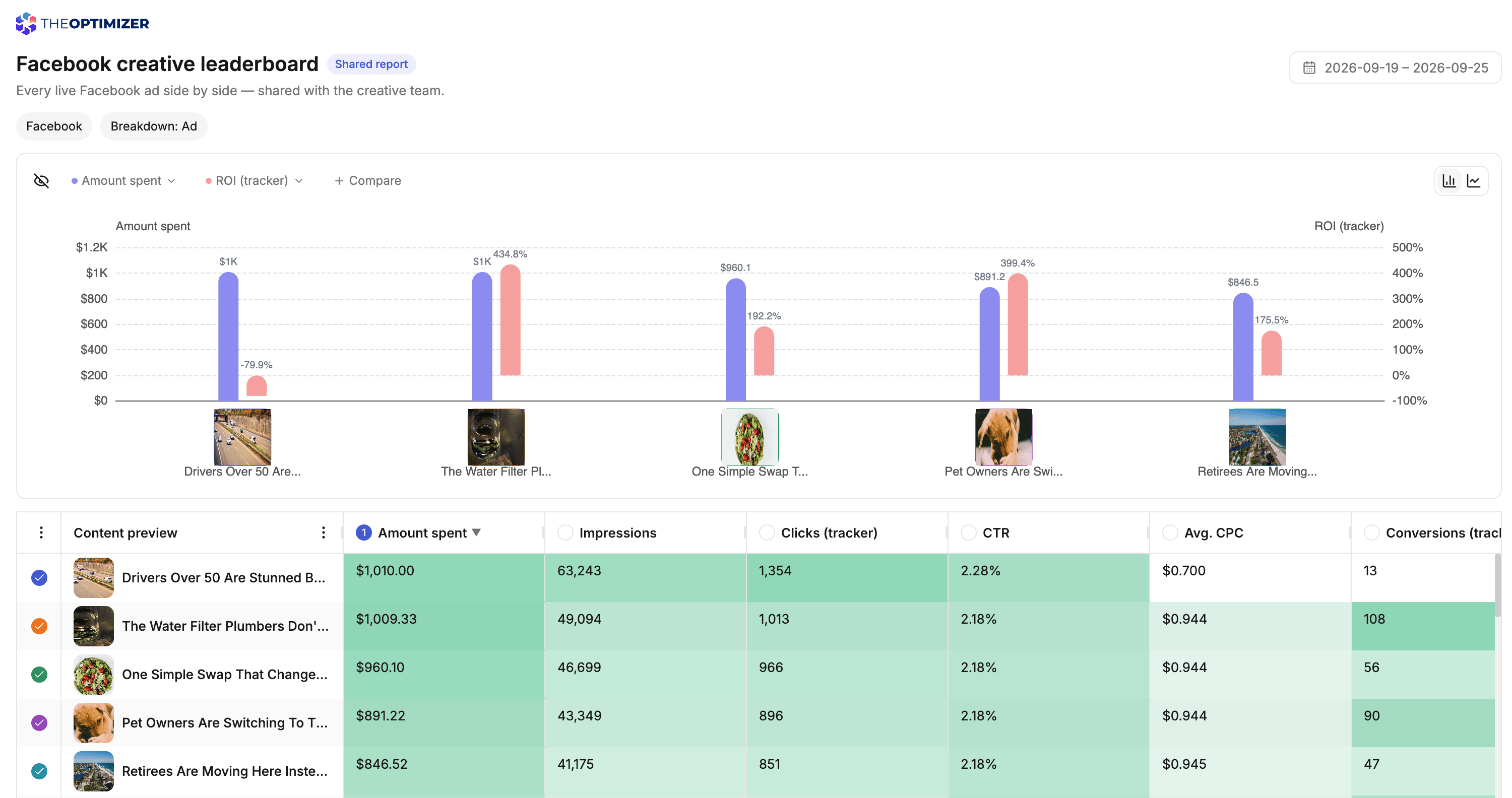
The shared page shows the report’s name, its description and a Shared report badge, followed by the chart and the table. Viewers can still pick which rows and metrics the chart compares, and sort the table. When interacting isn’t allowed, the report’s setup is listed as labels under the name — the network and the breakdown, for example — and the date range is shown as fixed dates unless changing it is allowed.- The latest saved version — viewers see the report as it was last saved. Unsaved changes on your side stay private until you save
- A fixed set of ad accounts — the link covers the ad accounts you had connected for the report’s network when you saved the share settings. Accounts you connect later aren’t included until you open Share and save the settings again
- Your currency choice — if the report converts amounts to one currency, the page says so, for example All amounts in USD
- Plain ad thumbnails — ad previews on hover are only available inside TheOptimizer
Change, renew or stop sharing
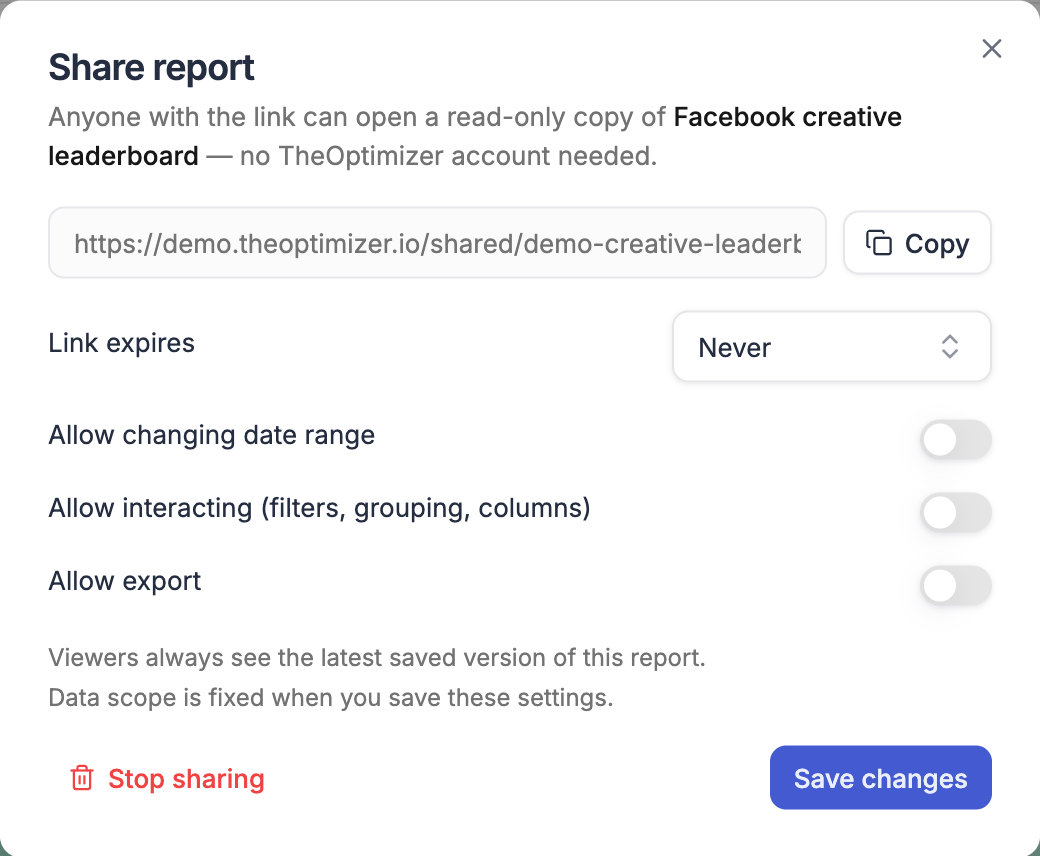
Open Share on the report at any time to change the link’s settings, then click Save changes. The link itself stays the same.- Renew an expired link — pick a new expiration and save. The link works again at the same address
- Stop sharing — click Stop sharing and confirm. The link stops working immediately. Sharing the report again creates a new link, so the old one can’t be revived
What can’t be shared yet
- Team member, Currency and Timezone grouping — a report grouped this way can’t be shared yet. Change the grouping and save the report before creating a link. If you add one of these groupings to a report that’s already shared, TheOptimizer asks you to save it as a new report instead, so the shared link keeps working
- Reports with no matching ad accounts — if none of your connected ad accounts belong to the report’s network, the share dialog warns you that the link will show no data