
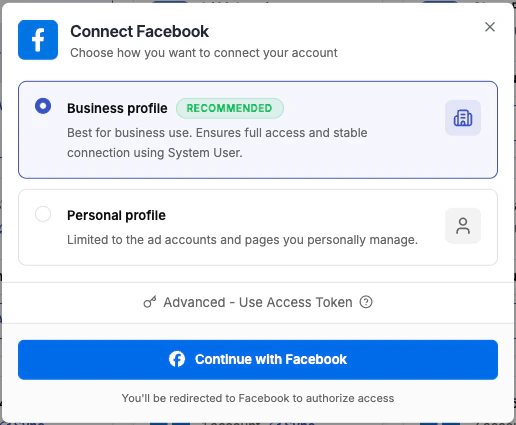
Connect with a Business or Personal Profile
1
Open the Integrations page
From the left-hand navigation menu, go to Integrations. Find the Facebook card and click Connect →.
2
Choose your profile type
A dialog appears asking how you want to connect. Select Business profile (recommended) or Personal profile, then click Continue with Facebook. You will be redirected to Facebook to complete the authorisation.
3
Authorise Pages Access
Facebook will ask which Pages you want TheOptimizer to access.
4
Authorise Business Manager Access
Facebook will ask which Business Managers to include. Select the Business Manager that contains the ad accounts you want to manage in TheOptimizer, then click Continue.
5
Review Permissions and Complete
Facebook will show a summary of the permissions being granted. These permissions allow TheOptimizer to read campaign performance data and make changes (pause campaigns, adjust budgets, etc.) on your behalf. Review them and click Confirm to complete the authorisation.
6
Connection Confirmed
TheOptimizer shows a confirmation screen with the number of ad accounts added and the integration name.Initial sync takes up to 20–30 minutes. After connection, TheOptimizer starts pulling your campaign data. Campaigns and ads may not appear immediately — this is expected. Give it up to half an hour before troubleshooting.From this screen, you can also click Connect Tracker to link a tracking platform to your Facebook integration right away. You can also do this later from the Integrations page.
Connect with an Access Token
Use this option when you want to connect using a System User access token generated directly from Meta Business Suite. This gives you full control over which permissions are included and is not subject to standard OAuth token expiry tied to a personal login.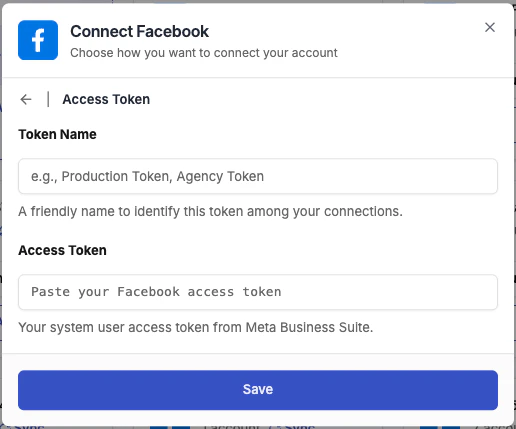
1
Generate a System User access token in Meta Business Suite
In Meta Business Suite, go to Business Settings → System Users. Select or create a System User with admin access, assign the ad accounts you want TheOptimizer to manage, then generate an access token with the following permissions:
pages_show_listads_managementads_readbusiness_managementpages_read_engagementpublic_profile
2
Select Access Token in the Connect dialog
In TheOptimizer, go to Integrations → Facebook → Connect →. In the profile type dialog, click Advanced — Use Access Token.
3
Enter a Token Name and paste the token
Give the connection a recognisable name (e.g., “Production Token” or “Agency Token”), paste your access token, and click Save.
4
Connection Confirmed
TheOptimizer validates the token and pulls in the ad accounts the System User has access to. Initial sync takes up to 20–30 minutes.
What Permissions Are Granted
TheOptimizer requests the following Facebook permissions regardless of connection method:
TheOptimizer does not request permission to post to your Pages, access your personal messages, or take any actions outside of ad account management.
Connecting Multiple Facebook Profiles
You can connect multiple Facebook profiles to the same Facebook integration — whether Business profiles, Personal profiles, or Access Tokens. This supports teams where each member manages their own set of accounts, and provides backup access if a primary profile gets restricted. To add a second profile, go to Integrations → Facebook and click Add Profile (or the Connect new profile card in the profiles panel). Complete the same connection flow with the additional login or token. See Manage Ad Accounts & Profiles for how to assign ad accounts to profiles and manage the relationship between them.Custom Events
Beyond the standard Facebook events, TheOptimizer can import any custom event — and its revenue — from your Facebook integration. Sync them from the Custom Events tab inside the integration, and use them in reporting, as conditions in rules, and in custom metrics. See Custom Events for the full setup.Next Steps
- Manage Ad Accounts & Profiles — enable/disable/archive accounts, manage profile assignments, add tags
- Custom Events — import any custom event and its revenue into reporting, rules, and custom metrics
- Troubleshoot a Connection — fix token expiry, missing accounts, sync issues