
The NewsBreak Excel Uploader lets you prepare and launch multiple campaigns at once without going through the UI one by one. You define everything — targeting, budget, bidding, and creatives — in an Excel file and submit it through TheOptimizer. You can start from a blank template, or download a pre-filled Excel directly from any existing NewsBreak campaign — ideal when you’re launching variations of setups you already run.

How It Works

1

Get Your Template

Open Campaign Creator in TheOptimizer and click the NewsBreak card. The bulk upload modal opens directly.
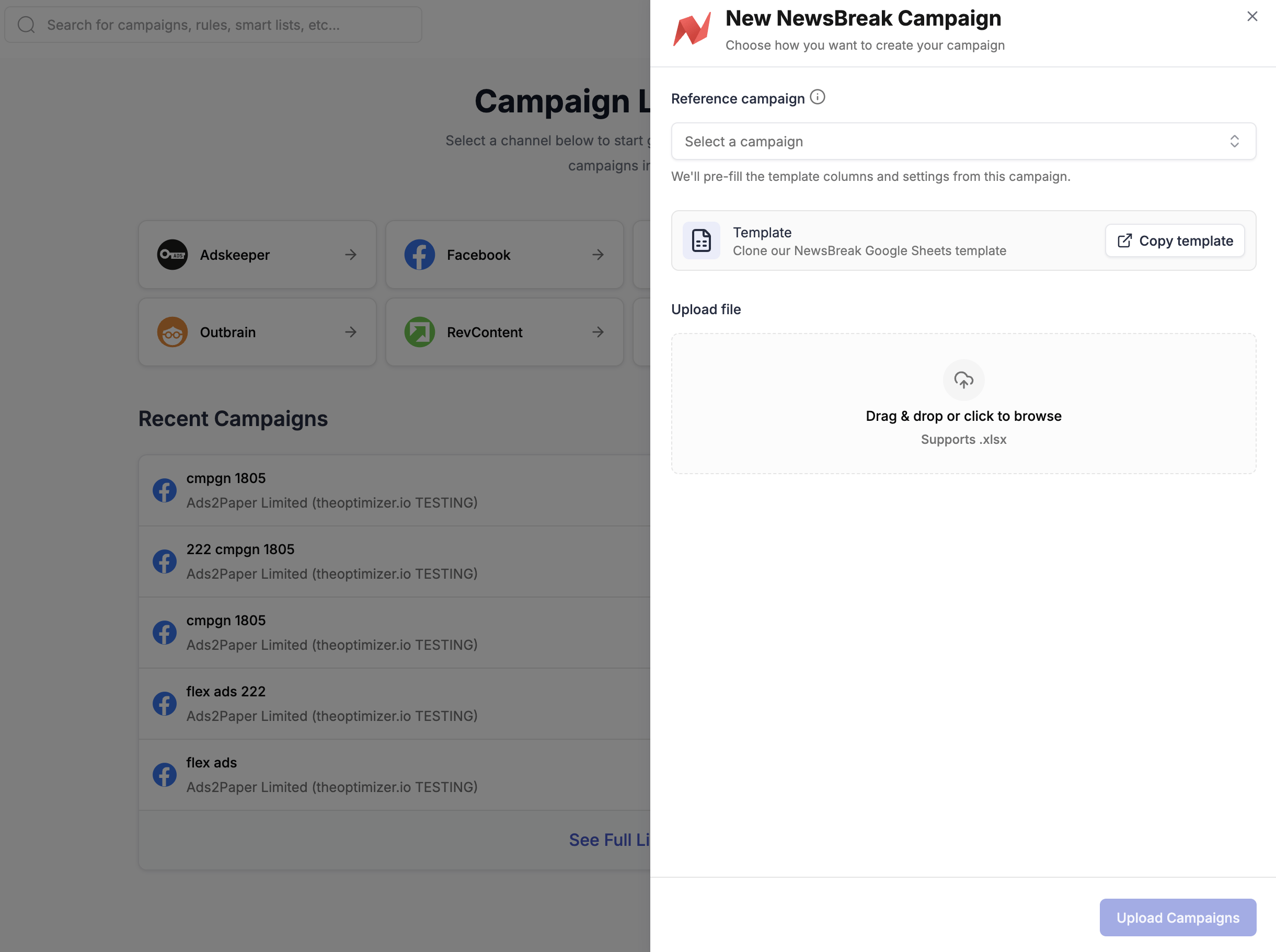
New NewsBreak Campaign modal — Reference campaign dropdown, Copy template button, and file upload area
You have two ways to get your template:Option A — Download pre-filled from an existing campaign (recommended)In the Reference campaign dropdown, select an existing campaign. TheOptimizer will pre-fill the template columns and settings from that campaign. Download the pre-filled Excel file and use it as your base — duplicate rows, update creatives and headlines, and adjust settings as needed.This is the fastest approach when you’re launching campaigns similar to setups you already run.Option B — Start from the empty templateIf you’re setting up a new campaign type from scratch, click Copy template to clone the empty NewsBreak template into your Google account. Fill in your campaign settings from scratch using the column notes as a guide.
2

Fill In or Edit Your Campaigns

Each row in the main sheet represents one ad. To create a campaign with multiple ads, add one row per ad — keep all campaign-level columns identical and vary only the ad-level columns (image URL, headline, etc.).Key things to note:
  • Columns marked 🚩 REQUIRED must be filled in — the upload will fail if they’re missing
  • Columns marked 🟡 are conditionally required (e.g. Countries is only needed if Geo Targeting is set to INCLUDE or EXCLUDE)
  • Hover over any column header to see the accepted values and format
If you started from a reference campaign (Option A), most columns are already filled in. You typically only need to update the ad-level columns (image URL, headline, target URL) and duplicate rows for additional campaigns.
3

Upload Your File

If you used Option B (Google Sheets template), first export your sheet: in Google Sheets, go to File → Download → Microsoft Excel (.xlsx).Back in the modal, drag and drop your .xlsx file into the upload area or click to browse for it. Then click Upload Campaigns to submit.
4

Check Your Email for Confirmation

After submitting, TheOptimizer processes the file and sends you an email:
  • Successful upload — your campaigns are queued and being created on NewsBreak. Track progress from the Campaign Creator page.
  • ⚠️ Upload failed — the email will include a new Excel file with all error cells highlighted. Download it, fix the issues, and re-upload.

Column Reference

The table below describes the key columns in the NewsBreak Excel template. Hover over any column header in the template for the full accepted values and format notes.