
Default Column Views
TheOptimizer provides ready-made column presets for each ad network. For Facebook, for example, you get: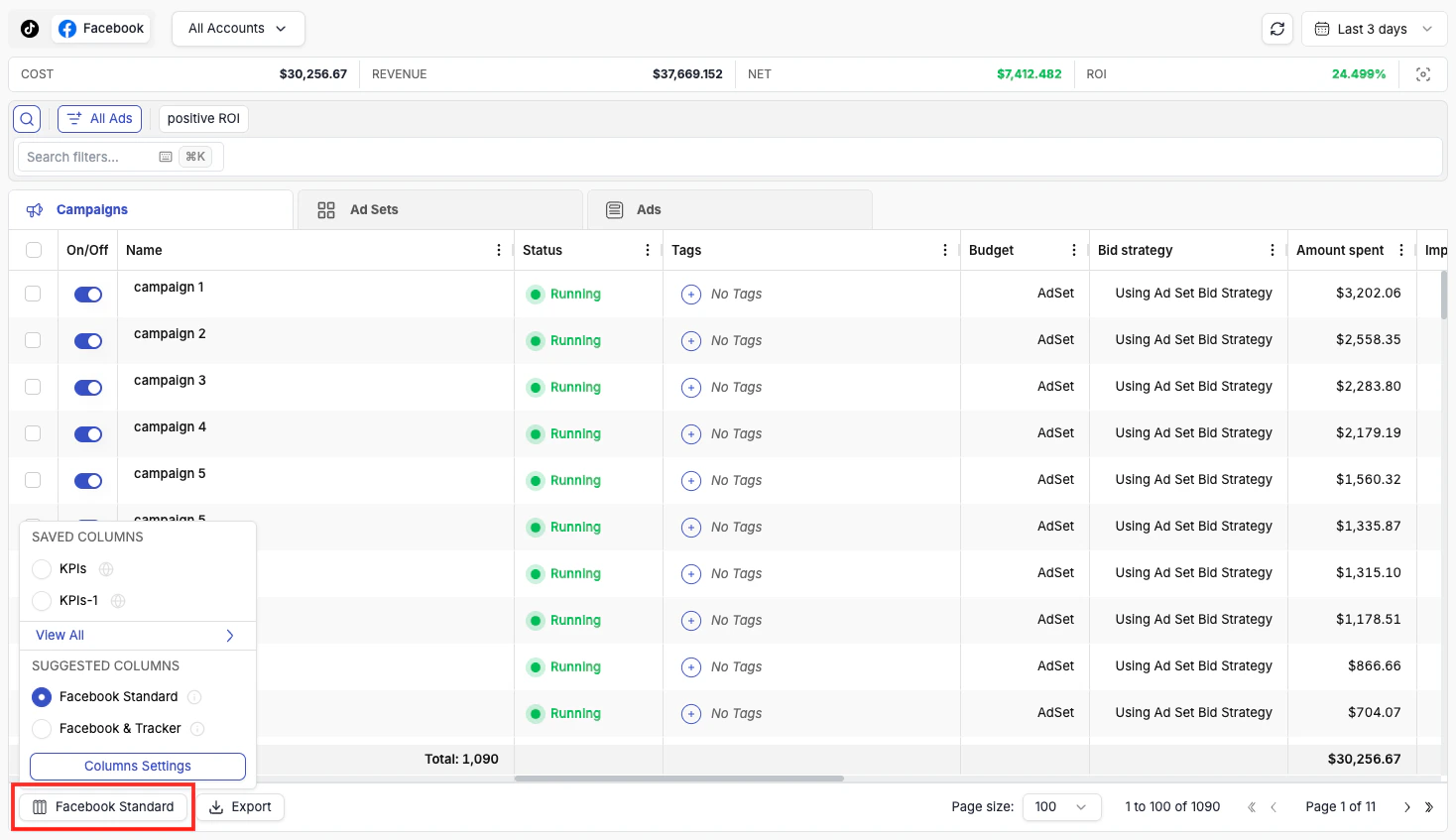
- Facebook Standard — essential Facebook ad network metrics only, with no tracker data. A clean, focused view for native Facebook performance.
- Facebook + Tracker — a combined view that merges the most important Facebook metrics with key tracker metrics side by side. This preset is only shown when you have a tracker connected.
Creating Custom Column Views
1
Open Column Management
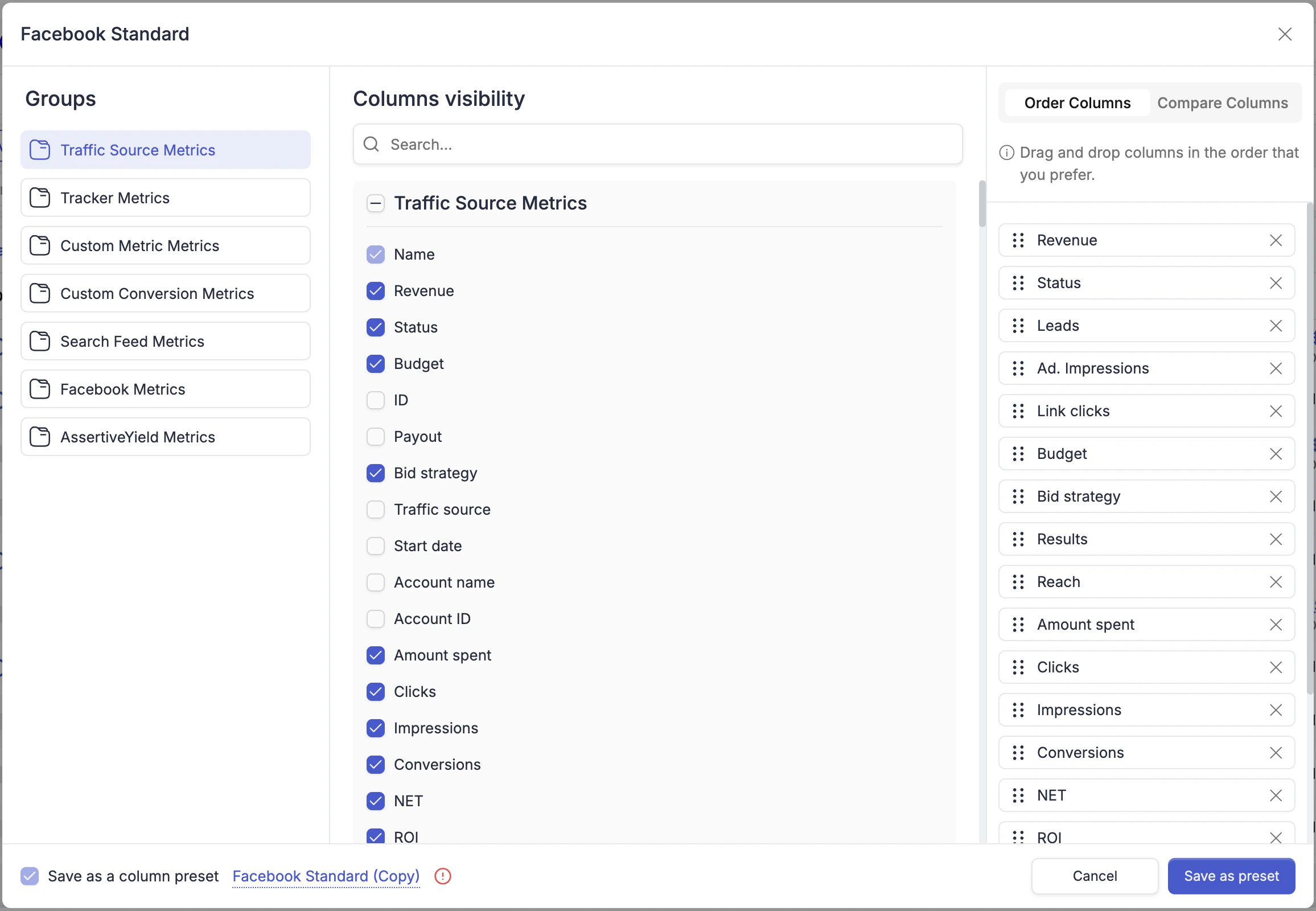
Click the column settings icon at the bottom-left of the table.
2
Browse column groups
Use the left panel to browse available column groups: Traffic Source Metrics, Tracker Metrics, Custom Metric, Custom Conversion Metrics, Search Feed Metrics, and network-specific groups (e.g., Facebook Metrics).
3
Select your columns
Check or uncheck columns in the center panel to show or hide them.
4
Reorder columns
Use the Order Columns panel on the right to drag columns into the exact order you want.
5
Save as a preset
Any modification to a default view automatically prompts you to Save as preset under a new name. Your saved views appear at the top of the column list and can be switched between at any time.
Sharing Presets With Your Team
When saving a column preset, you will see a Set to Public toggle at the bottom of the Column Management dialog. Enabling it makes the preset visible to all sub-users in your TheOptimizer account — so your team can work from the same column views without each person having to recreate them manually.
Presets are private by default. Only enable Set to Public for views you want to standardise across your team, such as a shared daily review layout or a company-wide reporting format.