
- Item name — the name of the campaign, ad set, or ad you are viewing
- ← Prev / Next → — move to the previous or next item in the table without closing the panel
- Totals — a summary bar showing Cost, Revenue, NET, and ROI for this specific item
- Date picker — adjusts the data shown in the Details View independently from the main table date picker
Overview Tab
The Overview tab provides a snapshot of the item’s status, configuration, and recent activity. It contains four widgets.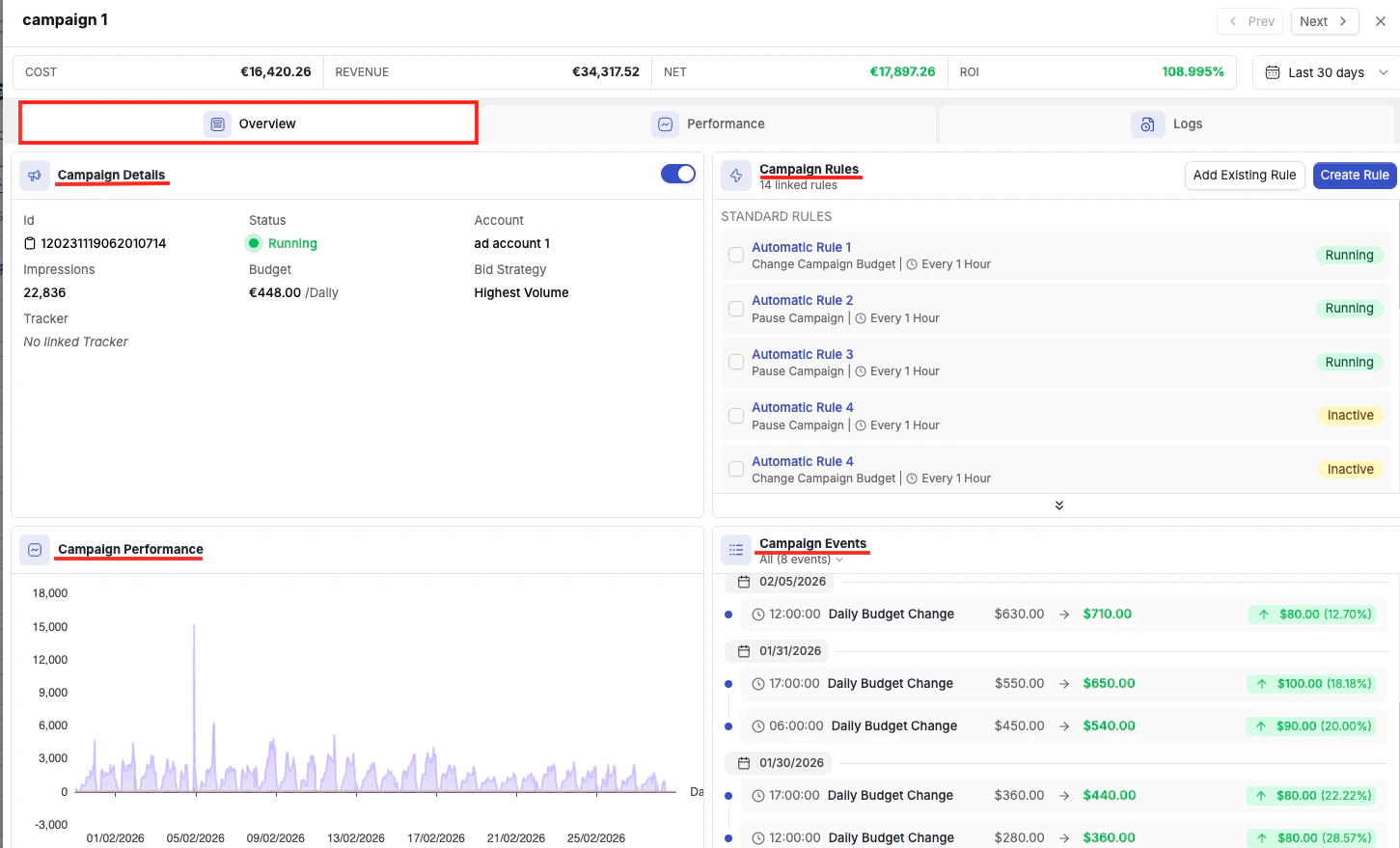
Campaign Details
A card showing the item’s key configuration data:
You can turn the item on or off directly from this card without returning to the main table — making it practical to use the Details View as a decision-making panel: check the details, decide, act, then navigate to the next item.
Automation Rules
A list of all automation rules currently attached to this campaign. From here you can click Add Existing Rule to link a rule you have already created, or Create Rule to build a new rule and attach it in one step.Performance Chart
A line chart showing the trend of Amount Spent, Revenue, Conversions, and Clicks over the selected date range. Use this to get an at-a-glance sense of whether the campaign is trending up, down, or flat.Events Timeline
A timeline of all significant changes the campaign has undergone during the selected period — budget changes, bid changes, status changes, and similar events. This is your audit trail for understanding when something changed and correlating it with performance shifts visible in the Performance chart.Performance Tab
The Performance tab lets you break a single campaign’s data down by time dimension. The available breakdowns are By Hour, By Hour of Day, and By Day. When you use By Hour of Day with a multi-day date range (e.g., Last 7 Days), it aggregates traffic from all days at each hour — so “10 AM” shows the combined performance of every 10 AM–11 AM slot across the entire selected period.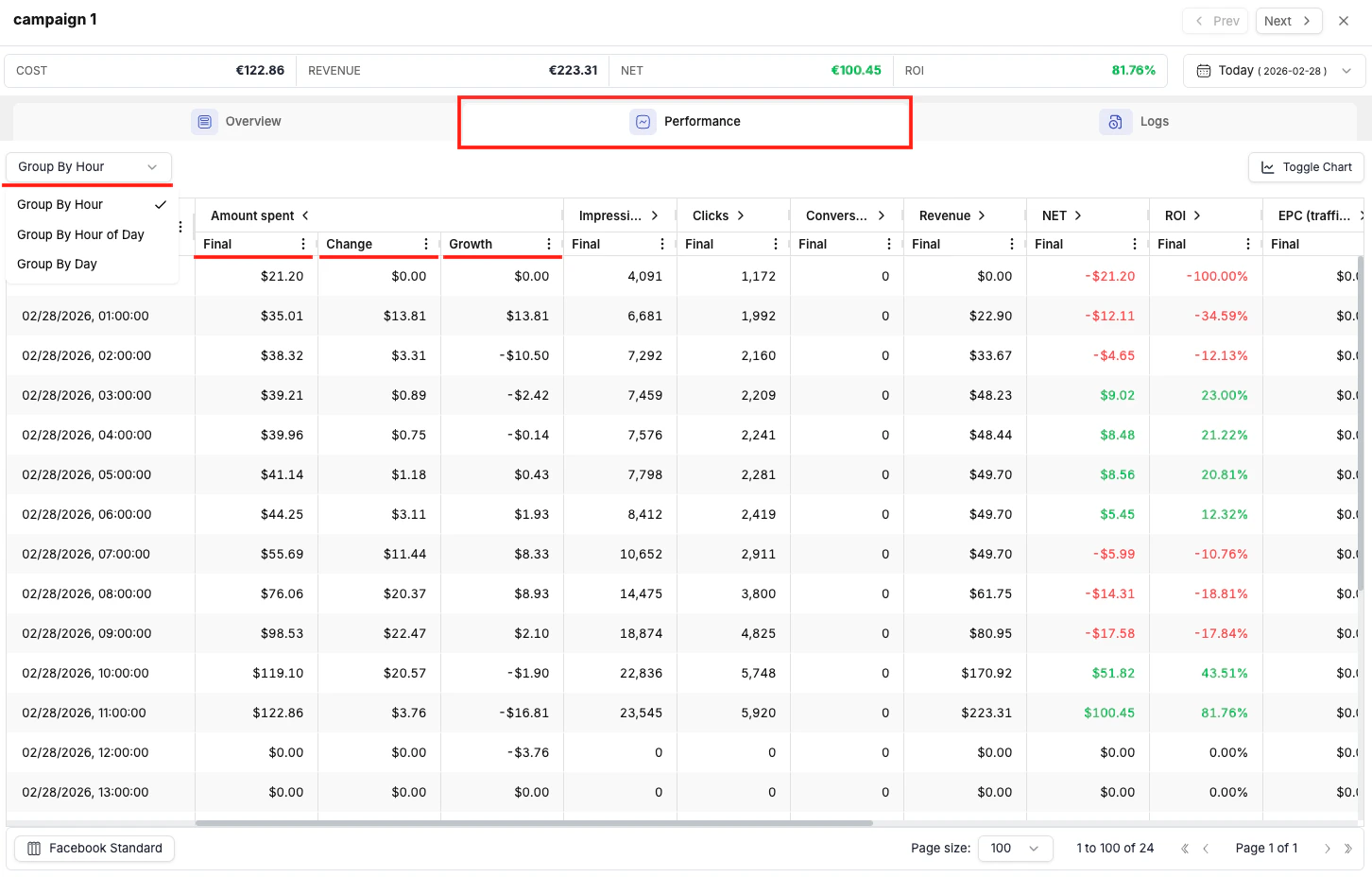
Practical Use Case: Finding Your Best Hours for Dayparting
1
Open the Details View
Click View Details on the campaign you want to analyze.
2
Set the date range
Set the date range to Last 7 Days or Last 14 Days for a meaningful sample.
3
Switch to the Performance tab
Click the Performance tab inside the Details View.
4
Set the grouping to Hour of Day
Select the By Hour of Day breakdown.
5
Identify weak hours
Review which hours have strong conversions and ROI, and which are underperforming.
6
Create dayparting rules
Use these findings to configure time-based automation rules that pause the campaign during low-performing hours and resume it during peak hours.
Logs Tab
The Logs tab shows a complete history of all actions that have affected the item — whether triggered by automation rules or made manually by a team member. Each log entry shows:
You can filter log entries by Rule (show only actions triggered by a specific rule) or by Type (show only manual actions, or only rule-triggered actions).
To roll back changes, select the entries you want to undo and click Rollback Activities.
Manage Tab
Beyond the three universal tabs, some ad networks add an extra tab to the Details View that exposes platform-specific optimization data.Native Ad Networks — Publisher & Site Breakdown
For Taboola and Outbrain, a Manage tab appears at the campaign level with a placement-level performance breakdown — the equivalent of the “Sites” or “Publisher” reporting in the native dashboards.- Taboola — the Manage tab shows performance broken down by individual publisher site. You can identify which sites are driving results and pause underperforming sites directly from this view without navigating away.
- Outbrain — the Manage tab shows performance broken down by publisher and by section within each publisher. You can pause underperforming publishers or sections directly from this view.
Facebook — Ad Set Level: Manage Targeting Tab
When you open the Details View for a Facebook ad set (not a campaign), a Manage Targeting tab appears. It contains three sub-breakdowns:
For each dimension you can review performance data and then exclude specific placements, devices, or geos from the ad set’s targeting — directly from within TheOptimizer, without going into Facebook Ads Manager.