
The TikTok Campaign Creator is in Beta. It’s fully usable, and we’re still adding to it — tell us in the in-app chat if something you need is missing.
Opening the creator
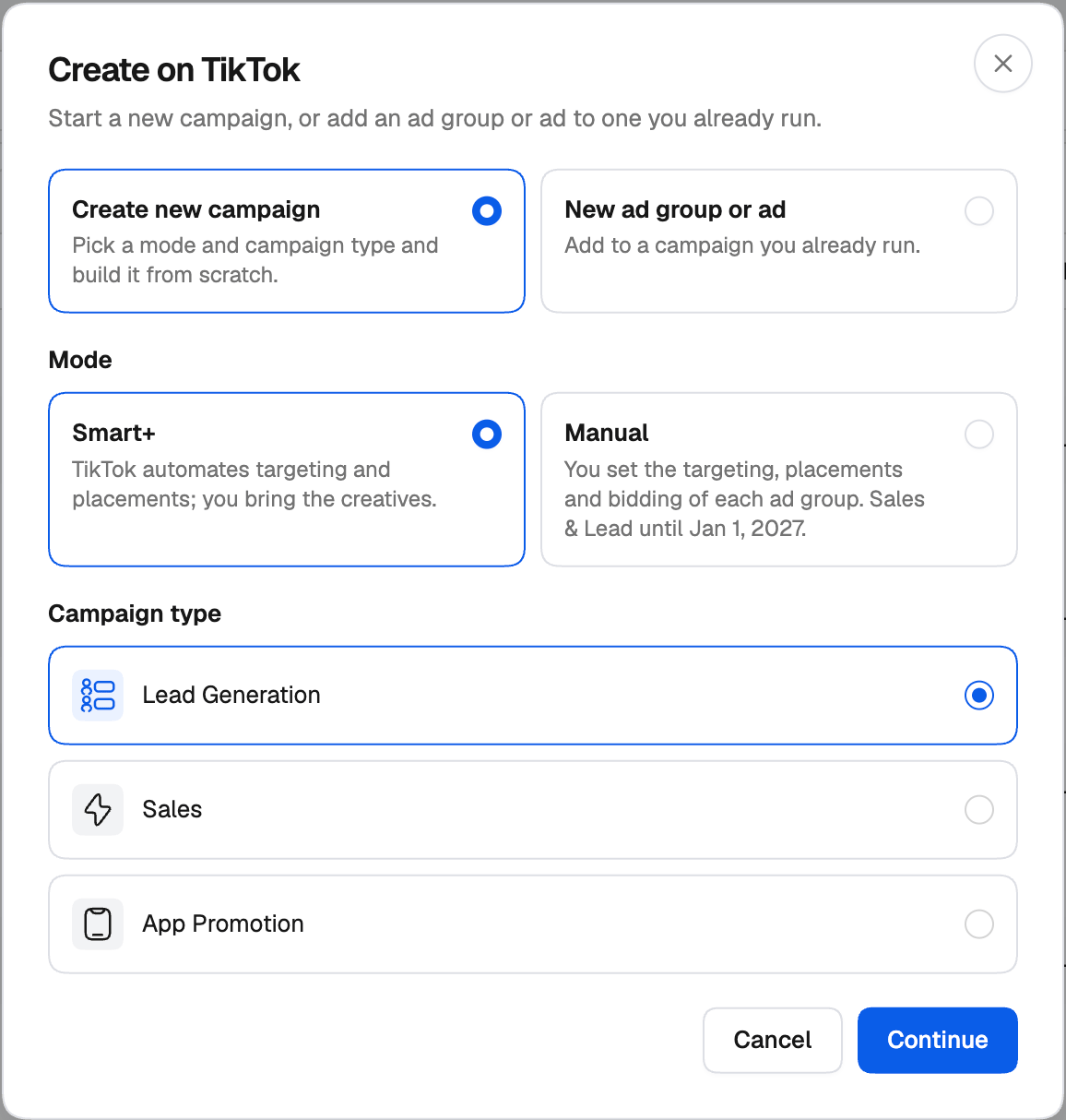
There are two ways in: From the Campaign Launcher. Click Campaign Creator in the left navigation, then the TikTok card. The creator opens in a side sheet with a new, empty campaign.
- Create new campaign — pick the Mode (Smart+ or Manual) and the Campaign type, then click Continue. The creator opens with those already set.
- New ad group or ad — add to a campaign you already run. See Adding to a campaign that’s already on TikTok.
How the creator is laid out
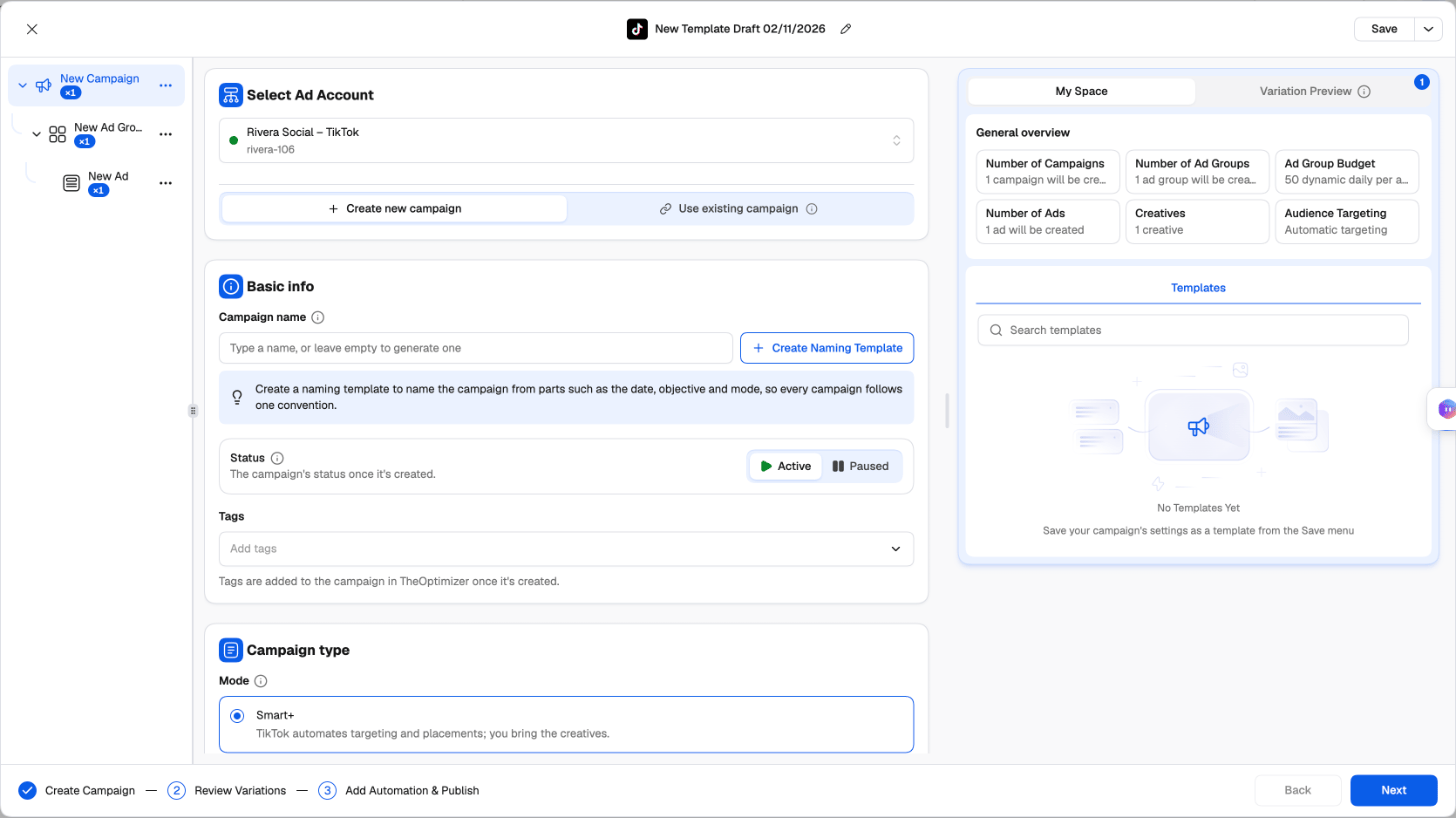
- General overview counts what will be created: campaigns, ad groups, ads, creatives, the budget and the targeting.
- Below it, a panel that changes with the level: Templates at the campaign level, Suggestions (your recent ad groups) at the ad group level, and Ad Suggestions (your recent ads) at the ad level. See Reusing your recent ad groups and ads.
- Variation Preview lists the variations of the level you’re on.
The three-step flow
The footer shows where you are:- Create Campaign — set up the campaign, ad group and ad levels, and any variations. Use Next to move from level to level. See Build a campaign.
- Review Variations — see every campaign, ad group and ad that will be created, and switch off any you don’t want. See Reviewing variations.
- Add Automation & Publish — attach rules and publish. See Publish, templates and existing campaigns.
Your work is kept as a draft
The creator keeps your work in this browser as you go. If you close the sheet and open the TikTok creator again, it asks whether to Continue where you left off or Start New. The name at the top of the sheet (for example New Template Draft 02/11/2026) is the name your settings are saved under when you save them as a template. Click the pencil to rename it. See Templates.Next steps
Build a campaign
Every setting at the campaign, ad group and ad level.
Variations
Test audiences, budgets, placements and destinations in one launch.
Publish, templates and existing campaigns
Attach rules, publish, save templates, and add to campaigns already running.