
Using Groups
Groups let you define multiple values for a targeting section, and the system generates a variation for each group automatically. In several sections across the campaign, ad set, and ad levels, you will see a Group Card — a row starting with one default group and a + button to add more. Each group you create represents a separate variation of the entity you are working on. Click on each group tab to customise its settings independently. For example, if you create two audience groups at the ad set level — one targeting the US and one targeting the UK — TheOptimizer produces two ad set variations, identical in every way except their audience targeting. Managing groups. Click the three-dot menu (⋯) on any group to:- Rename — give the group a meaningful name (e.g., “US Audience” or “Budget $50”). Group names can be referenced in dynamic naming templates.
- Clone — duplicate this group’s settings into a new group.
- Clone Bulk — duplicate the group multiple times at once.
- Delete — remove the group.
- Manage combinations — open the combinations manager scoped to this group only, so you can toggle which combinations involving this specific group are active. See Manage Combinations below.
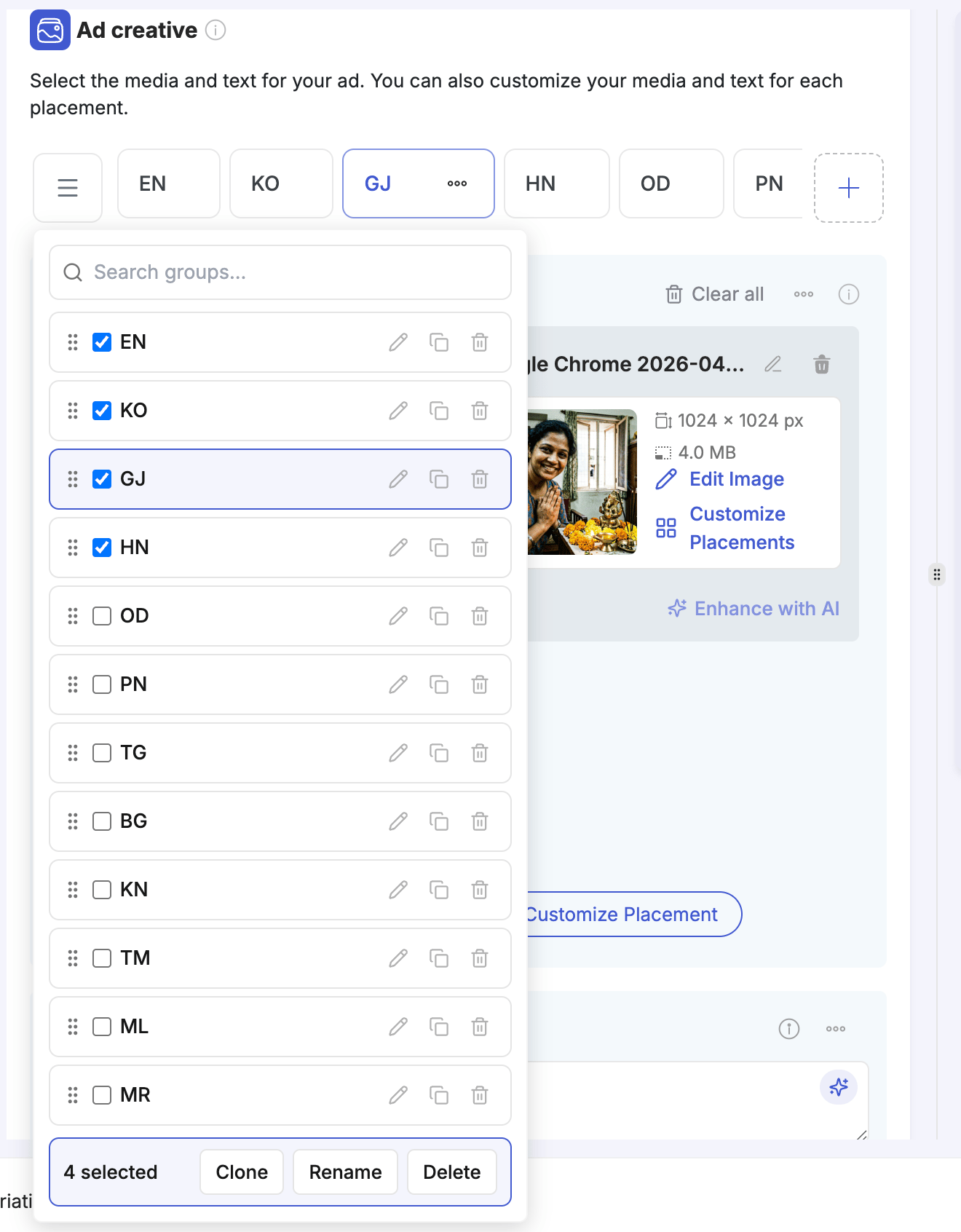
How permutations are calculated. Groups at the same level multiply with each other. If you create three budget groups and three audience groups at the ad set level, the system generates 3 × 3 = 9 ad set variations. Add two placement groups and you get 3 × 3 × 2 = 18 ad set variations.
The Variation Preview panel on the right updates in real time as you add groups. Always check this counter before proceeding.
Using Campaign Restructuring
Campaign Restructuring lets you take the variations you have built and distribute them across separate campaigns and ad sets exactly the way your testing strategy requires. Unlike older versions of the launcher where restructuring was a late step, restructuring is now defined at the very beginning of the campaign creation flow, immediately after selecting an ad account and naming your campaign. This means you can plan your final structure upfront — before you even configure audiences or upload creatives — which prevents surprises at the end and makes the whole process faster. Restructuring is split into two independent sections: one at the campaign level and one at the ad set level. Both sections have a Preview button that shows the complete campaign tree — with naming templates applied — based on your current settings and any groups you have already defined.Structure Your Campaigns
The Structure your campaigns section sits at the top of the Create Campaign step (Step 1). It controls how your total set of ad sets and ads gets distributed across campaigns.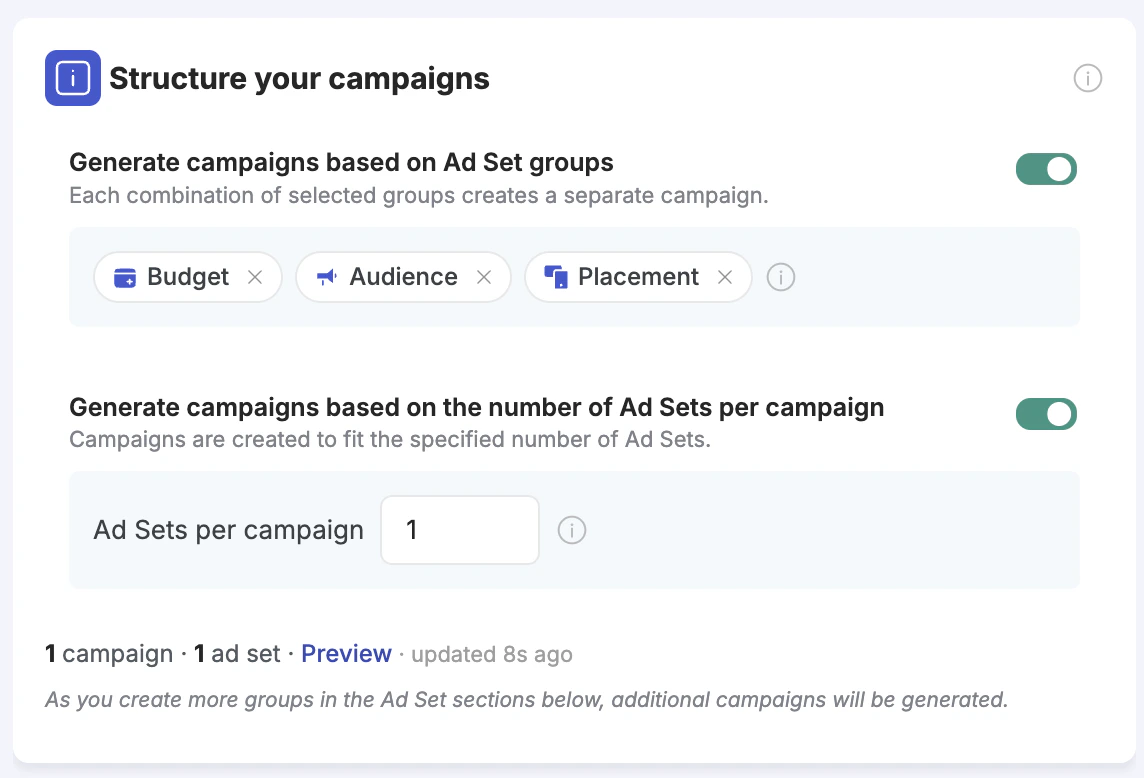
- 5 Audience groups × 3 Placement groups = 15 campaigns, each containing ad sets for one specific audience + placement pair
- Any other groups you defined but did not include here (e.g., Budget groups) remain as ad set-level variation inside each campaign
Structure Your Ad Sets
The Structure your ad sets section works at the ad level — controlling how your ads get distributed across ad sets.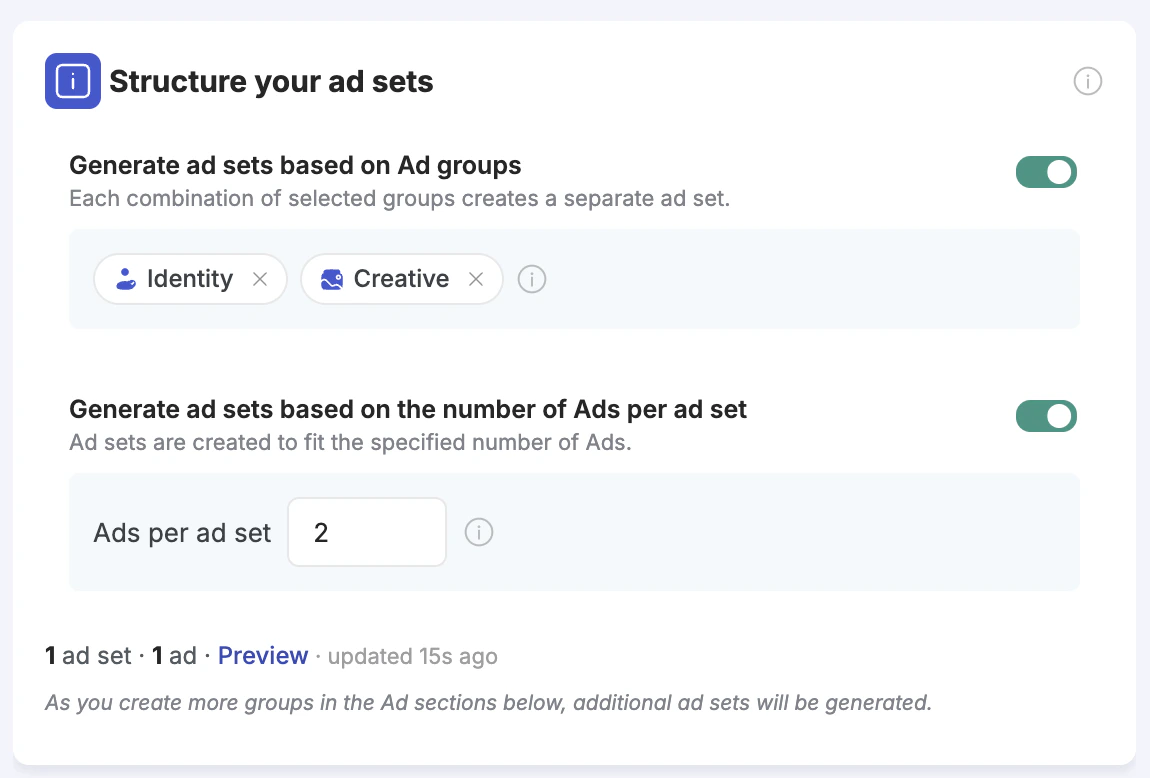
- Select Identity group → each Facebook Page / Instagram Account combination gets its own ad set
- Select Creative group → each creative group (images, videos, copy variations) gets its own ad set
- Select both → each combination of identity and creative gets its own ad set
- Testing images vs. videos in separate ad sets — create one Creative group with images and one with videos, select it here, and each gets its own ad set
- Running ads under different Pages in separate ad sets — identity isolation per ad set without manual duplication
- Testing different copy groups on separate ad sets — group ads by copy variation and isolate each group
Manage Combinations
By default, when you define multiple groups across levels, the system generates every possible combination of those groups. Manage Combinations gives you precise control over which specific combinations actually get created — letting you remove nonsensical pairings without deleting any groups. The Manage combinations option appears at the top of both the Structure your campaigns and Structure your ad sets sections — above the two generate/restructure toggles. Click the Manage button to open the combinations manager.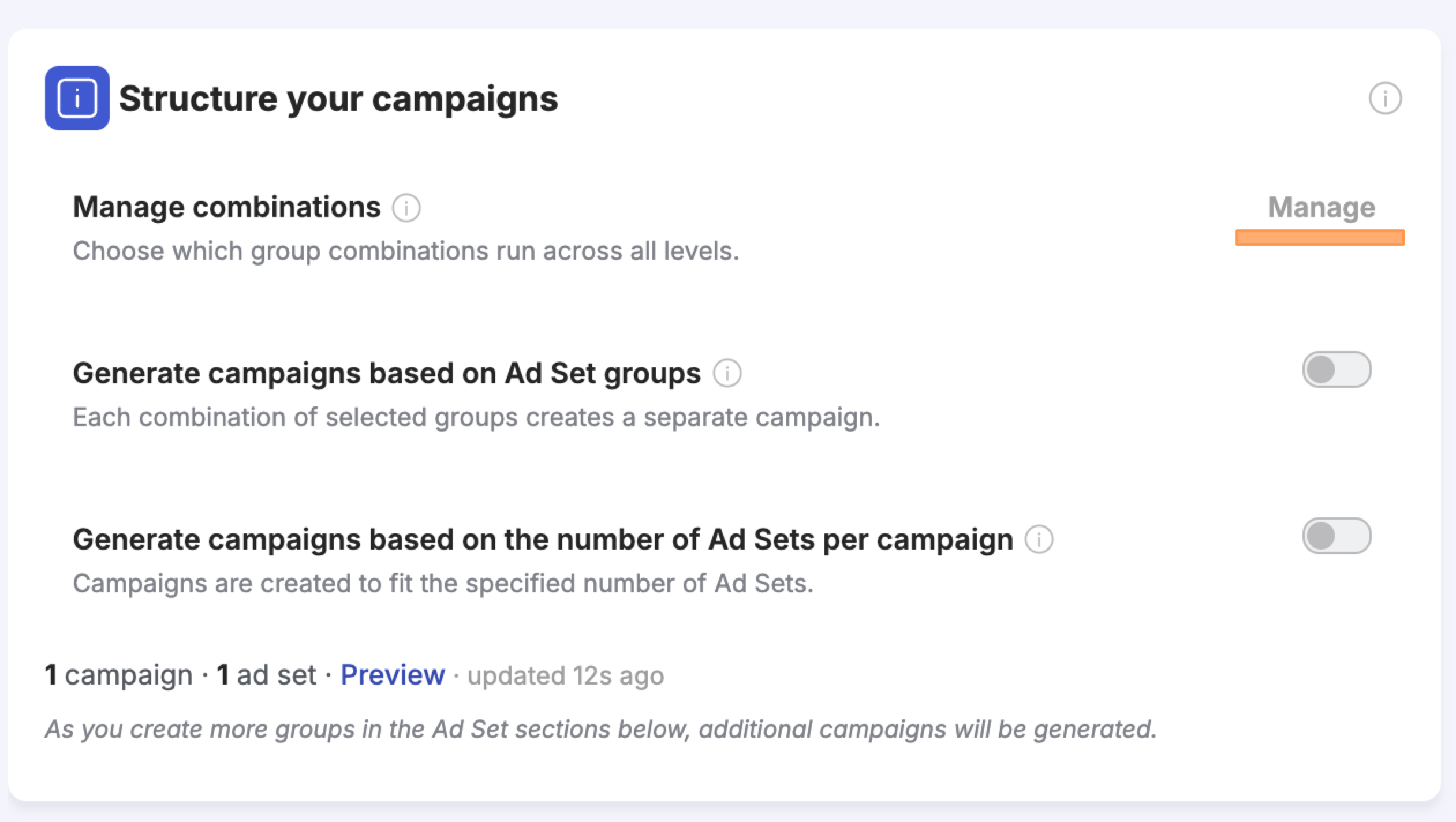
The Manage Combinations Dialog
The dialog lists every possible combination of your current groups. Each row shows the groups involved (e.g., CREATIVE EN + DESTINATION EN-LP01) and a toggle to include or exclude that combination.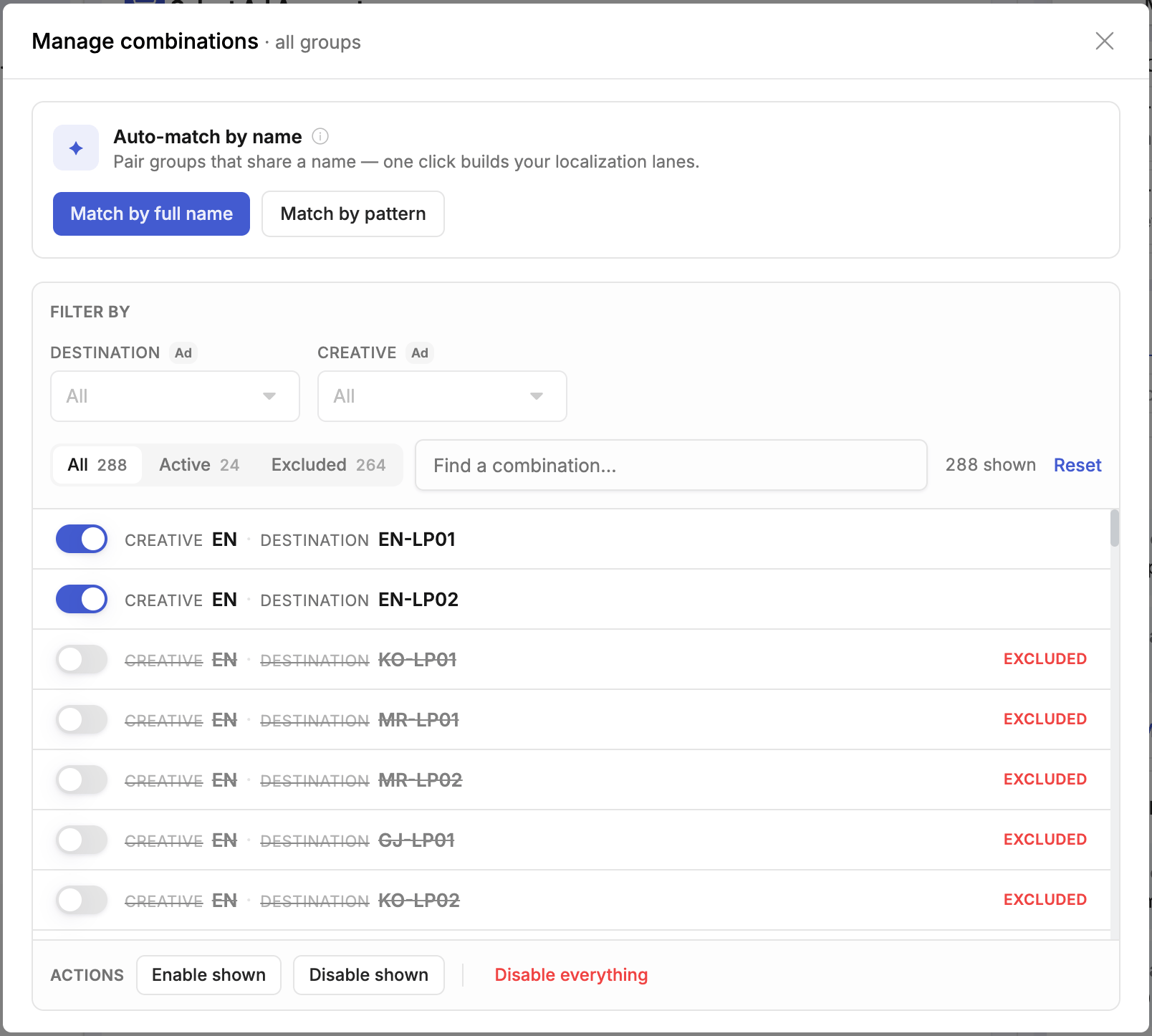
- Enable shown — activate all combinations currently visible in the filtered list
- Disable shown — exclude all combinations currently visible
- Disable everything — exclude every combination at once (useful for starting from zero and enabling only what you want)
Auto-Match by Name
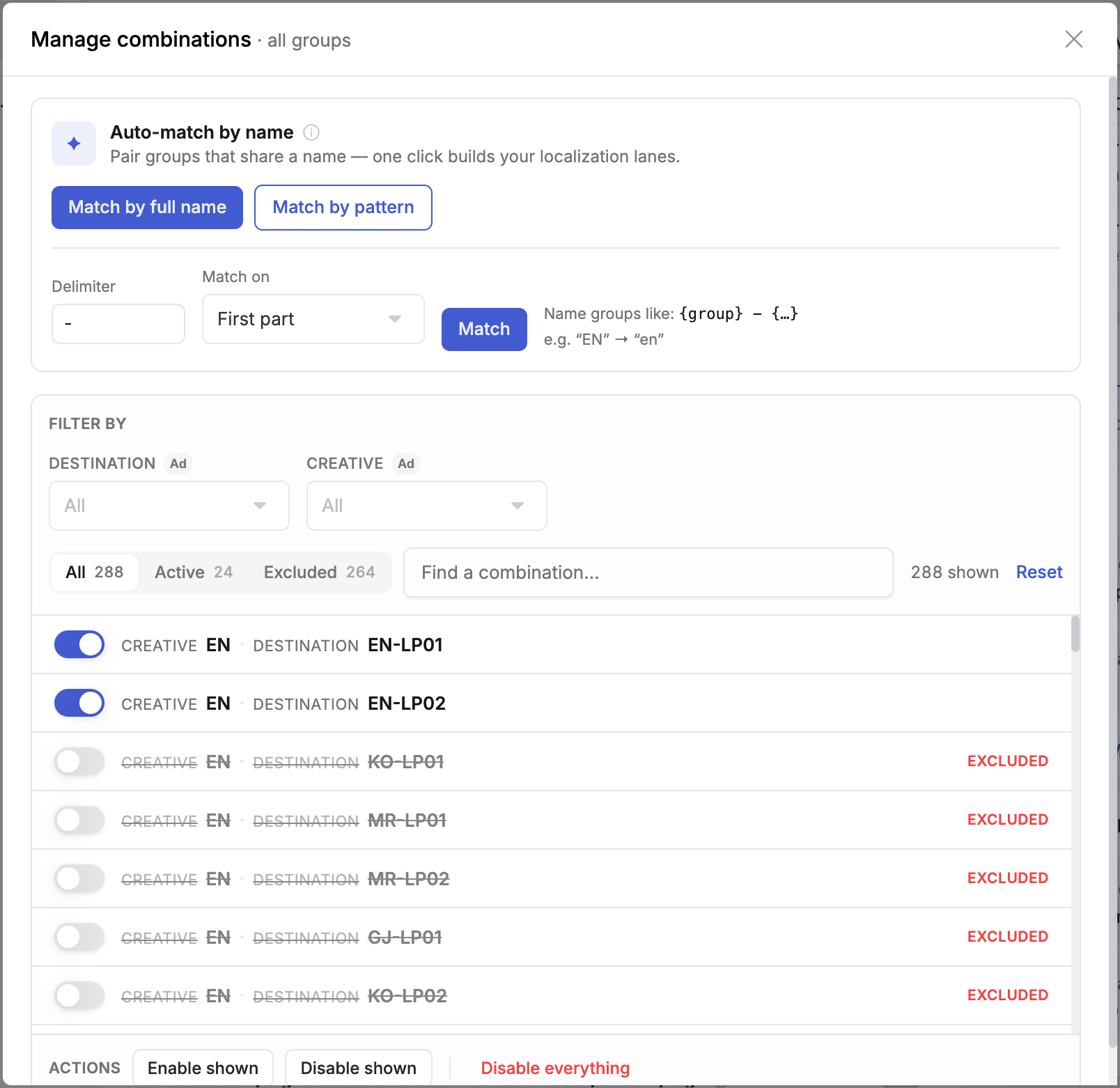
Instead of toggling combinations manually, use Auto-match by name to automatically pair groups that share a name across levels. This is the fastest way to set up localisation-style structures where each creative group should only run with the matching destination group. Match by full name — pairs groups whose names are identical. For example, a Creative group named “EN” is automatically enabled only with Destination groups also named “EN”, while all cross-language pairings are excluded. Match by pattern — pairs groups that share a common prefix when you split the name by a delimiter. Set the delimiter (e.g.,-) and the part to match on (e.g., “First part”), then click Match. For example, with delimiter - and match on “First part”: a Creative group named “EN” matches Destination groups named “EN-LP01” and “EN-LP02” (both start with “EN-”), while “KO-LP01” and “MR-LP01” are excluded.
Restructuring Examples
Example 1 — Isolate each creative in its own campaign (full budget isolation) Goal: 20 image ads, one campaign per creative, each with its own budget. Setup:- Ad set level → Option 2 → 1 Ad per Ad Set → generates 20 ad sets
- Campaign level → Option 2 → 1 Ad Set per campaign → generates 20 campaigns
Example 2 — Test audiences in separate campaigns, creatives in separate ad sets Goal: 3 audiences each tested in their own campaign; within each campaign, each creative gets its own ad set. Setup:
- Ad Set level → Audience groups (3 groups) → selected in Campaign level Option 1 → 3 campaigns
- Creative group (5 creatives) → selected in Ad Set level Option 1 → 5 ad sets per campaign
Example 3 — Test pages in separate ad sets, audiences in separate campaigns Goal: Run ads under 2 different Facebook Pages; test 4 different audiences, each in a separate campaign. Setup:
- Ad level → Identity group (2 groups, one per Page) → selected in Ad Set level Option 1 → 2 ad sets per campaign
- Ad Set level → Audience group (4 groups) → selected in Campaign level Option 1 → 4 campaigns
Reviewing the Preview
Both the campaign-level and ad-set-level restructuring sections include a Preview button. Clicking it generates a complete, expandable campaign tree showing:- Every campaign that will be created, with its name (using your naming template)
- Every ad set inside each campaign, with its name
- Every ad inside each ad set
Reviewing Variations (Step 2)
Once you complete the Create Campaign step (Step 1), clicking Review Variations takes you to a full read-only summary of the structure you are about to launch.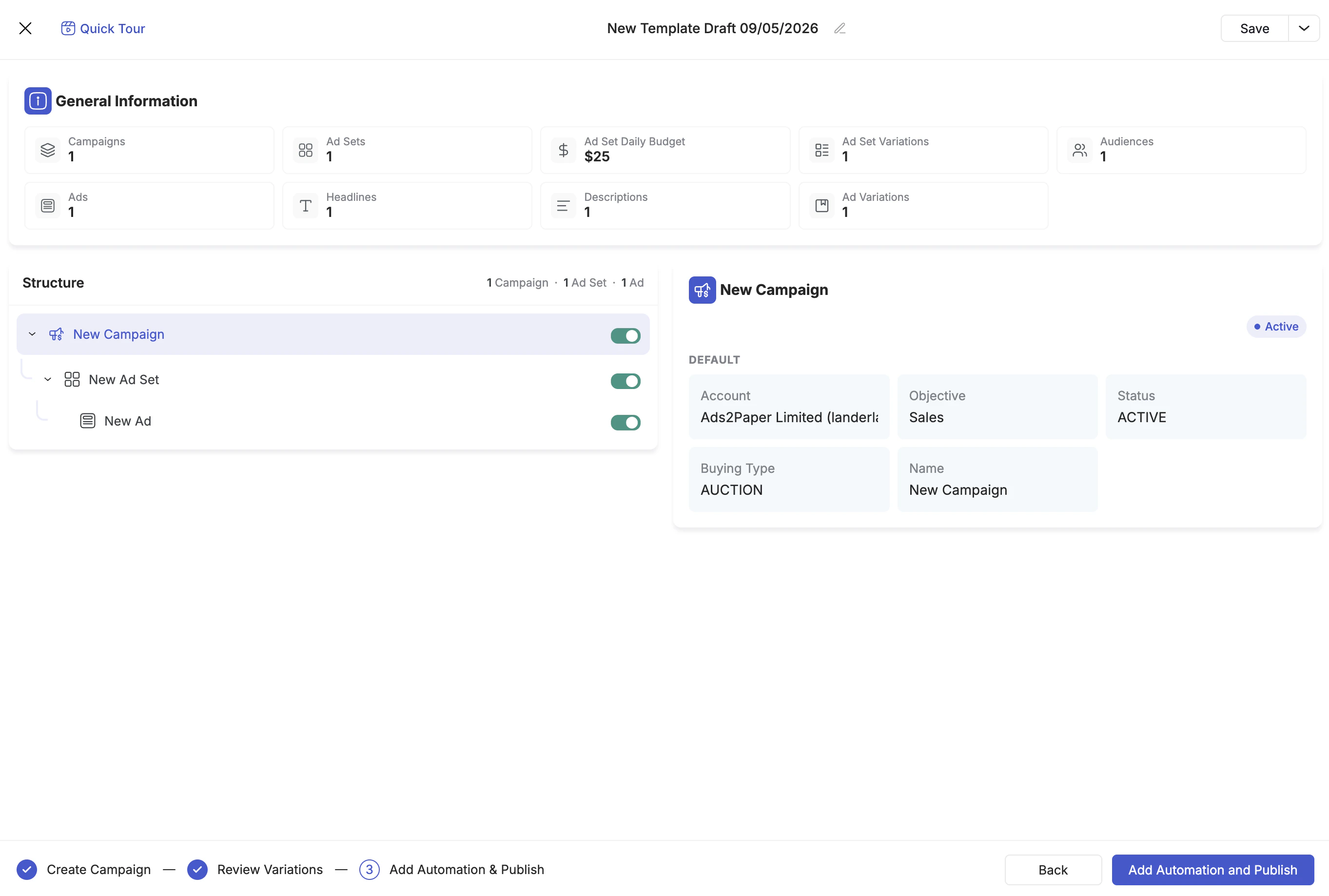
- Number of Campaigns
- Number of Ad Sets
- Total Daily Budget (for ad set-level budgets)
- Number of Ad Set Variations
- Number of Audiences
- Number of Ads
- Number of Headlines
- Number of Descriptions
- Number of Ad Variations
Using Duplication
The third way to generate variations is by manually duplicating items in the left panel tree. Click the three-dot menu (⋯) on any campaign, ad set, or ad and select Duplicate (to copy with all settings) or Create New (to start a fresh one). Duplication creates an exact copy of the selected item and everything inside it. You can then click on the copy and modify its settings — different creatives, different destination URLs, different structure. This is the most manual approach, but it gives you full control over exactly what goes inside each campaign, ad set, or ad.Groups vs. Restructuring vs. Duplication — When to Use Which
In practice, most workflows use a combination: Groups define what varies, Restructuring decides how variations are distributed across campaigns and ad sets, and Duplication handles the parts that need manual precision.
Next Steps
- Multi-Ad Account Launch — launch the same structure across multiple ad accounts simultaneously
- Dynamic Naming Templates — auto-generate meaningful names across all your variations