
When to Use Cloning
Scale winning campaigns and ads When a campaign, ad set, or ad is performing well, cloning lets you deploy it to additional ad accounts or create multiple copies on the same account to increase spend capacity. You can also filter ads in the Campaign Manager by performance metrics (spend, ROI, ROAS, net profit) and bulk-clone only the winners into a destination scaling campaign — without touching ads that aren’t performing. Reduce downtime when switching ad accounts When you need to move your campaigns to a different ad account — whether you’re migrating a business to a new account, replicating a setup for a new client, consolidating accounts, or simply starting fresh — cloning lets you do it in minutes rather than rebuilding from scratch. Select all campaigns in the source account, choose the destination account, update any pages, pixels, or identity settings that differ between the two accounts, and clone. What would otherwise take days of manual work becomes a single operation. Test variations without rebuilding Clone a set of ads into a different ad set to test a new destination URL, a different Facebook Page, or a different pixel — without recreating the ad creative. All identity and tracking settings can be overridden at clone time.Single vs. Bulk Cloning
Single clone — hover over any campaign, ad set, or ad row in the Campaign Manager to reveal the inline Clone button below the item name. Click it to open the clone modal for that one item. Bulk clone — check the boxes on multiple campaigns, ad sets, or ads (even from different ad accounts or campaigns), then click Clone in the bulk action bar at the bottom of the screen. All selected items are cloned together in one operation.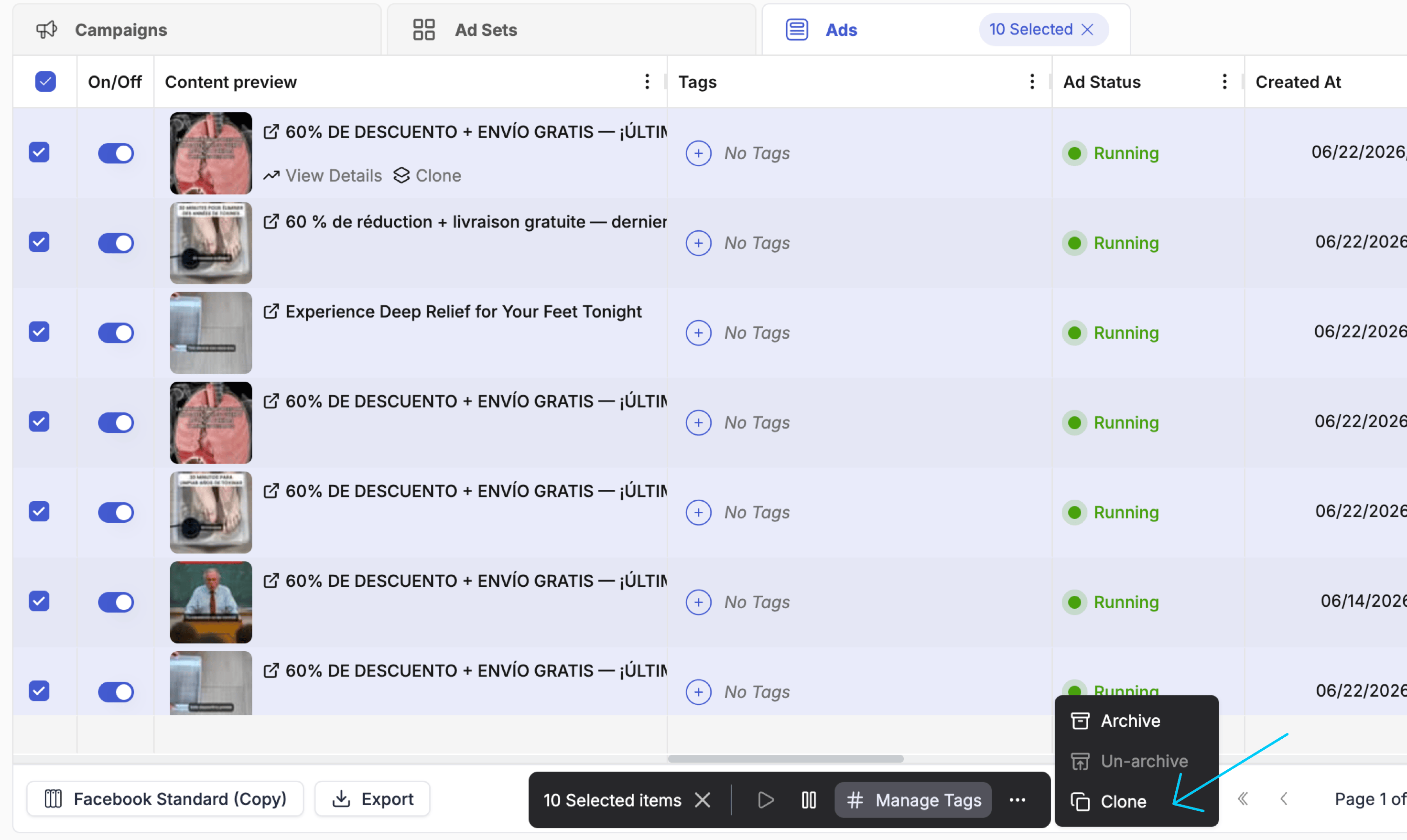
Cloning a Campaign
Click Clone on a campaign to open the Clone Campaign modal.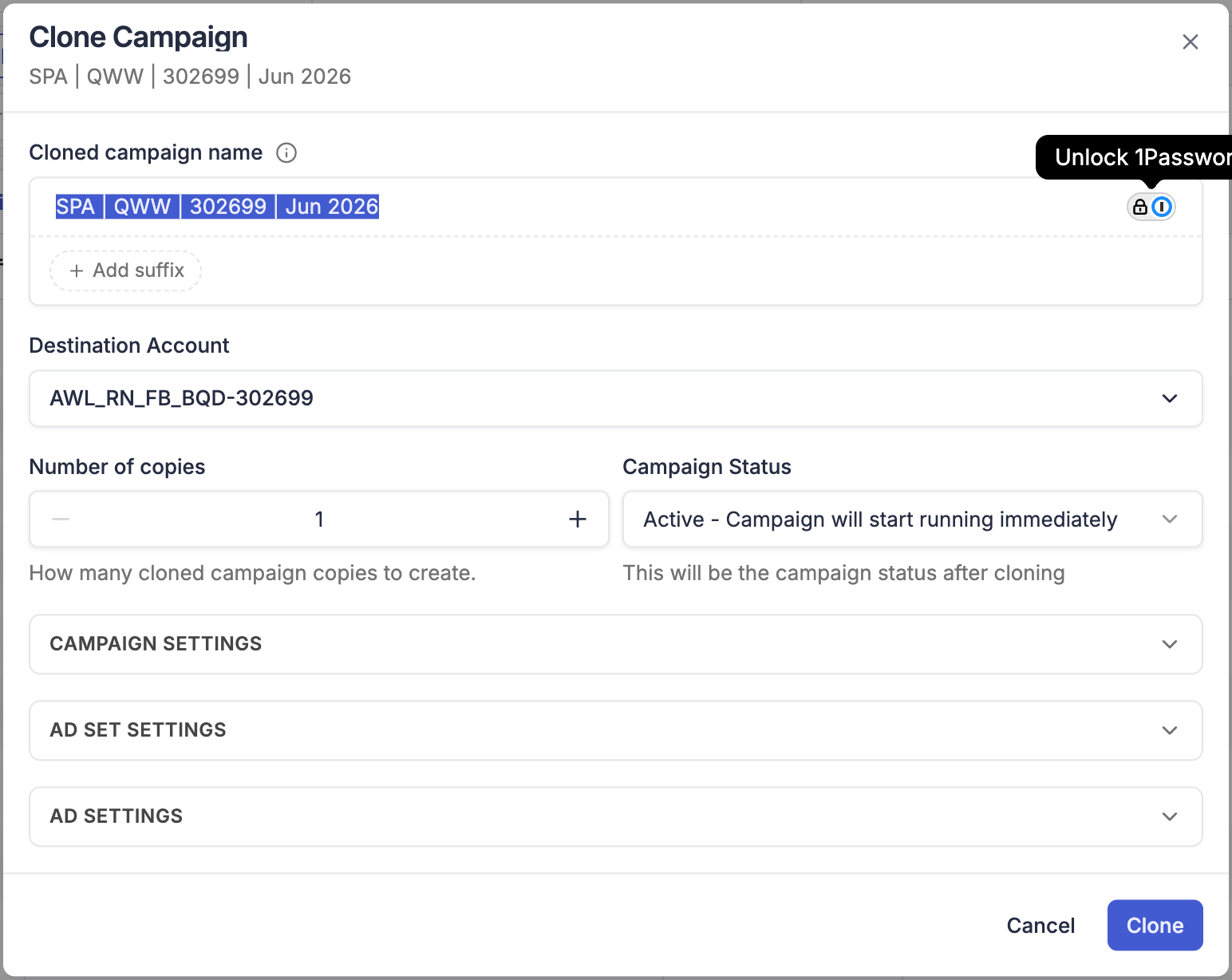
Name
The cloned campaign inherits the original name by default. Click + Add suffix to append additional identifiers: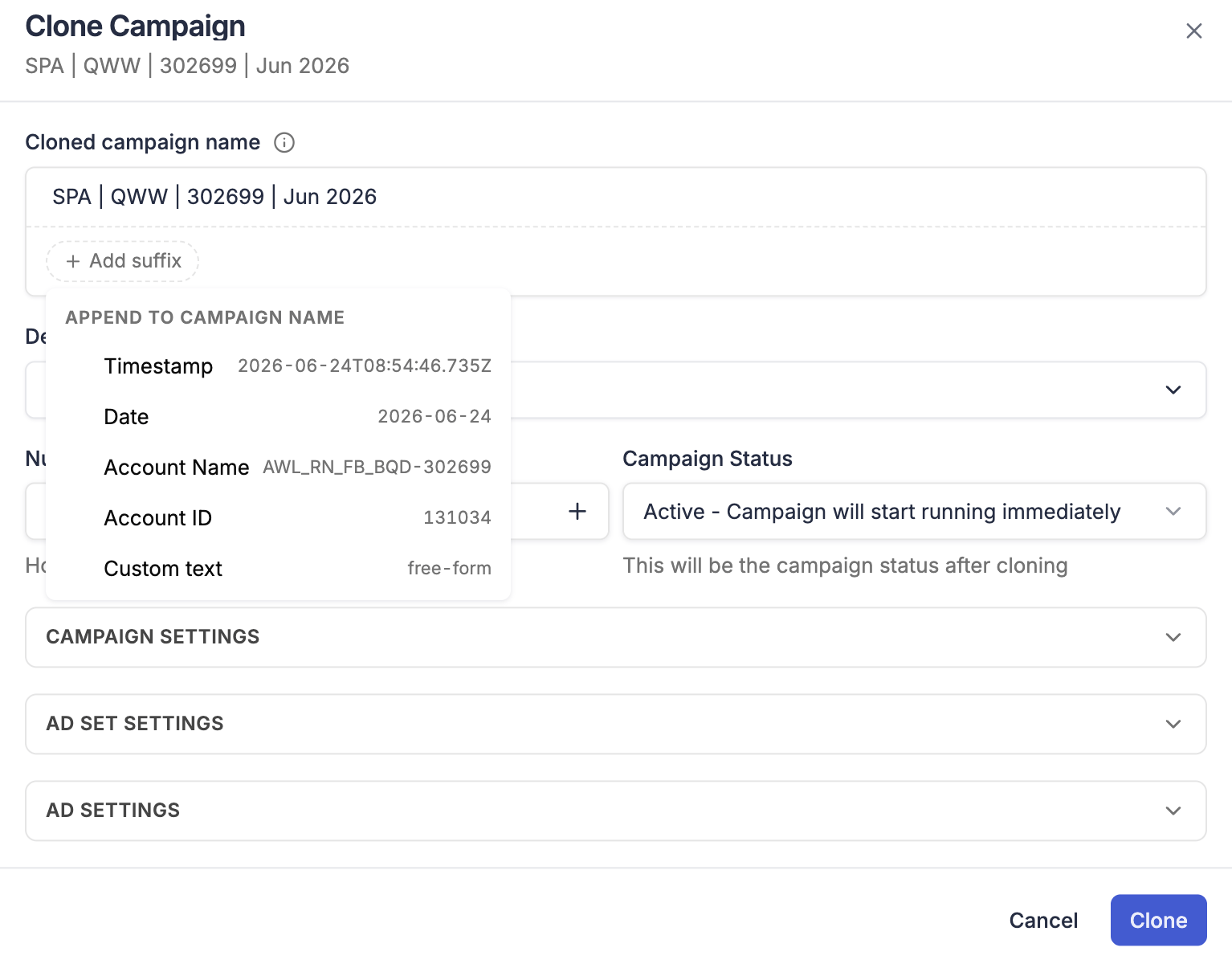
You can combine multiple suffixes and edit the name field directly.
Destination Account
Choose which ad account the cloned campaign should be created in. Defaults to the same account as the original.Number of Copies
How many copies to create for each selected campaign. Setting this to 3 with 2 campaigns selected creates 6 cloned campaigns total.Campaign Status
Whether the cloned campaigns start as Active (go live immediately) or Paused (held for review before activation).Campaign Settings
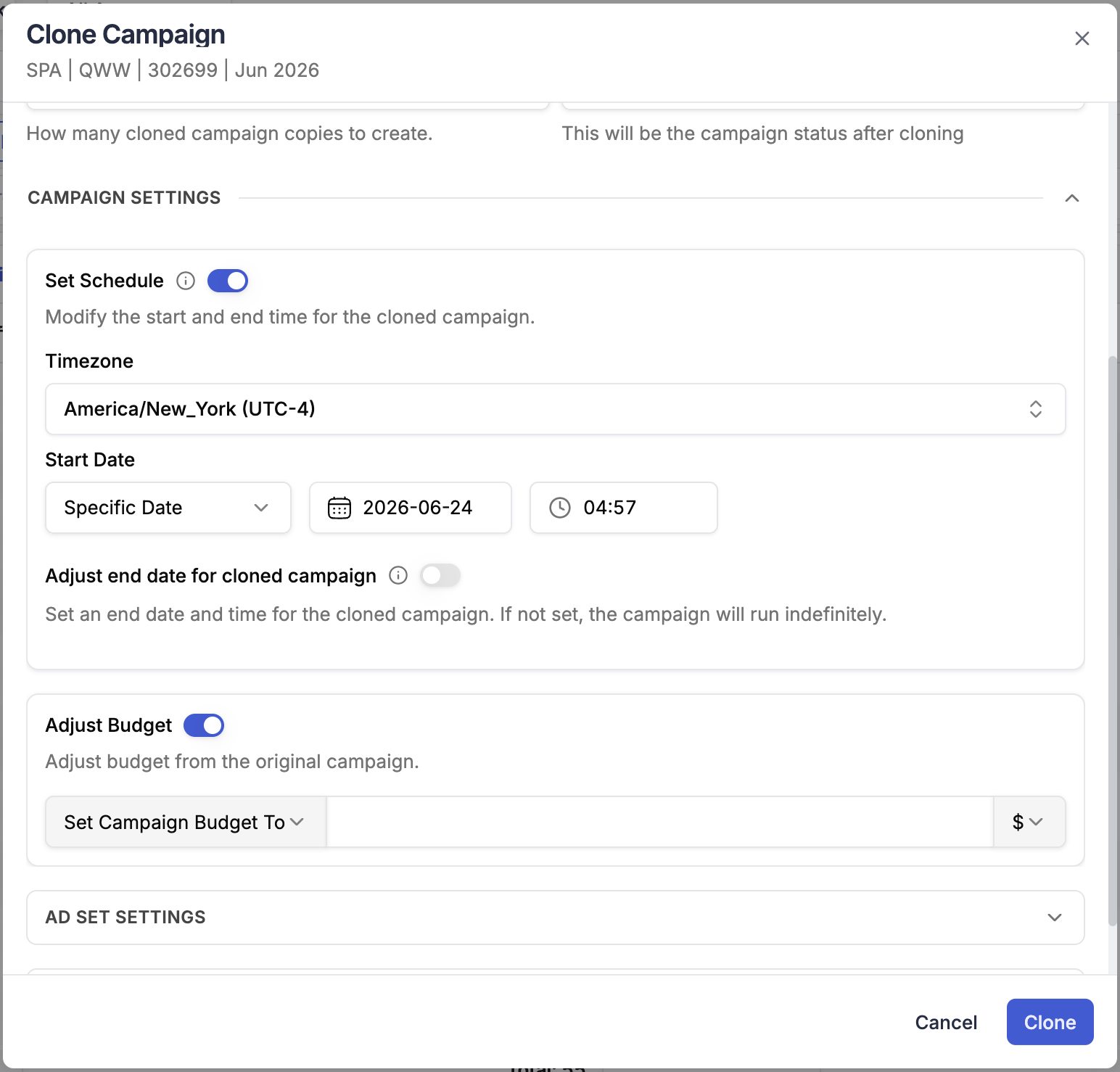
- Increase or decrease by a fixed amount or percentage
- Set the budget to a specific value
Ad Set Settings
Promoted Object — override the Pixel and Optimized Event for all ad sets inside the cloned campaigns. Useful when cloning to a different ad account that uses a different pixel.Ad Settings
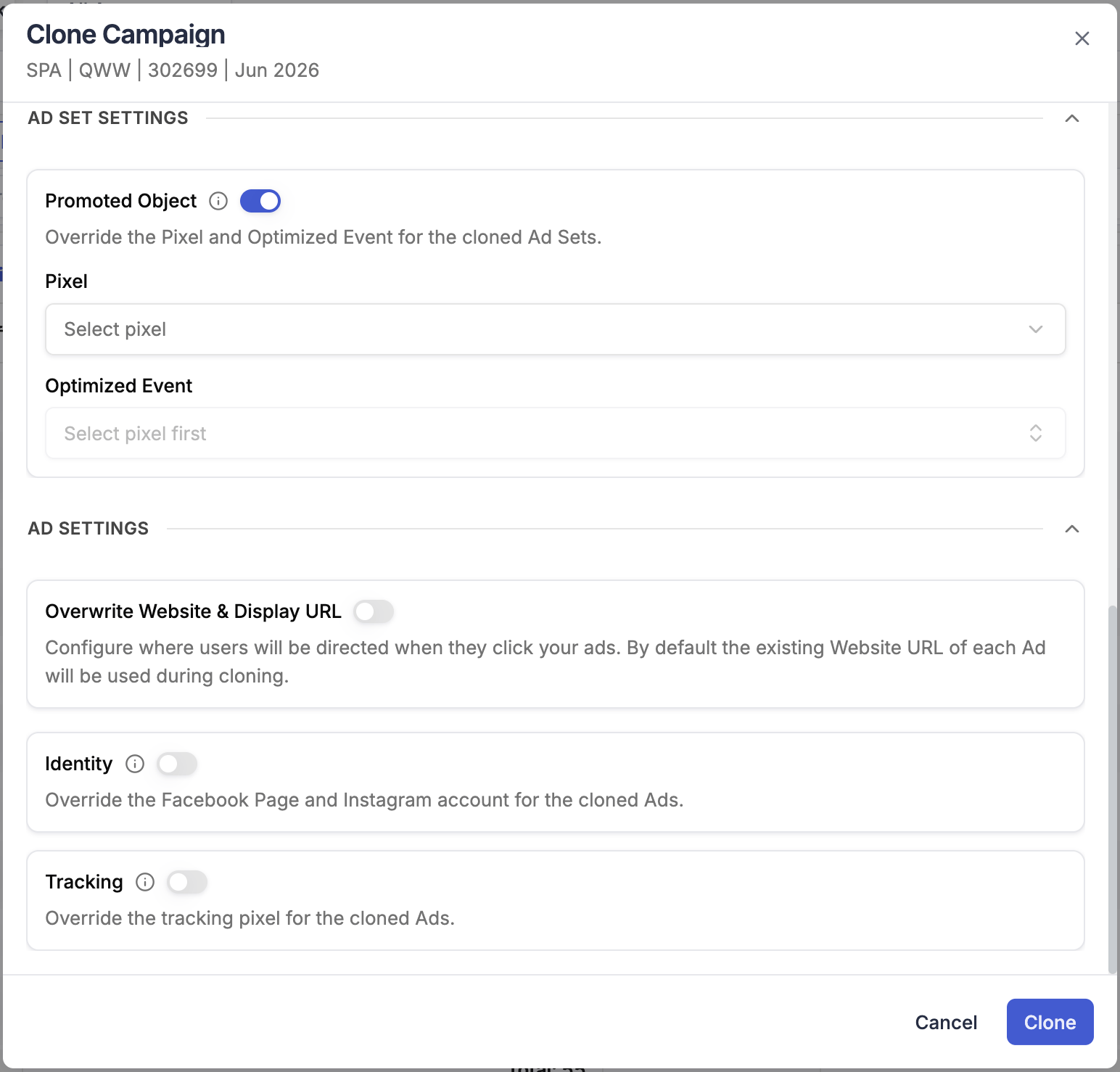
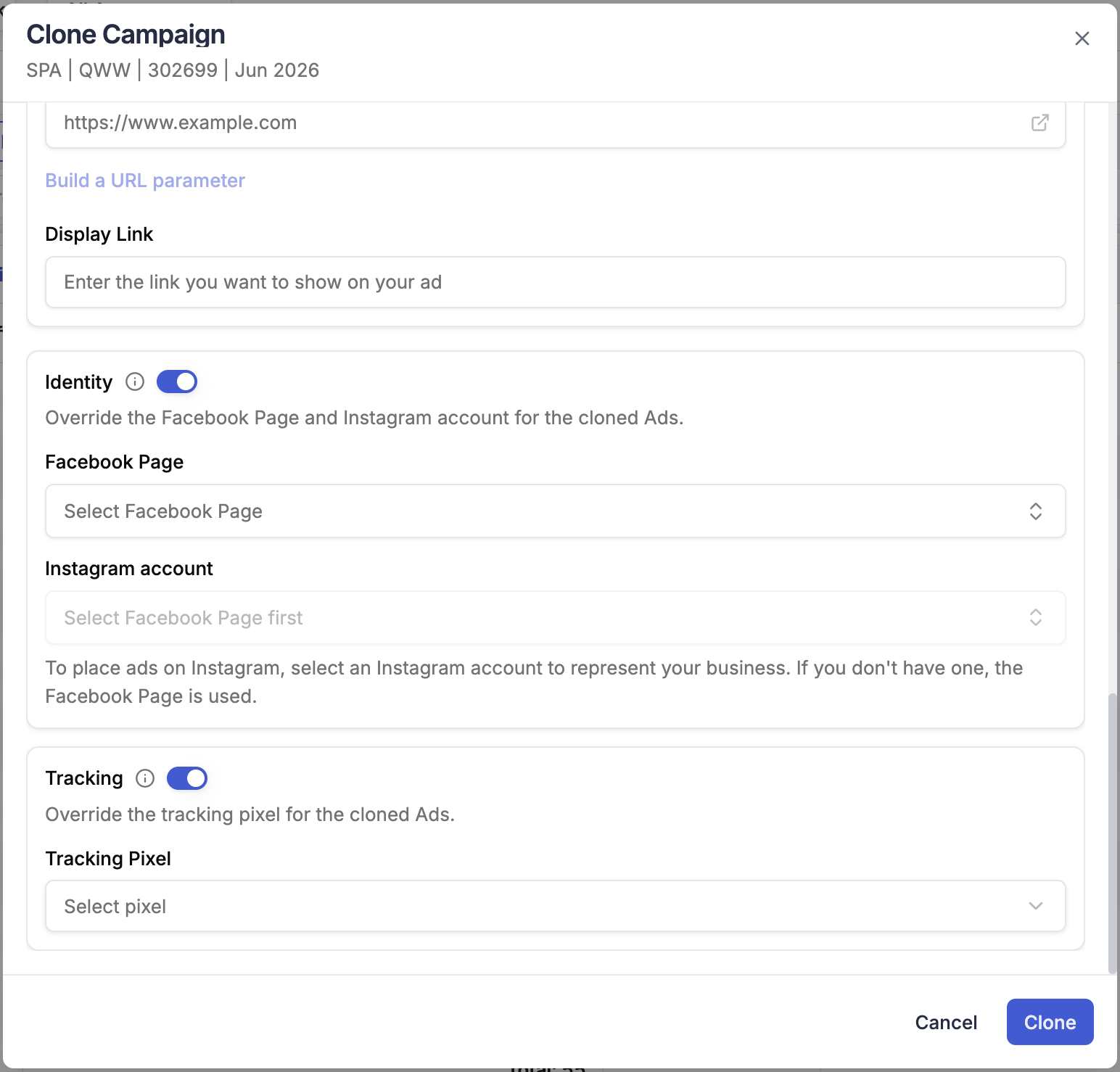
Cloning an Ad Set
Click Clone on an ad set to open the Clone Ad Set modal.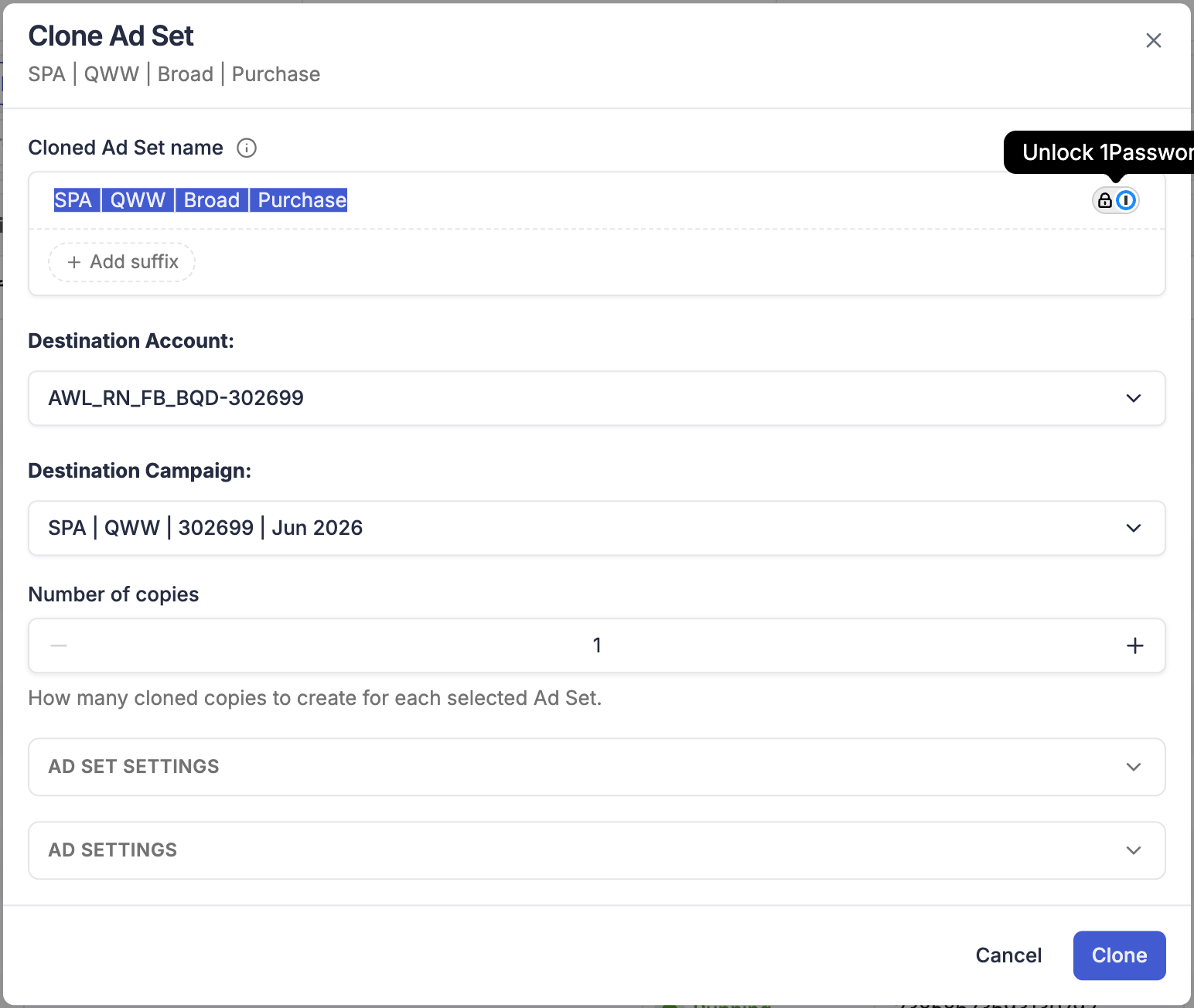
Ad sets can be cloned across campaigns and across ad accounts. You can select ad sets from multiple campaigns at once and clone them all to a single destination campaign in one operation.
Cloning an Ad
Click Clone on an ad to open the Clone Ad modal.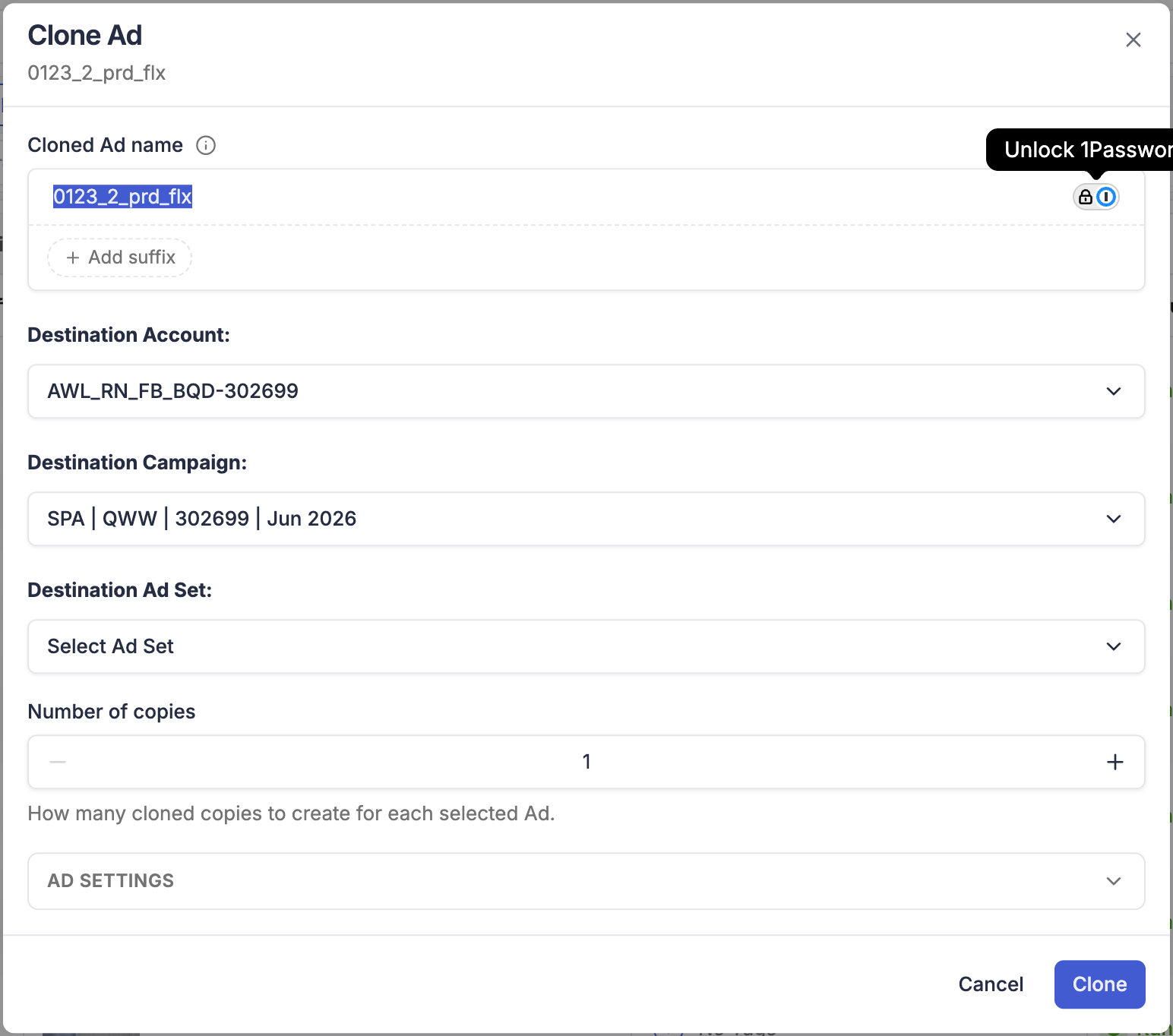
This is the most granular cloning operation. A common use is filtering ads in the Campaign Manager by performance, selecting winners, and cloning them all directly into a destination ad set inside your scaling campaign.