
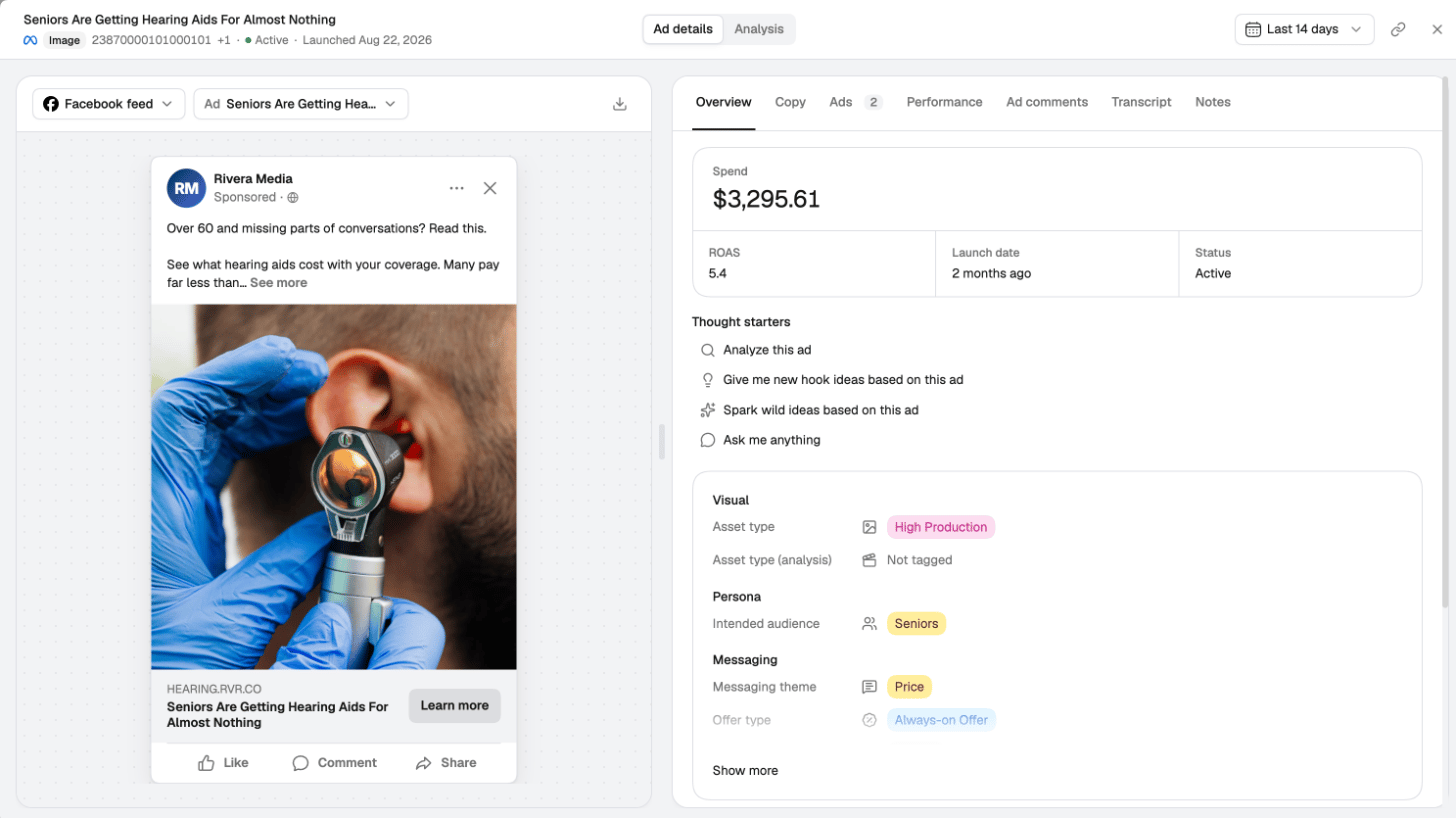
Click any creative — on Home, in a report, on the leaderboard or in a theme — and the creative inspector opens. It brings together everything about that one creative, across every ad, ad set, campaign and ad account that runs it.
The creative inspector on the Overview tab, with the ad preview, spend, ROAS, thought starters and AI tags

The header

The top of the inspector shows the creative’s name, its platform and format, its status and its launch date. When the same creative runs in several ads, a +N badge shows how many. Switch between Ad details and Analysis in the middle, change the date range on the right, and use the link button to copy a link to the creative. On the left, the preview shows the creative as it appears in a placement. Pick the placement (for example Facebook feed) and which of its ads to preview, and use the download button to download the image or video.

Ad details

The Ad details view has a tab for each part of the creative:
Pausing or starting an ad from the Ads tab changes it on the ad platform. The Ad Library shows the new status after its next sync.

AI analysis

Switch the inspector to Analysis to see why an ad works and what to fix. Choose how deep to go, then click Analyse:
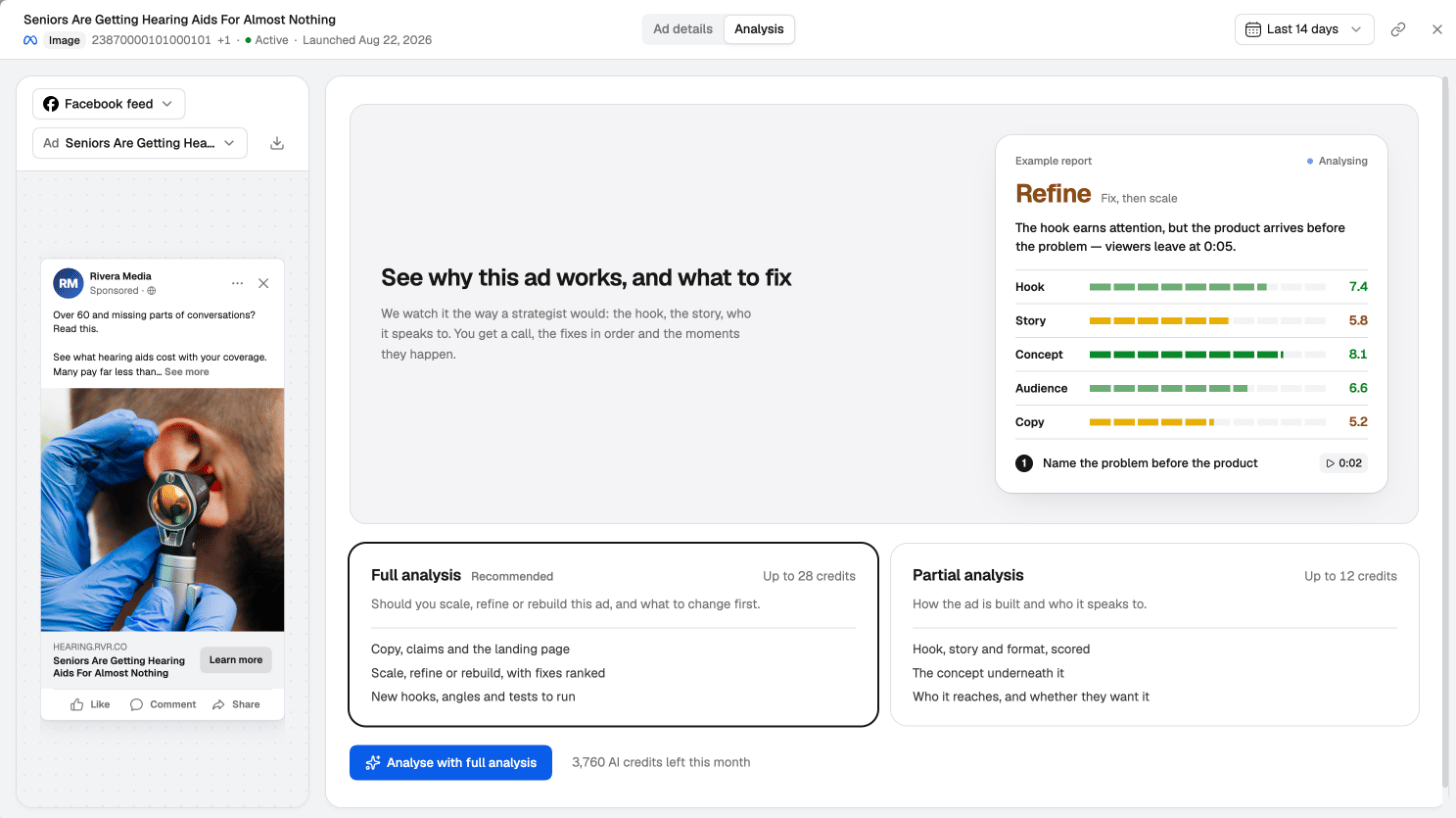
The Analysis view before a run, with the Full analysis and Partial analysis options and the credits left this month
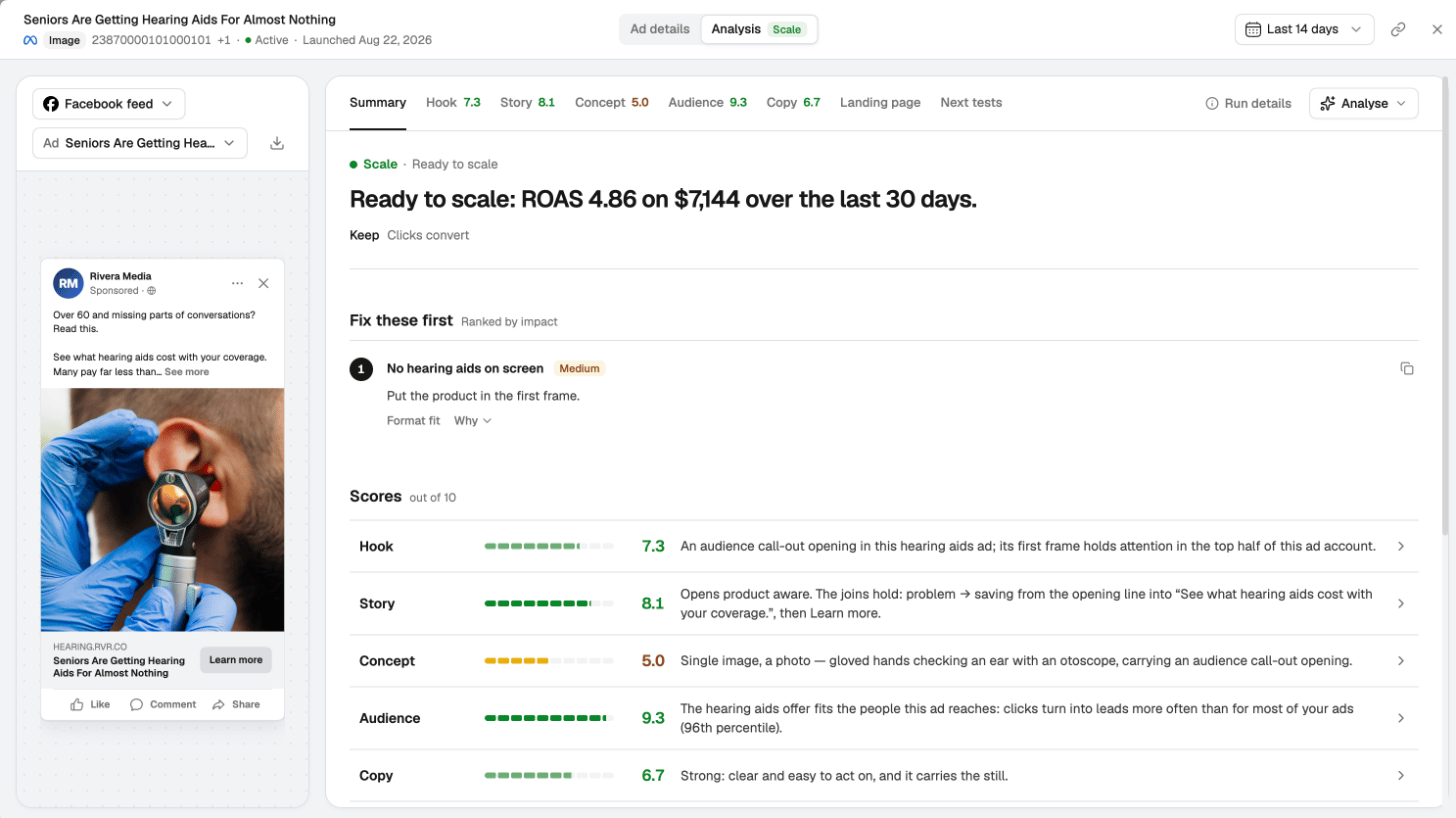
The analysis reads the ad the way a creative strategist would. The Summary opens with a verdict — Scale, Refine or Rebuild — and the reason, then what to fix first, ranked by impact, and Scores out of 10 for the hook, story, concept, audience and copy. Tabs along the top go deeper into each part, the Landing page and the Next tests to run. For videos, a fix links to the moment in the video it’s about.
A finished Full analysis with a Scale verdict, the fix to make first and scores for hook, story, concept, audience and copy
An analysis uses AI credits from your workspace. The chooser shows the most each option can use and how many credits are left this month, and a video uses more than an image. When the analysis is done, the creative’s AI tags are filled in too.

Tags on a creative

The Overview tab lists the creative’s tags:
  • AI tags — such as hook, angle, persona, format and style. If a tag is wrong, edit it; your edit is marked Edited and kept.
  • Custom tags — your own labels. Click Add tag to add one.
  • Naming convention — values read from the ad’s name by your naming rules. Edit rules opens them.
See Tags and settings.

Notes

Open the Notes tab and write what you learned from the creative — what worked, what to try next. Press Enter to add the note, or Shift+Enter for a new line. Every note also appears on the Ad Library’s Notes page, so the whole team can read them in one place. See Leaderboard, themes and notes.

Ask Jade

The inspector suggests Thought starters — questions about this creative you can send to Jade in one click, for example what to test next or how to brief a new version.