
Saving an ad
Click Save on any ad card, or in the ad’s details, and pick a board — or type a name to create a New board on the spot. Saved ads show up on the board and in Discover → Saved. To take an ad off a board, click Unsave on its card, or open the board, click Select, pick the ads and choose Remove from board.Organizing boards
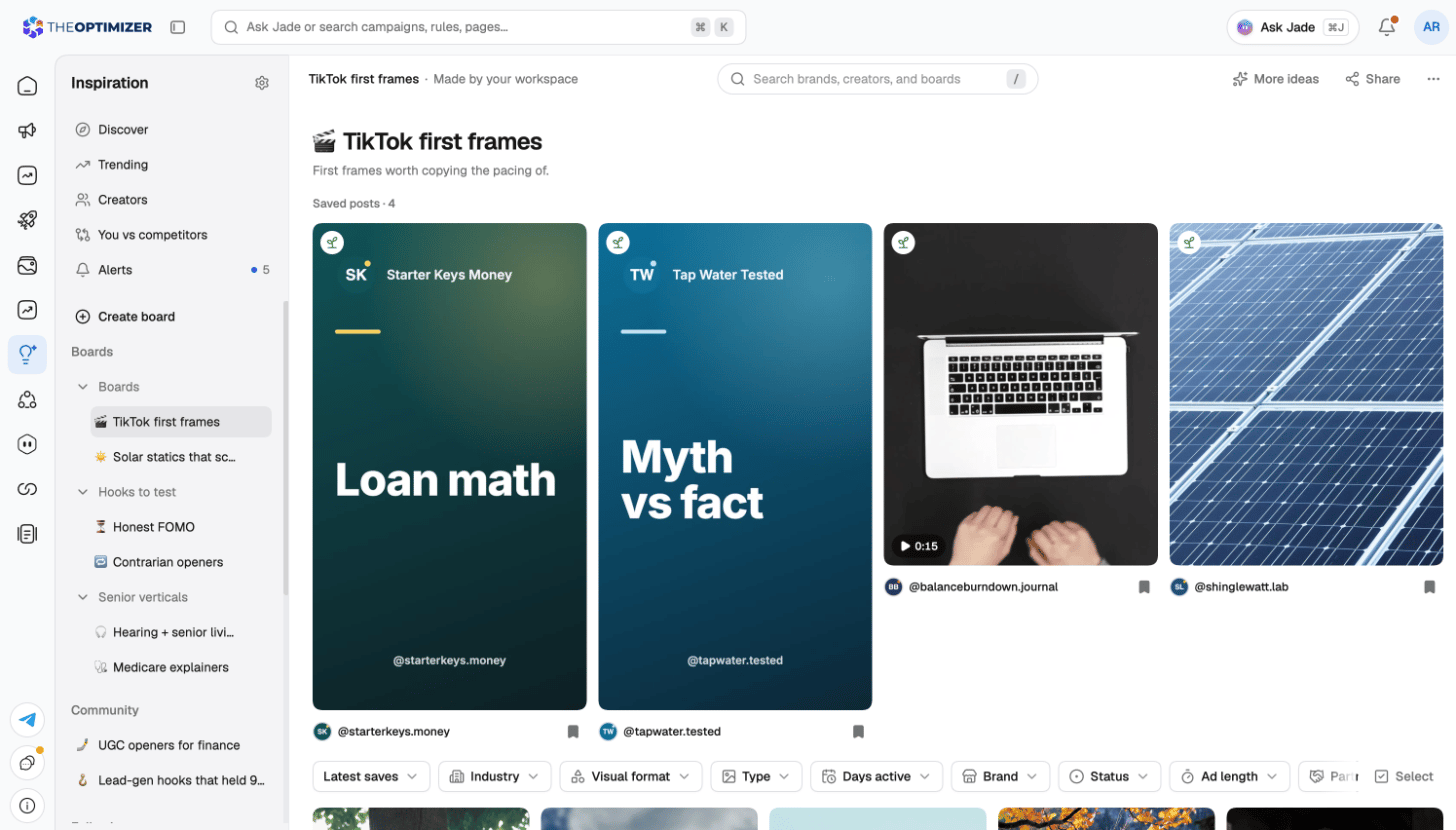
Your boards are listed under Boards in the Inspiration sidebar.- Click New board to create one, or put boards in folders to group them.
- A board’s menu lets you Edit board, Duplicate board, Share board or Delete board.
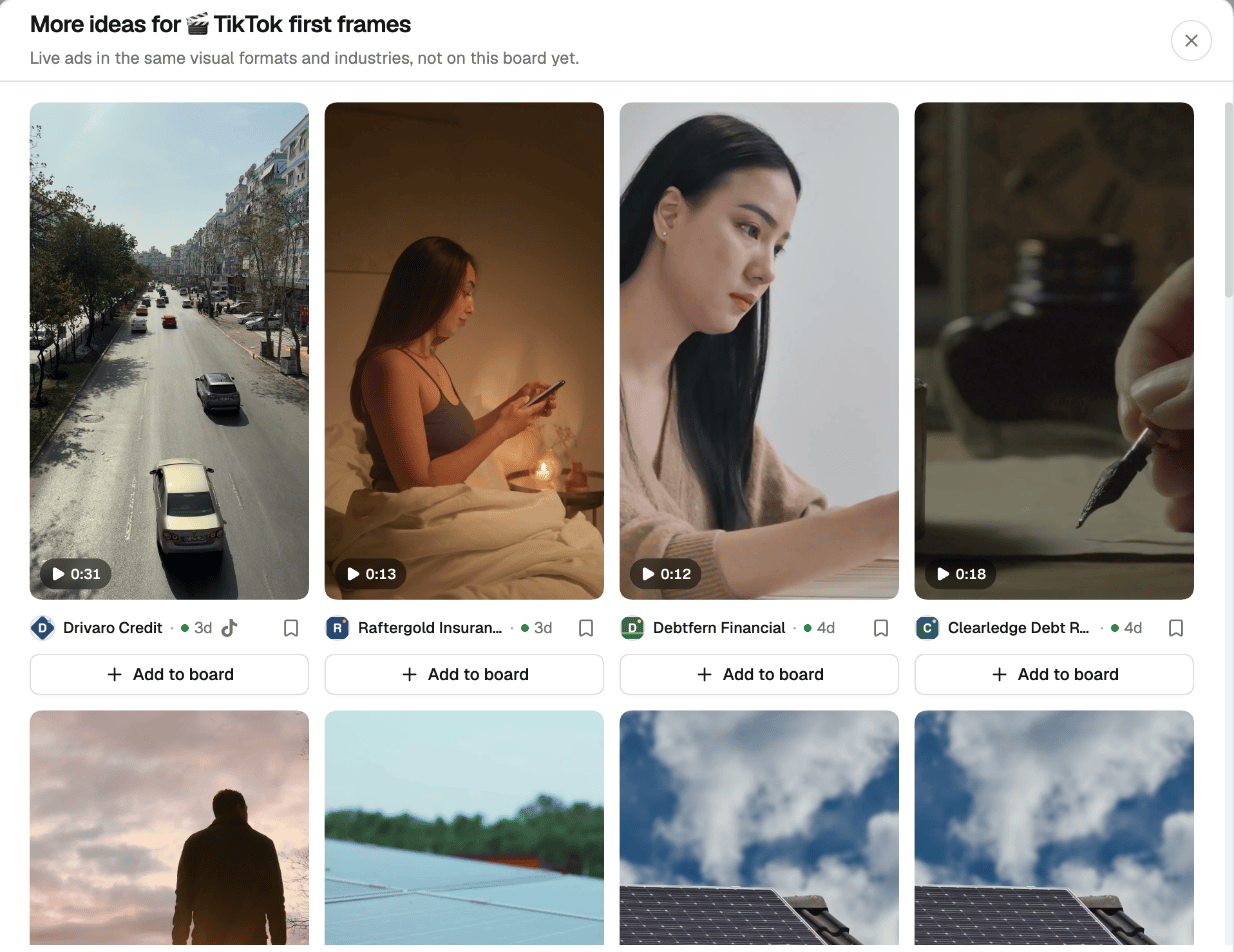
- More ideas on a board suggests live ads in the same visual formats and industries that aren’t on the board yet. Click Add to board on the ones you like.
Sharing a board
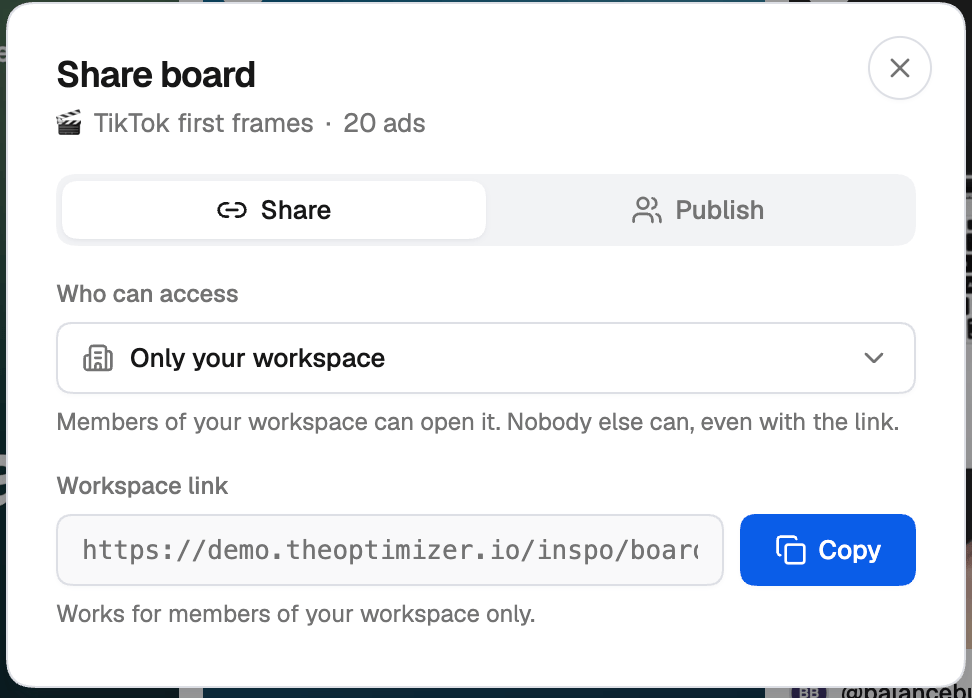
Click Share on a board and choose Who can access it:- Only your workspace — members of your workspace can open it with the workspace link; nobody else can, even with the link.
- Anyone with the link — anyone with the public link can view the board. Reset link turns the old link off and gives you a new one.
Publishing to the community
On the Publish tab, you can list a board on Explore community boards, where other workspaces can find and follow it. Choose a display name and categories, then click Publish. Notes and comments stay private. Only workspace admins can publish a board. To browse what others have published, open Community in the Boards section of the sidebar. Boards you follow stay in your sidebar. Every board your workspace has shared or published is listed in Settings → Sharing, where you can turn off a link or unpublish a board.Save from the Meta Ad Library with the Chrome extension
The Save to Inspo extension for Chrome adds a Save button to every ad in the Meta Ad Library, so you can save ads to your boards without leaving the page.1
Install the extension
In Inspiration, go to Settings → Browser extension and click Add to Chrome, or find Save to Inspo on the Chrome Web Store.
2
Connect your browser
Back in Settings → Browser extension, click Connect a browser. If the extension doesn’t pick up the connection, copy the token the page shows and paste it into the extension’s popup.
3
Save ads
Open the Meta Ad Library, pick a board in the extension’s popup, and click Save on any ad. The arrow next to Save lets you pick a different board for one ad, and Save all saves every ad loaded on the page.
A connection lasts 7 days, so reconnect weekly. The extension saves as you, to your workspace’s boards. Disconnect browsers you no longer use in Settings → Browser extension — a connected browser keeps saving until it expires or is disconnected, even if its owner leaves the workspace.
Save from Instagram by DM
Send a post, reel or ad to Inspiration in an Instagram DM, and it lands on your boards.1
Link your Instagram account
Go to Settings → Instagram and click Link an account. From the Instagram account you want to link, send the code shown on the page as a DM to the Inspiration account named there.
2
Share posts in a DM
From Instagram, share any post, reel or ad with that account in a DM. It’s saved to your boards.