
Campaign level
Basic info
- Campaign name — type a name, or build it from parts with a naming template: text, the date, the campaign type, budget, bid strategy, locations or variants.
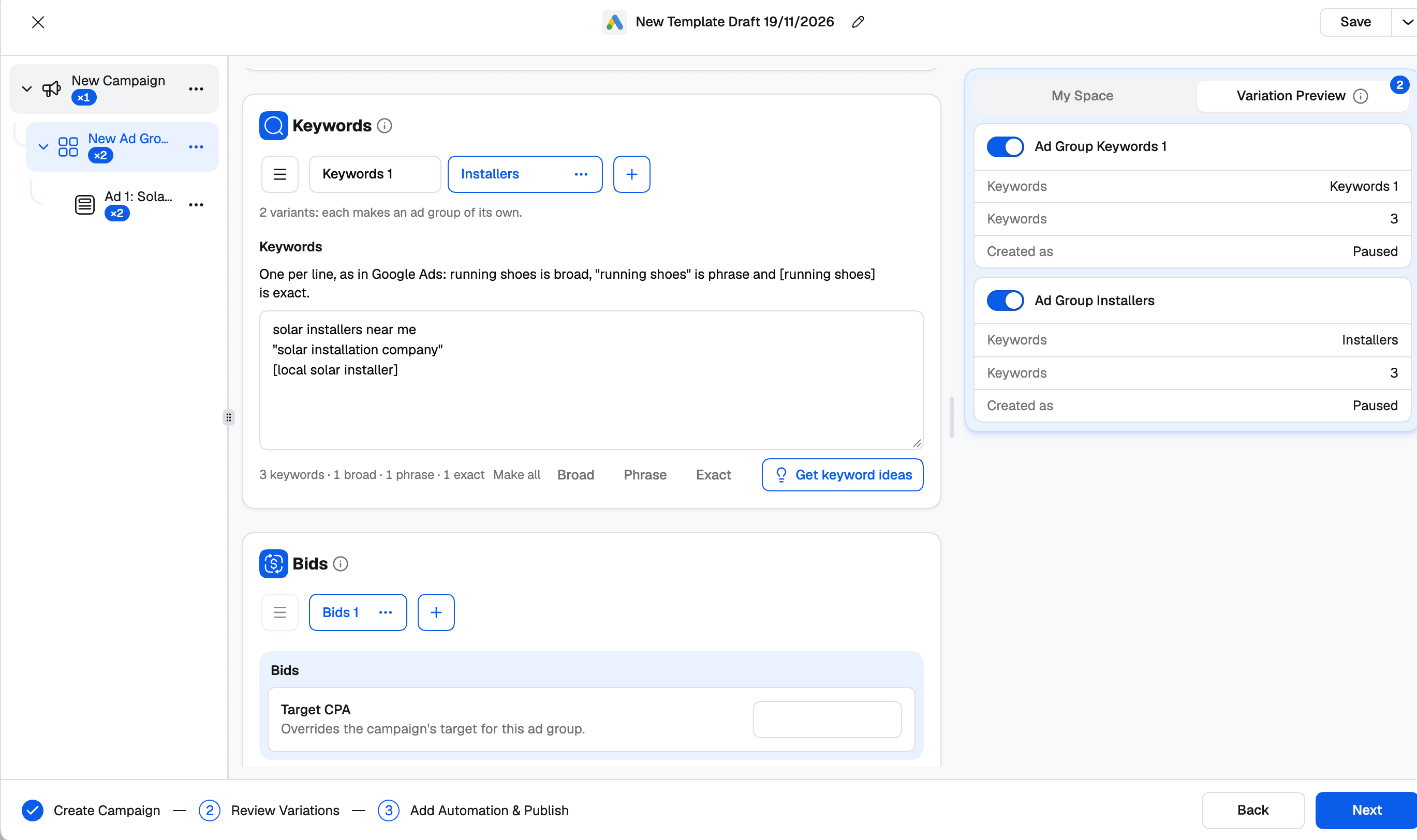
- Campaign type — Search, Performance Max, Display, Demand Gen, Shopping or App. It decides the ad groups, ads and bid strategies on offer, and can’t be changed once the campaign is created.
- Status — Active (Enabled in Google Ads) or Paused.
Budget & bidding
- Budget — Average daily, or Campaign total (spent over the campaign’s dates, so it needs an end date). Under Advanced, spend from a Shared budget of the account instead.
- Bid strategy — Maximize conversions, Maximize conversion value, Maximize clicks, Target impression share, Manual CPC, Target CPC or Target CPM, depending on the type, with the targets each one takes (target CPA, target ROAS, max CPC bid limit, impression share and where on the page). Or use a Portfolio strategy shared in the account.
Demand Gen has a minimum daily budget, shown on the field. Google recommends a daily budget of 15 times your target CPA or more.
Targeting
- Networks — Google Search Partners and the Google Display Network, where the type allows.
- Locations & languages — include and exclude countries, regions, cities or postal codes, set location bid adjustments, and choose whether to reach people by presence or interest or presence only.
- Negative keywords — type them, or add the account’s negative keyword lists.
- Schedule — start and end dates, and Run ads on a schedule to pick days and hours (in the account’s time zone; click and drag to pick several hours).
- Devices — mobile phones, computers and tablets.
- EU political ads — Google needs every campaign to declare whether it contains political advertising in the EU.
Settings by campaign type
Assets
Add sitelinks, callouts, structured snippets and a phone number to the campaign; its ads use them.Ad group level
Search ad groups
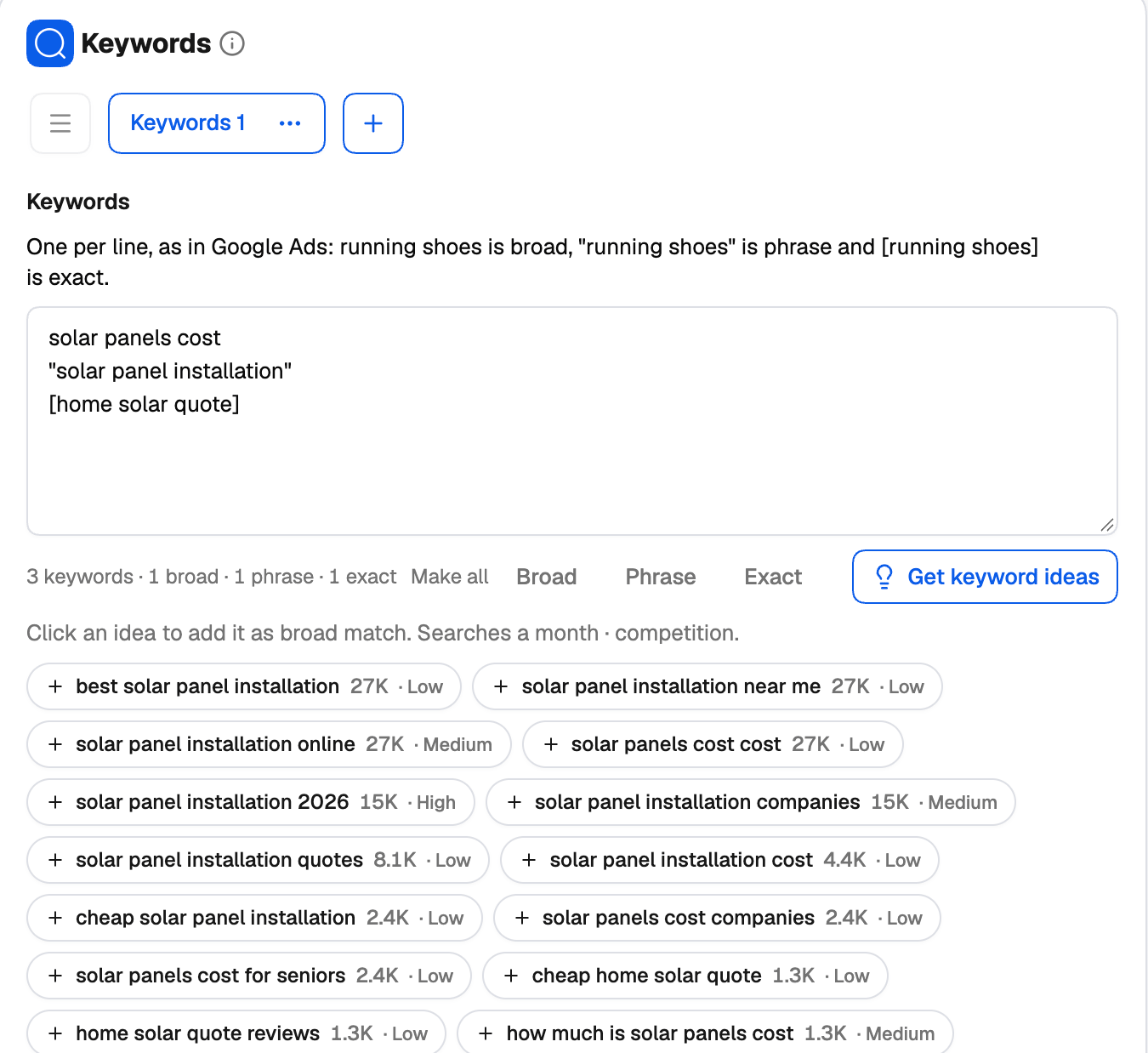
- Keywords — one per line, as in Google Ads:
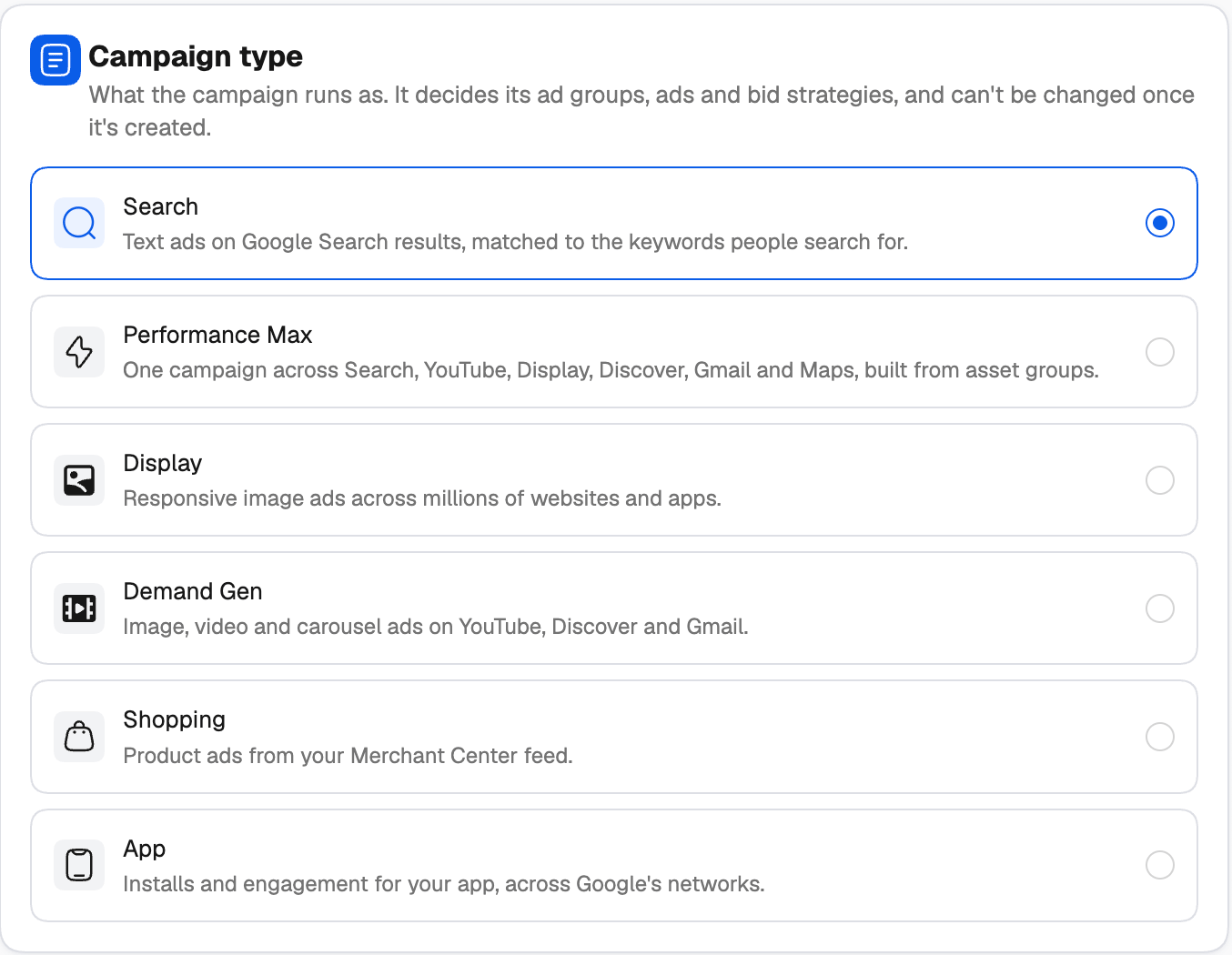
running shoesis broad,"running shoes"is phrase and[running shoes]is exact. Make all switches every keyword to one match type. - Get keyword ideas suggests keywords from the ones you entered — or, with none yet, Get ideas from your landing page. Each idea shows its monthly searches and competition; click it to add it as broad match.
- Keep to these keywords turns off AI Max’s search term matching for this ad group, so its ads show only for its keywords.
- Bids, negative keywords, audiences (your data segments, interests & in-market, custom segments — as Targeting or Observation) and demographic exclusions.
Keyword ideas need the Google Ads account to have Basic access to Keyword Planner.
Performance Max asset groups
An asset group holds the destination (final URL and display path), the text assets (headlines, long headlines, descriptions), the business name, images, logos, videos and call to action, plus optional signals that help Google start faster: audience signals and search themes.Display and Demand Gen ad groups
Choose where a Demand Gen ad group runs: All channels, Google channels only, or Selected channels — YouTube in-stream, YouTube in-feed, YouTube Shorts, Discover, Gmail and Display. Set its audiences and demographics as for Search.Ad level
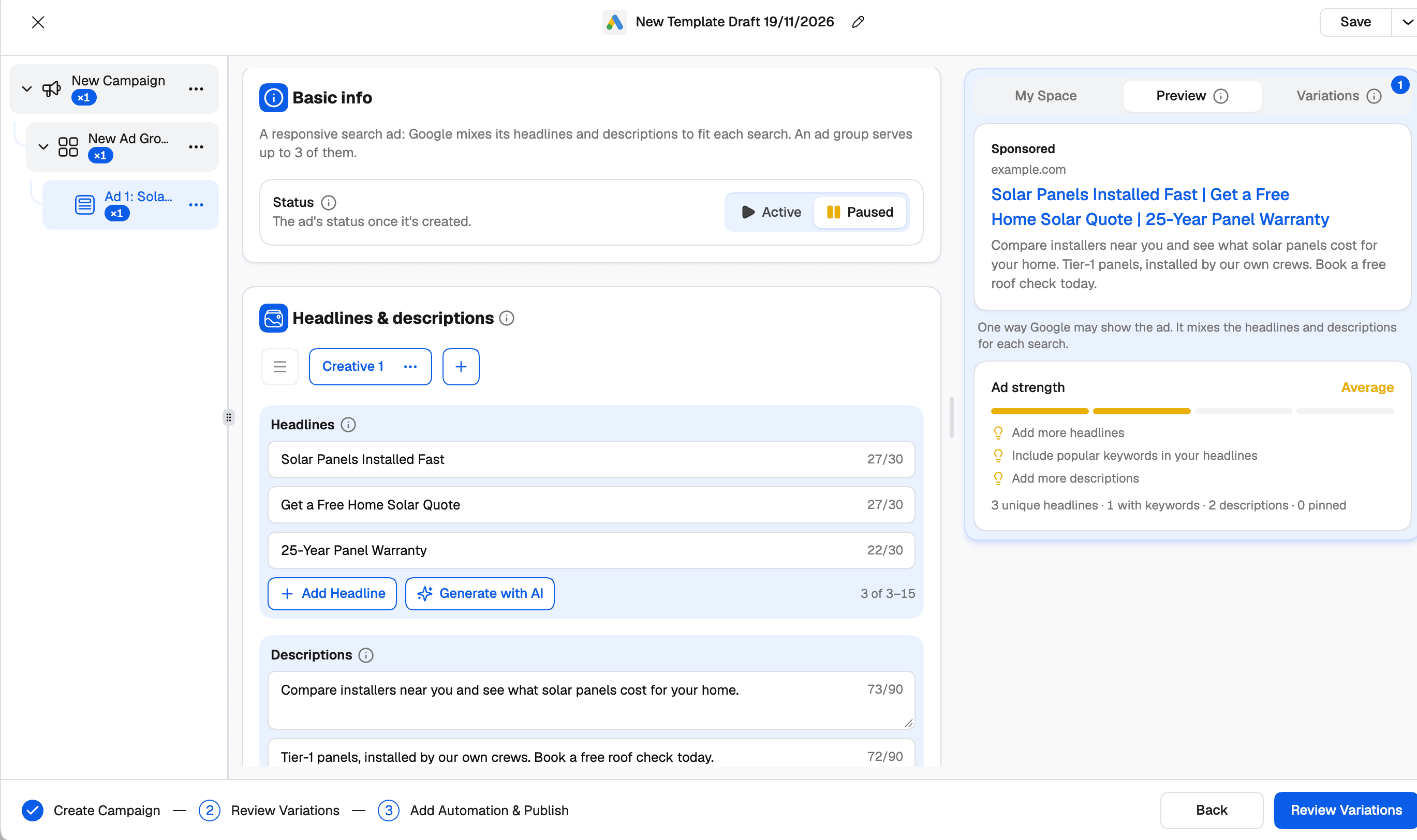
Every ad has a final URL, and under Advanced a mobile final URL, a tracking template and a final URL suffix.
Images in every ratio
When you add an image from your Media Library, the creator makes a crop of it for each ratio the campaign type uses — from Landscape 1.91:1, Square 1:1 and Portrait 4:5 for images, and Square logo 1:1 and Landscape logo 4:1 for logos — and shows a tick on each one it has. Click Adjust crops to move or zoom each ratio’s crop. The crops are cut from your original picture when the campaign is created.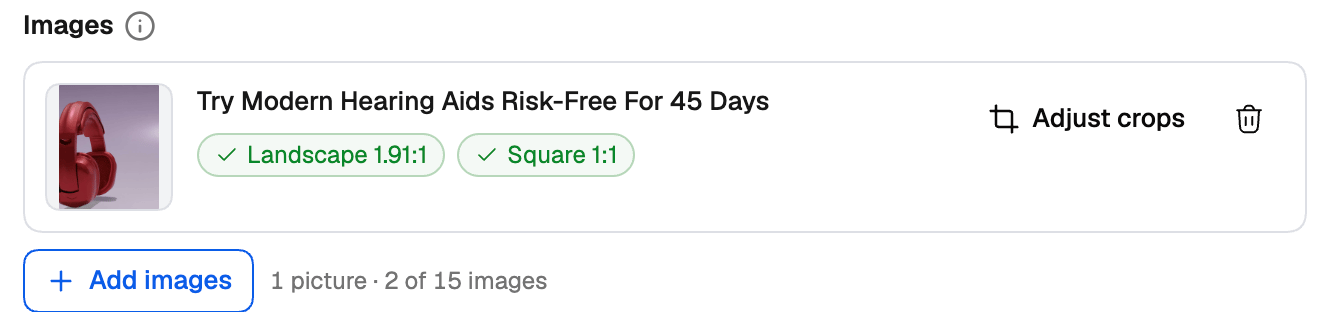
Groups that create variations
Each level can hold groups of the things you want to test. Every combination becomes a campaign, ad group or ad of its own:
On Review Variations, check every campaign, ad group and ad the groups produce before you publish. Copy a level from its menu and paste it into another campaign or ad group to reuse it.