
The Snapchat Campaign Creator is in Beta. Before you start, connect your Snapchat account.
Opening the creator
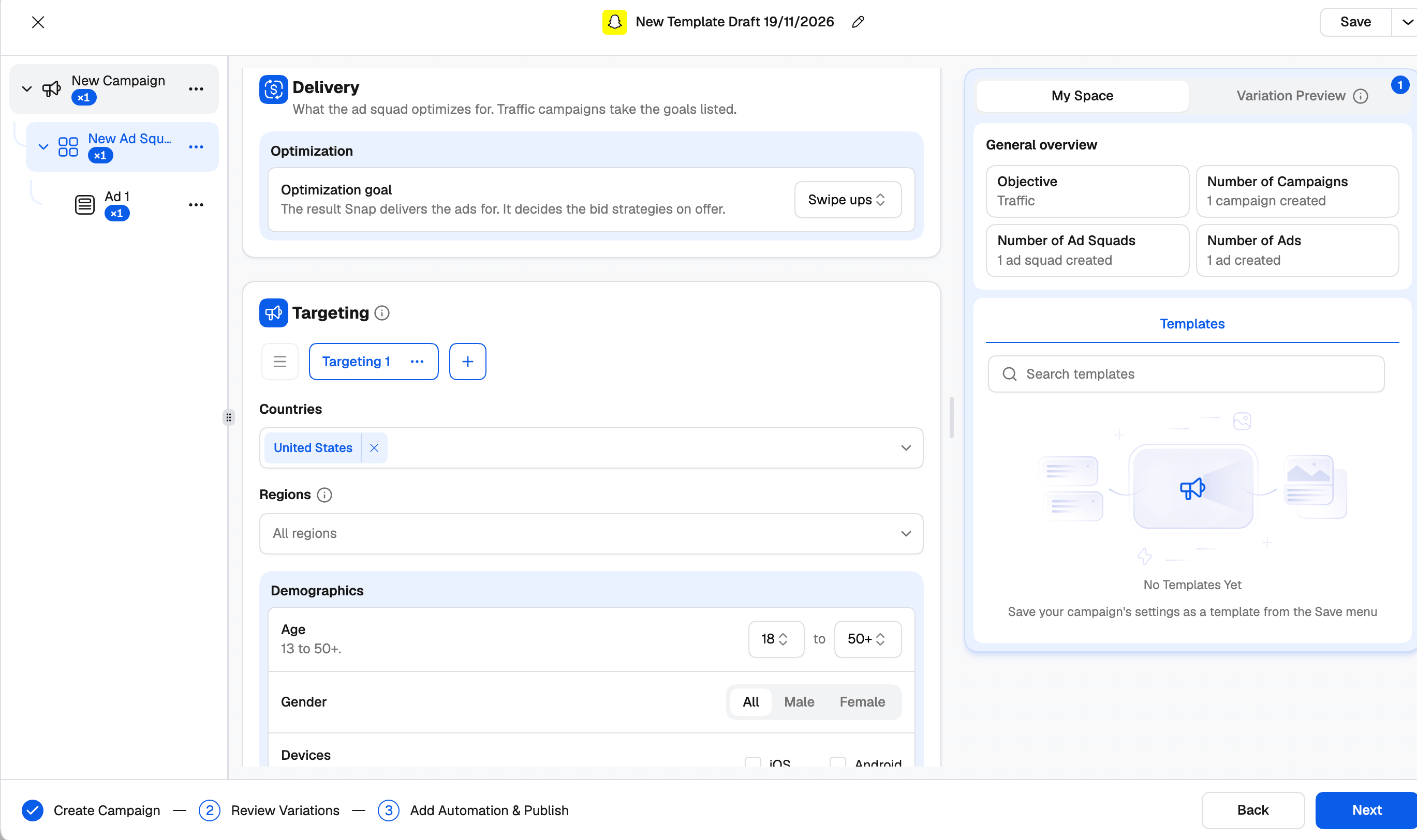
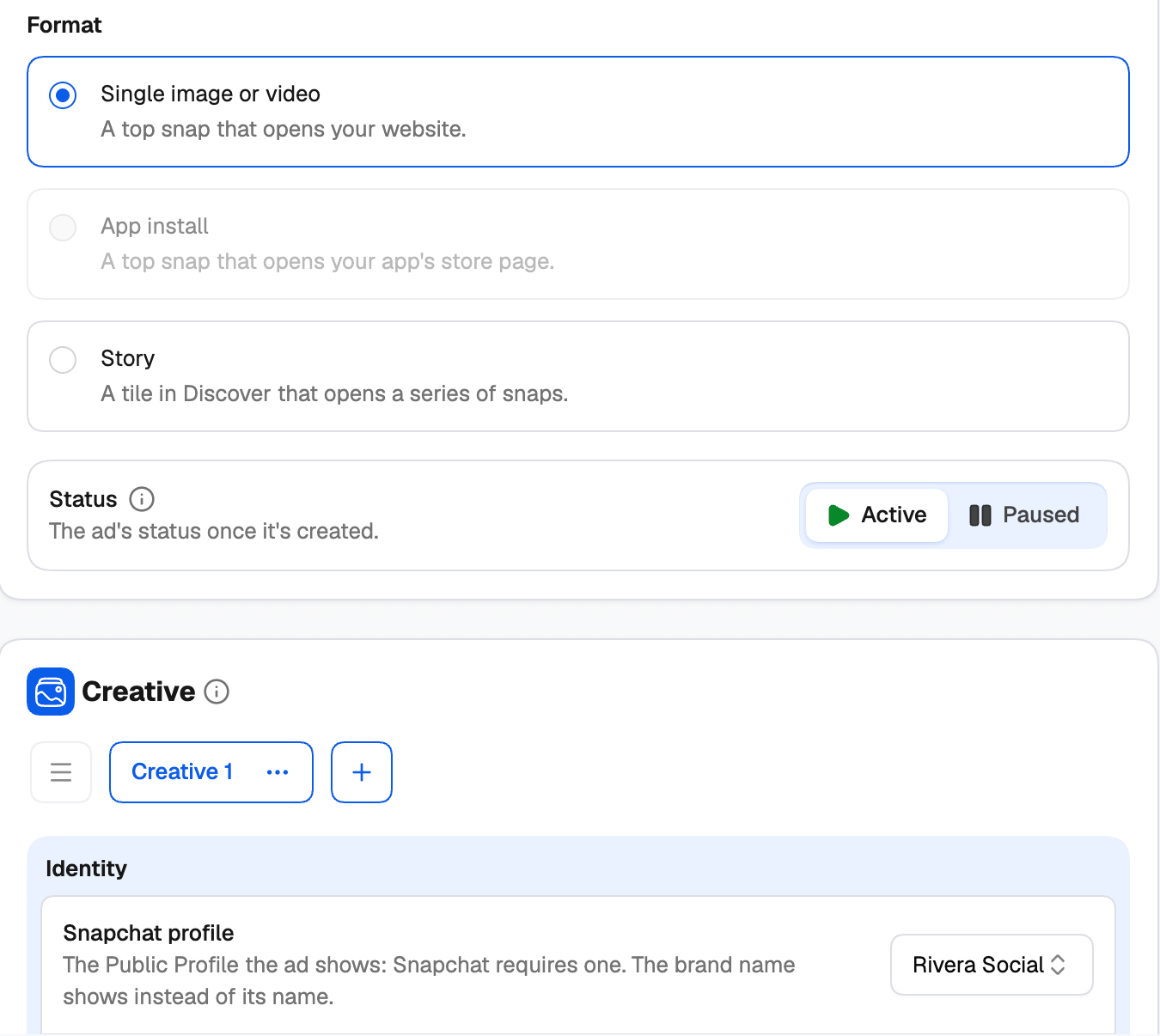
In the left navigation, go to Campaigns → Create and click the Snapchat card. Pick the ad account, then work through three steps: Create Campaign, Review Variations and Add Automation & Publish. The tree on the left shows the campaigns, ad squads and ads you’re building. Every level has a status: Active starts delivering as soon as it’s created; Paused creates it switched off, to turn on in Snapchat later.Campaign
To add new ad squads and ads to a campaign you already run, use Add to an existing campaign. The campaign itself stays as it is.
Ad squad
Ad
The formats on offer depend on the campaign’s objective — App install, for example, needs the App promotion objective.
Media that fits Snapchat
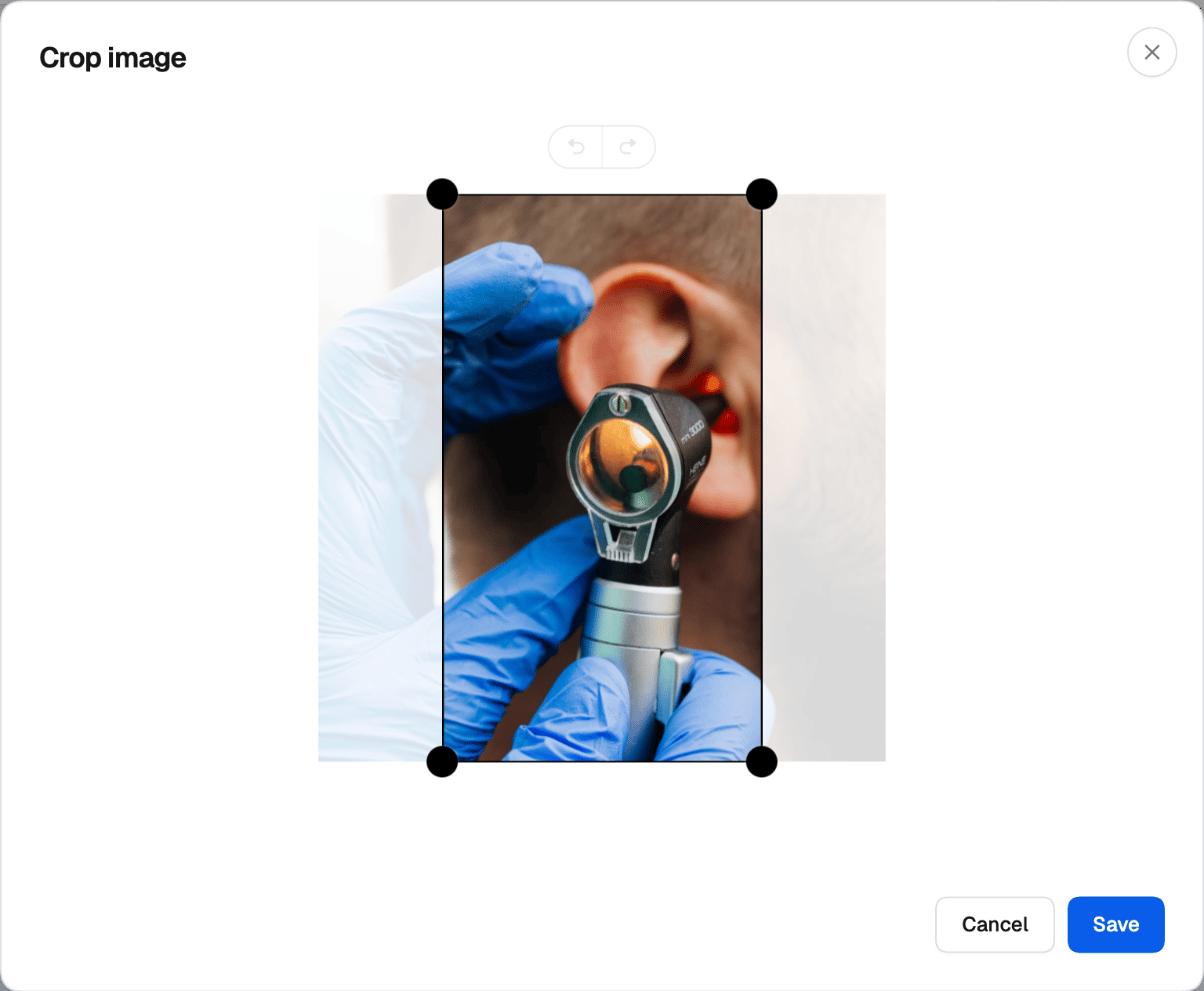
Pick the top snap from your Media Library. Snapchat wants vertical 9:16 media (1080×1920), images under 5 MB and videos of 3 to 180 seconds. When a picture or video doesn’t fit, the creator offers a one-click fix:- Crop to 9:16 — crops the image or video in the Media Library editor and saves the vertical version to your Media Library.
- Compress to 5 MB — shrinks a heavy image to fit Snapchat’s limit.

Groups that create variations
Every combination becomes its own campaign, ad squad or ad. Check them all on Review Variations before you publish.