
Why launch from TheOptimizer instead of Realize
Realize is built to create one campaign at a time, and expects the pieces to exist before you start. The launcher removes those steps:Campaign groups in one go
In Realize you create the campaign group first, then come back to add campaigns to it. Here you create the group — its objective, KPI, conversions and shared budget — together with all of its campaigns, in the same launch.
Groups generate your variations
Add Budget, Audience and Targeting Groups and every combination becomes its own campaign — three countries × two bids is six campaigns from one setup. Creative and Click-through Groups do the same for ads.
Naming templates
Name campaigns from the date, objective, countries or campaign number — and give every creative its own name in Taboola, from its headline, media or creative number.
Create what's missing without leaving
Create a new conversion, upload a customer list as an audience, pick Getty stock images or paste a list of sites to block — right inside the form.
Fewer rejected ads
Headlines are checked against Taboola’s review rules as you type (Title Case, all-caps, placeholder copy, repeated punctuation), and images against its size and crop requirements.
Tracking that works first time
Start from your tracker’s parameters in Integrations or a saved preset, and get warned when the click ID your tracker needs for conversion bidding is missing.
Prefer spreadsheets, or generating launches programmatically? The Excel bulk uploader is still available.
Opening the launcher
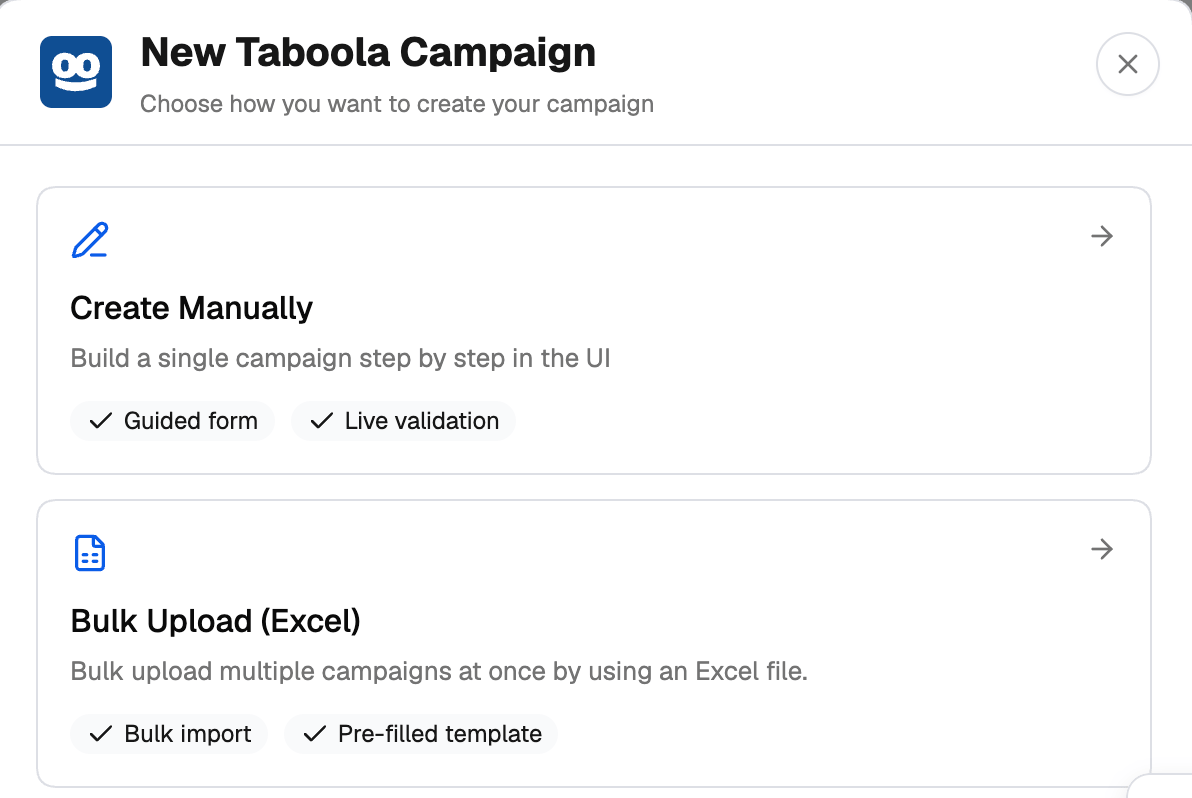
Go to Campaigns → Create in the left navigation, then click the Taboola card — or click Create on the Taboola tab of the Campaign Manager. Choose how you want to create your campaign:- Create Manually — the guided Campaign Launcher described here.
- Bulk Upload (Excel) — the Excel uploader.
How the launcher is laid out
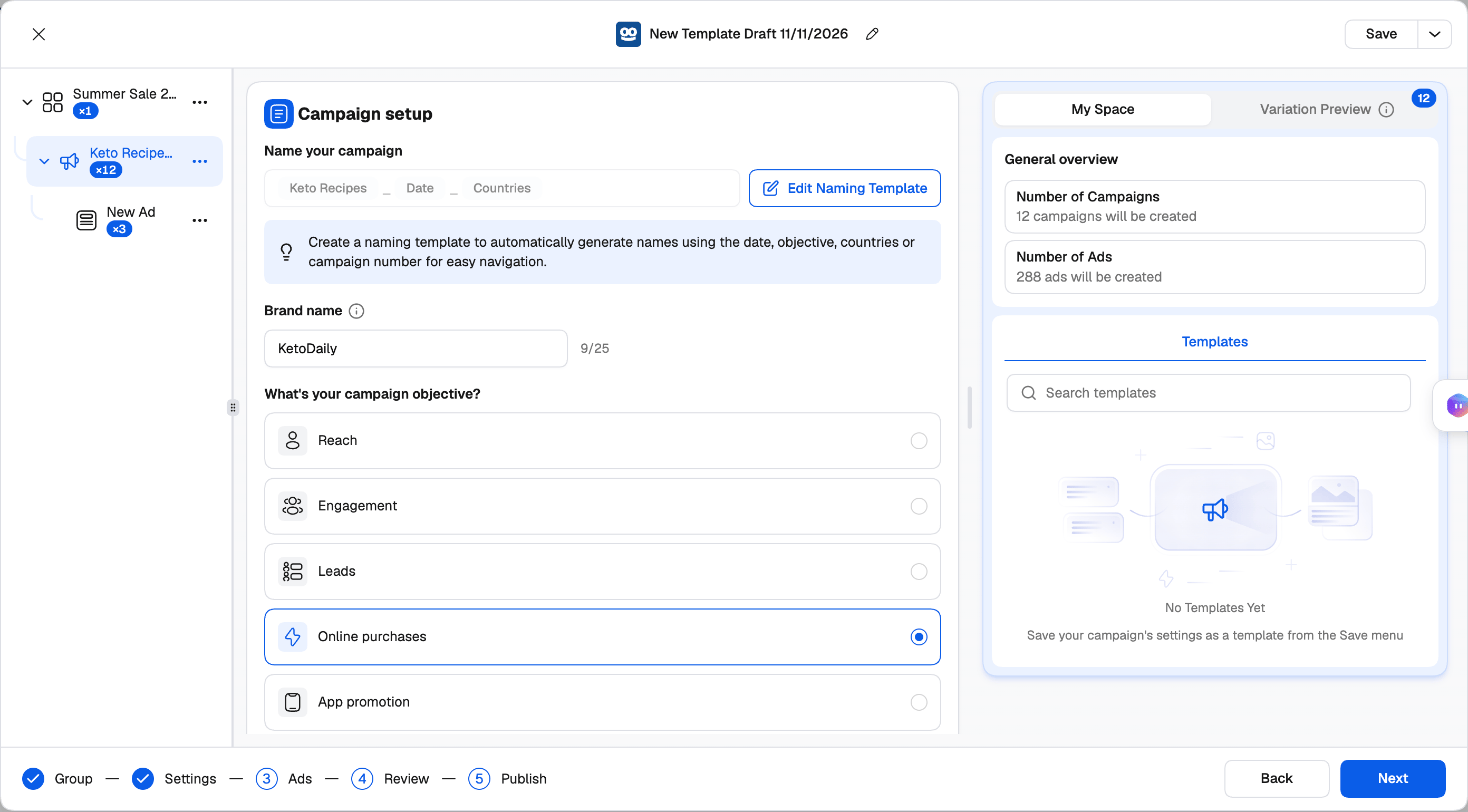
Middle — the settings of the step and row you’re on. Hover the ⓘ next to a field for what it does on Taboola.
Right — My Space and Variation Preview.
- My Space shows a General overview (number of campaigns and ads) and your saved Templates.
- Variation Preview lists the campaigns your groups generate — or, on the Ads step, the ads. Switch one off and it isn’t created.
The five steps
The footer shows where you are:- Group — pick the ad account and decide the campaign group: an existing one, a new one, or none. See Campaign groups.
- Settings — the campaign: objective, schedule, budget and bidding, audience, targeting, contextual targeting and tracking. See Build a campaign.
- Ads — names, creatives, headlines and landing pages. See Build a campaign › Ads.
- Review — everything that will be created, with a switch on every campaign and ad. See Variations and publishing.
- Publish — attach rules and send the launch to Taboola.
If you leave Settings without picking a country, the launcher asks whether you really want to target all countries — the campaign would run worldwide.
Templates and drafts
Drafts. Your work is kept in this browser as you go. Close the launcher and open it again, and it asks whether to Continue where you left off or Start new. Templates. The name at the top of the launcher (for example New Template Draft 10/11/2026) is the template name — click it to rename. Then use Save, or the menu next to it:- Save — save the current setup.
- Save As — save it under a new name. Everything is saved, groups included.
- Browse Templates — search your Taboola templates and Use template to load one.
Campaign groups, conversions and audiences belong to an ad account, so they only carry over when you use the template in the same ad account. Using it in another account clears them and tells you what was cleared.
Next steps
Campaign groups
Create or pick the group, its goal and its budget.
Build a campaign
Every setting on the Settings and Ads steps.
Variations and publishing
Budget and audience groups, Review, and Publish.
Excel bulk upload
Launch from a spreadsheet instead.