
Campaign
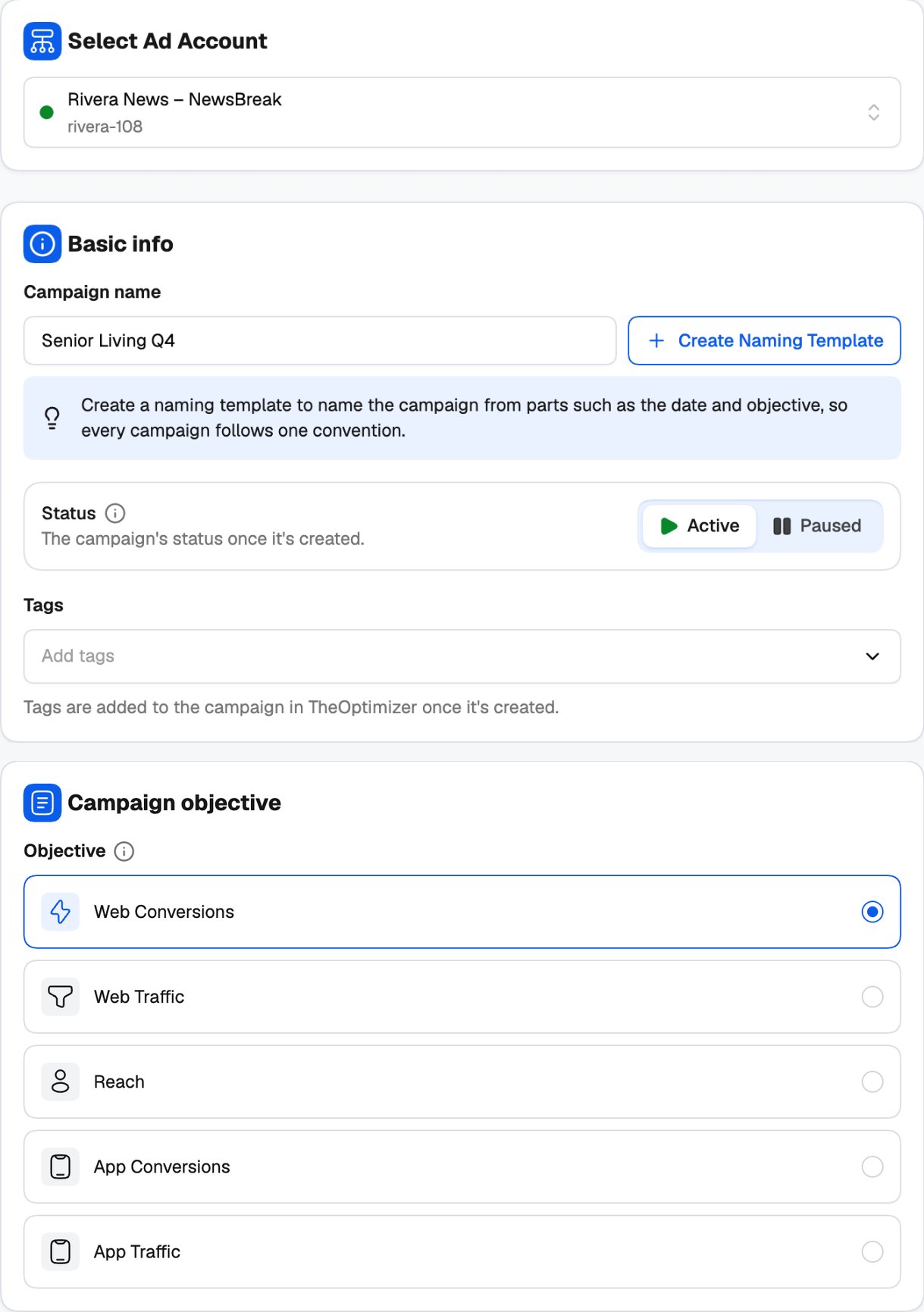
- Campaign name — type a name, leave it empty to have one generated, or click Create Naming Template to build it from parts (see Naming templates).
- Status — Active or Paused once it’s created.
- Tags — optional, for your own organization.
NewsBreak has no campaign-level budget, so campaigns don’t have groups. Budgets live on the ad set — and that’s where groups do their work.
Ad Set
com.example.app) and/or its App Store URL.
Audience Controls
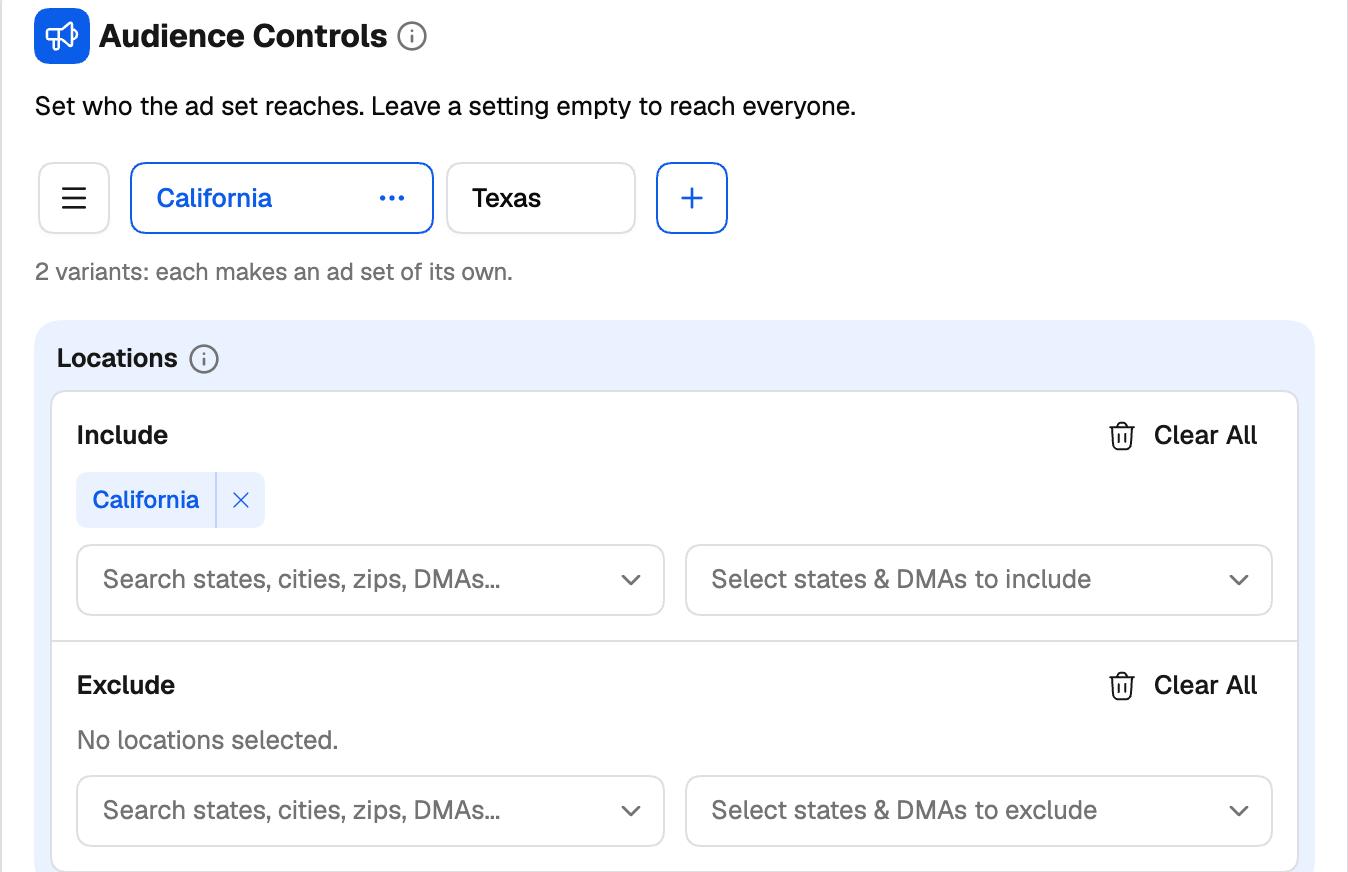
Group tabs: Audience 1, Audience 2…- Locations — add Include and Exclude rows. Search states, cities, ZIP codes and DMAs, or tick from the list of States and DMAs. Clear All empties the list.
- Demographics — Age (18–30, 31–44, 45–64, 65+), Gender (Male, Female, Not disclosed or All) and Language (English, Spanish).
- Interests — include or exclude (not both) from NewsBreak’s interest categories.
- Devices & connection — Operating systems (iOS and Android versions, grouped by system) and Network (All, Cellular or Wi-Fi).
- Manufacturers and Carriers — include or exclude.
Placements
Group tabs: Placement 1, Placement 2… Leave All surfaces (recommended) on, or pick Choose surfaces to select NewsBreak and/or Scoopz, plus Premium partners (None, All, Gaming or Non-gaming).Optimization & bidding
Group tabs: Bidding 1, Bidding 2…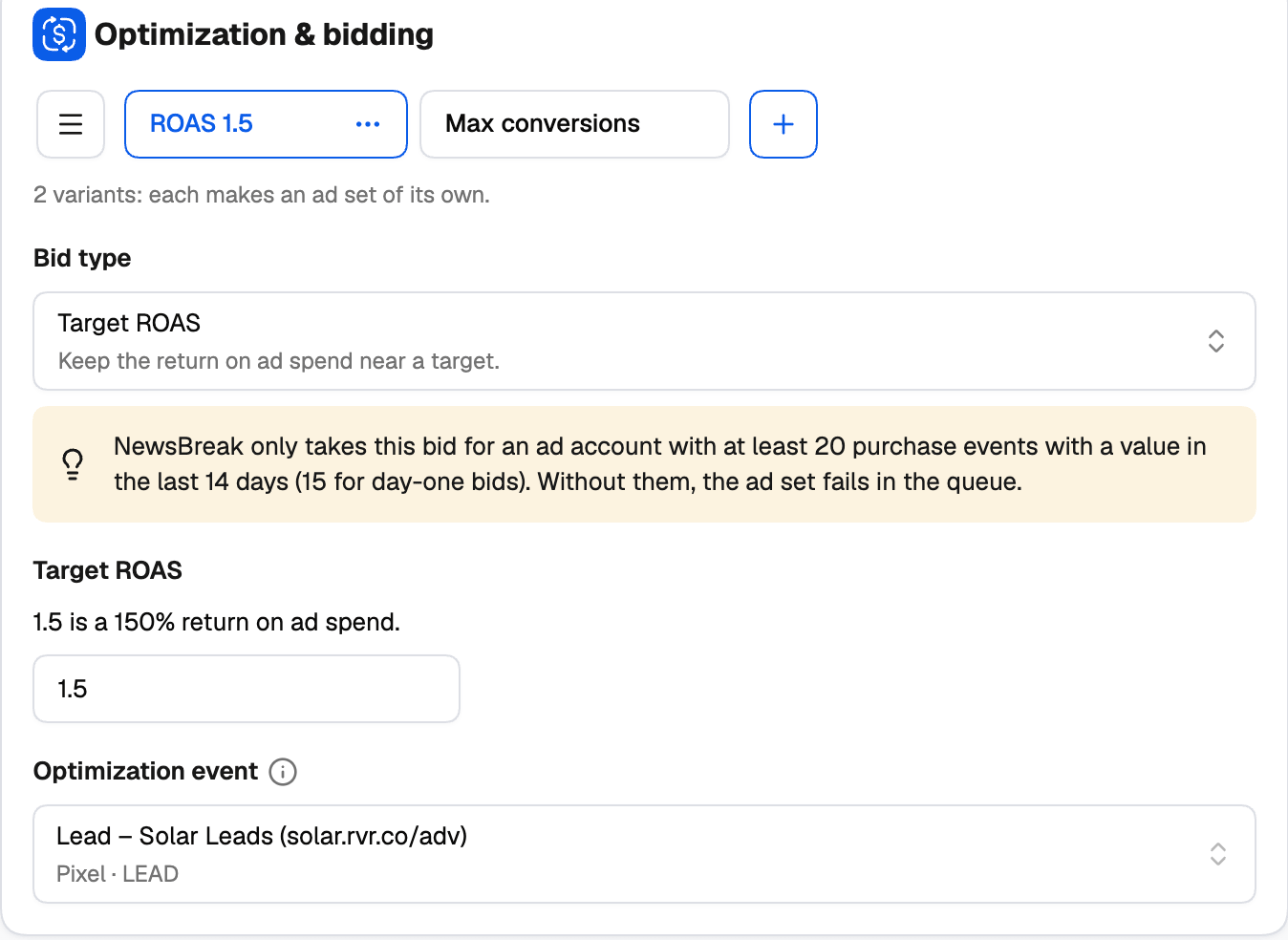
- Optimization event — the Pixel or App postback event to optimize for. Shown for conversion objectives and for bids that track conversions.
- Count conversions — Every conversion or One per person. This can’t be changed after the ad set is created.
- Delivery — As fast as possible or Evenly. Available for CPM and CPC bids.
Budget & Schedule
Group tabs: Budget 1, Budget 2…- Budget — Daily Budget or Lifetime Budget, in USD.
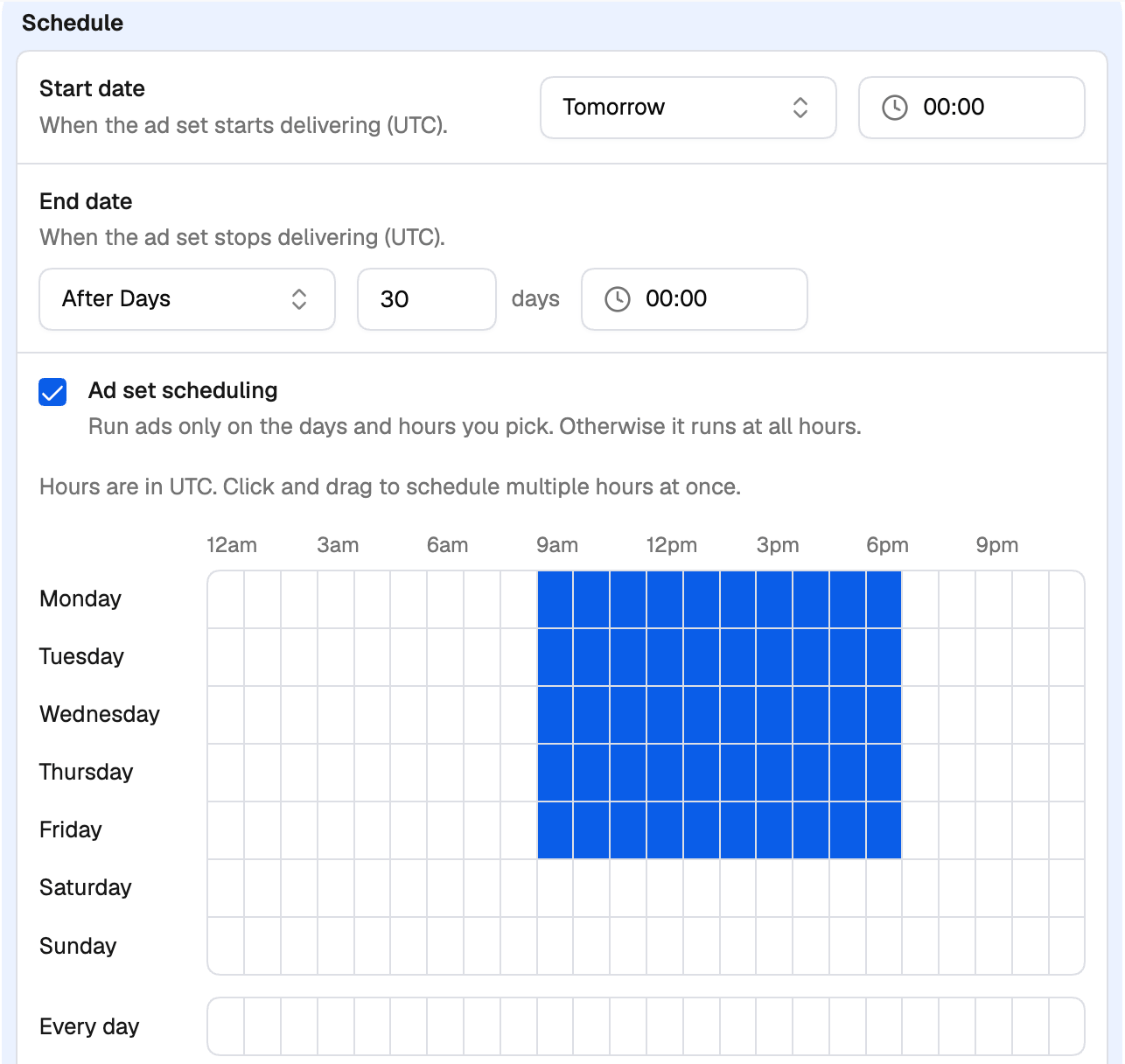
- Start date and End date — both are required, and both are in UTC. Pick a Specific Date, Tomorrow or Day After Tomorrow — or, for the end, After Days to stop a set number of days after the start.
- Ad set scheduling — tick it to choose the days and hours the ad set runs. Click and drag on the grid (UTC).
Ads
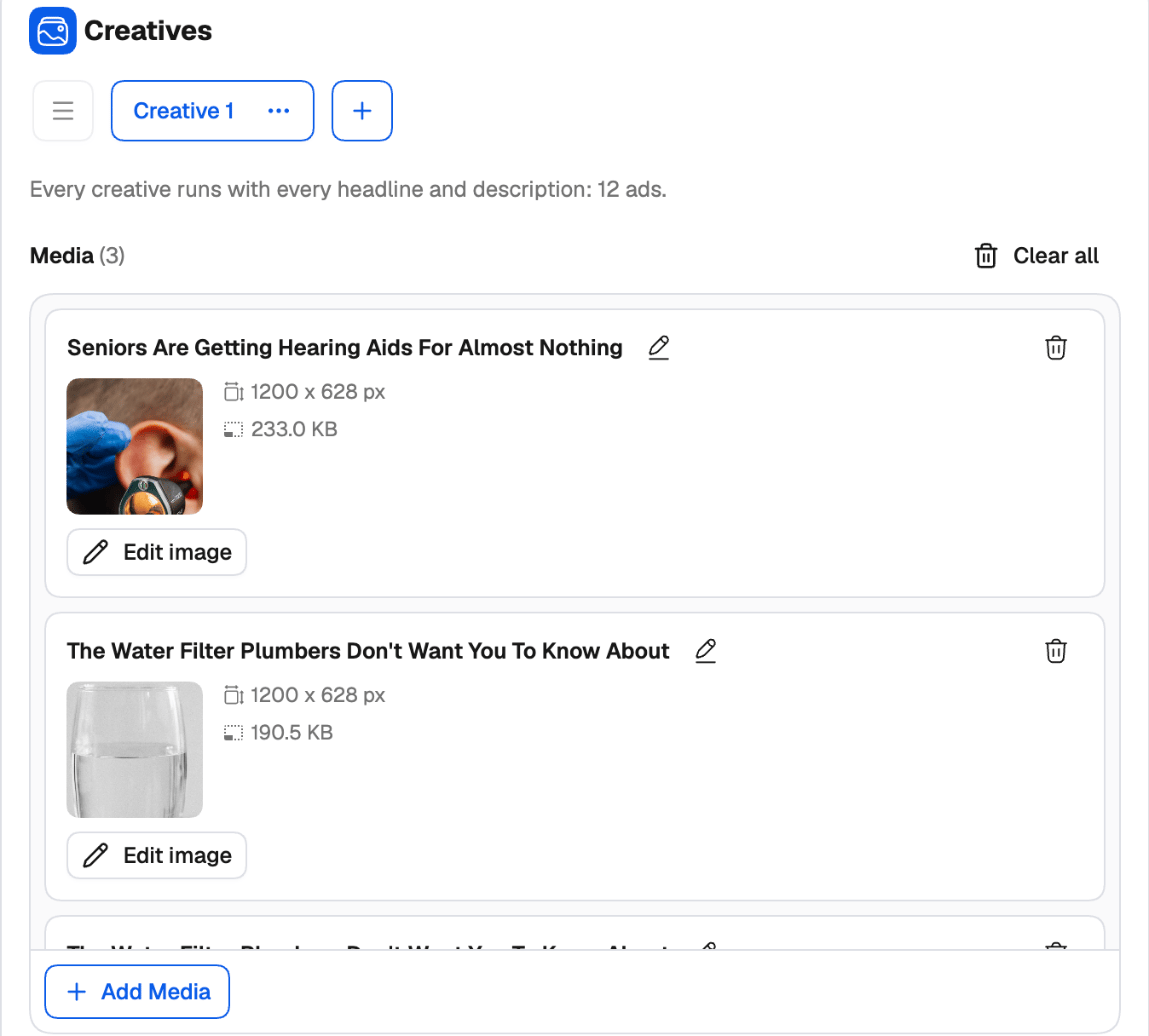
Creatives
Group tabs: Creative 1, Creative 2… Each creative group holds its own media, headlines, descriptions, call to action, brand name and logo, and makes its own ads in the ad set — test a whole creative set or brand against another in one launch.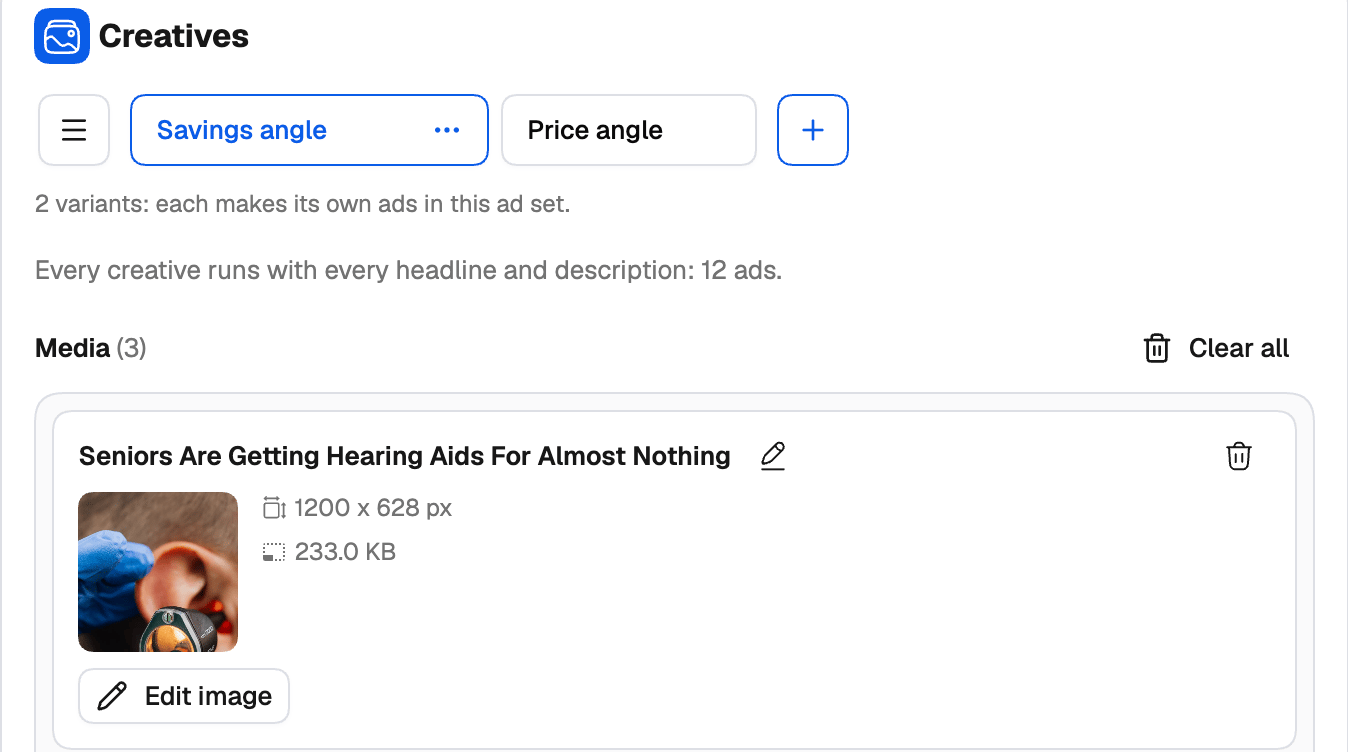
- Media — click Add Media, then Add Image or GIF or Add Video, and pick from the Media Manager (your uploads in TheOptimizer — sent to NewsBreak for you when the campaign is created). Rename, replace or remove a tile, or Clear all. Videos get Add cover for a custom thumbnail.
- Headline and Description — add as many as you want with Add Headline / Add Description, or click Generate with AI to have them written for you. You can add your own instructions before generating, then Regenerate until you like the result and Apply it.
- Call to action — free text, for example Learn More.
- Brand name — required.
- Logo — optional. A square image shown beside the brand name.
Destination
Group tabs: Destination 1, Destination 2… The Landing page URL the ads send people to. Add a second destination group to test two landing pages — each destination makes its own ads in the same ad set.Tracking
Click tracking URLs and Impression tracking URLs — both optional.Next step
Variations and publishing
How your groups multiply into ad sets and ads, Review Variations, and Publish.