
The NewsBreak Campaign Launcher is in Beta. It’s fully usable, and we’re still adding to it — tell us in the in-app chat if something you need is missing.
Why launch from TheOptimizer instead of NewsBreak Ads Manager
Groups generate your ad sets
Add Budget, Audience, Bidding and Placement groups to an ad set, and every combination becomes its own ad set — no rebuilding the same ad set ten times. Creative and Destination groups do the same for ads.
Every creative × every headline
Add several images or videos, headlines and descriptions once; each combination becomes its own ad.
Naming templates on every level
Campaigns, ad sets and ads are named from the date, objective, group name, format and creative number — so hundreds of ads stay readable.
Checks NewsBreak doesn't show you
Minimum bids, which objectives each bid type works with, required events, and the purchase history value bids need — all checked before you publish.
Opening the launcher
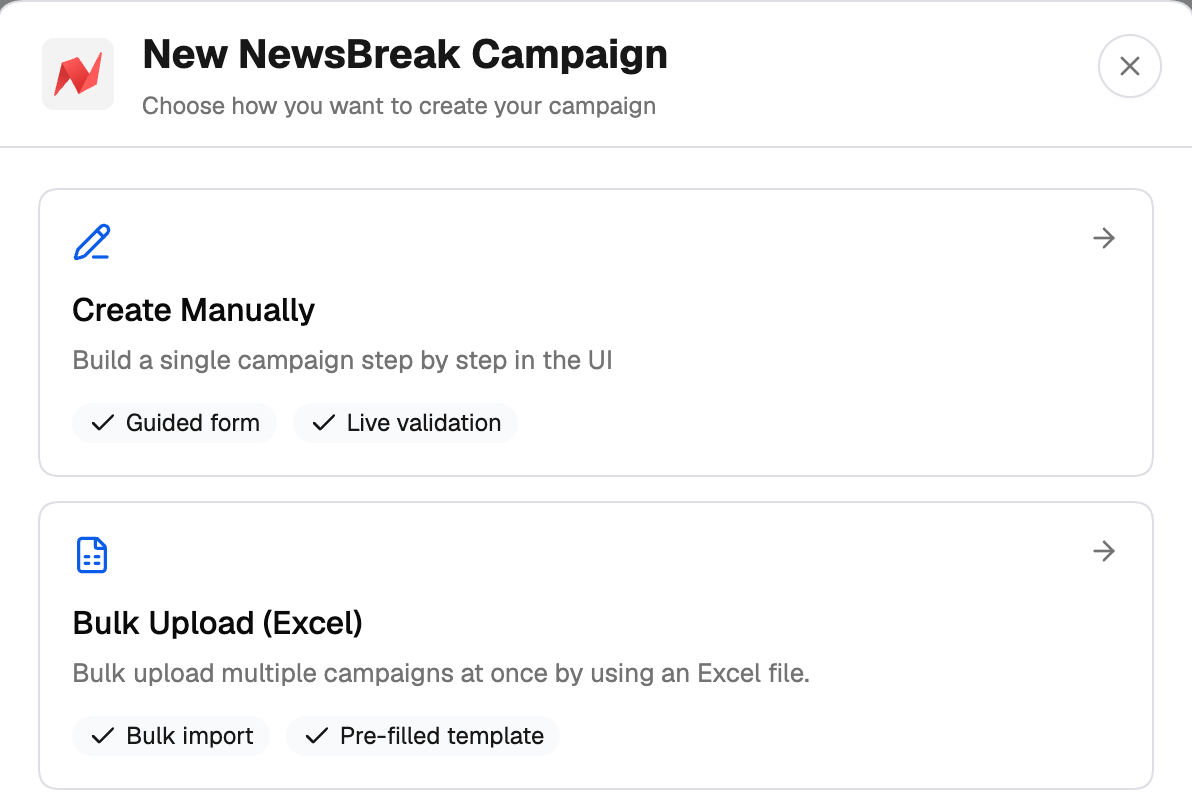
Go to Campaigns → Create in the left navigation, then click the NewsBreak card — or click Create on the NewsBreak tab of the Campaign Manager. Choose how you want to create your campaign:- Create Manually — the guided Campaign Launcher described here.
- Bulk Upload (Excel) — the Excel uploader. You can also have AI prepare the file with the Bulk Upload AI Skill.
How the launcher is laid out
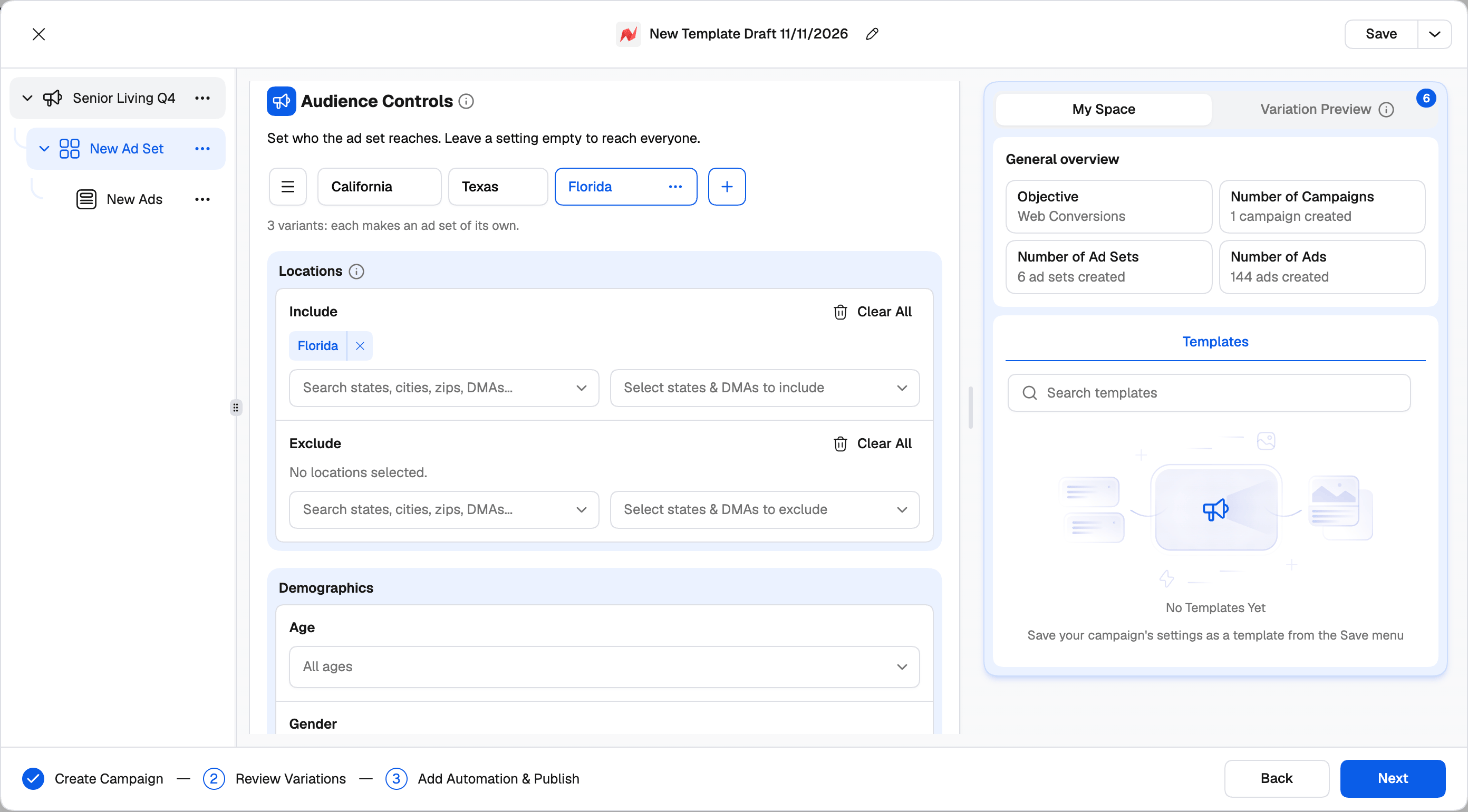
Middle — the settings for the row you selected. Hover the ⓘ next to a field for what it does on NewsBreak.
Right — My Space and Variation Preview.
- My Space shows a General overview (objective, number of campaigns, ad sets and ads) and your saved Templates.
- Variation Preview lists the variations of the level you’re on — one per combination of its groups. Switch one off and it isn’t created.
The three steps
- Create Campaign — set up the campaign, ad set and ads levels (use Next to move down through them). See Build a campaign.
- Review Variations — everything that will be created, with a switch on every row. See Variations and publishing.
- Add Automation & Publish — attach rules and publish.
Templates and drafts
Drafts. Your work is kept in this browser as you go. Open the launcher again and it asks whether to Continue or Start New. Templates. The name at the top (for example New Template Draft 10/11/2026) is the template name — click to rename it. Use Save, or the menu next to it:- Save / Save As — save the whole setup, groups included.
- Browse Templates — search, Apply template, rename or remove your NewsBreak templates.
Next steps
Build a campaign
Every setting on the campaign, ad set and ads levels.
Variations and publishing
Groups, Review Variations and Publish.