
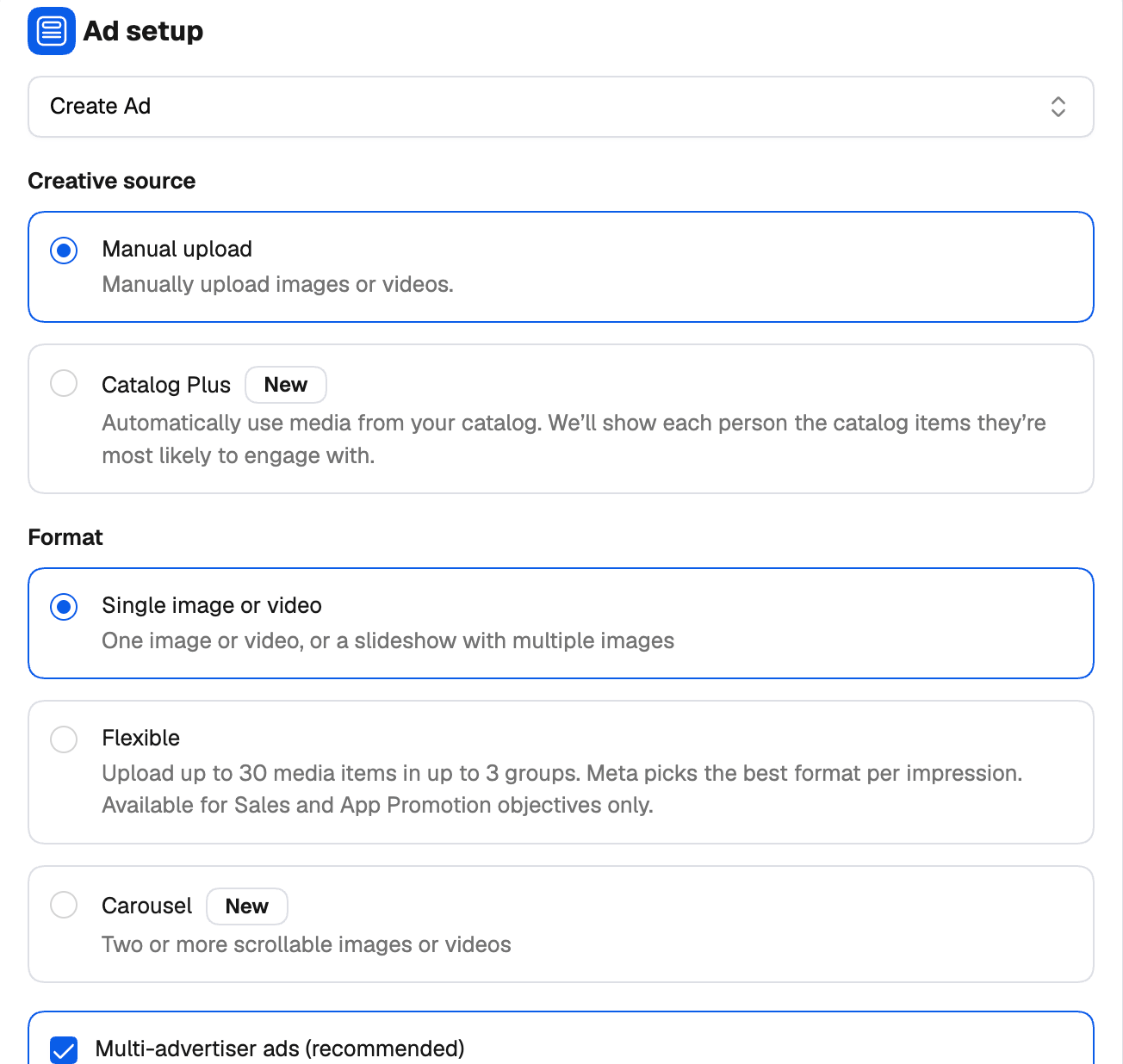
At a glance
Single image or video
The classic format: one image or one video per ad. Click + Add Media to pick from your existing creatives, upload new ones or generate images with AI. Every image or video you add becomes its own ad — add ten videos and you get ten ads, all sharing the same copy, destination and ad set. Per image you can also Customize by Placement (a different crop for Stories, say). See Creating a simple campaign for the full walkthrough.Carousel
Two or more images or videos people swipe through, each card with its own link.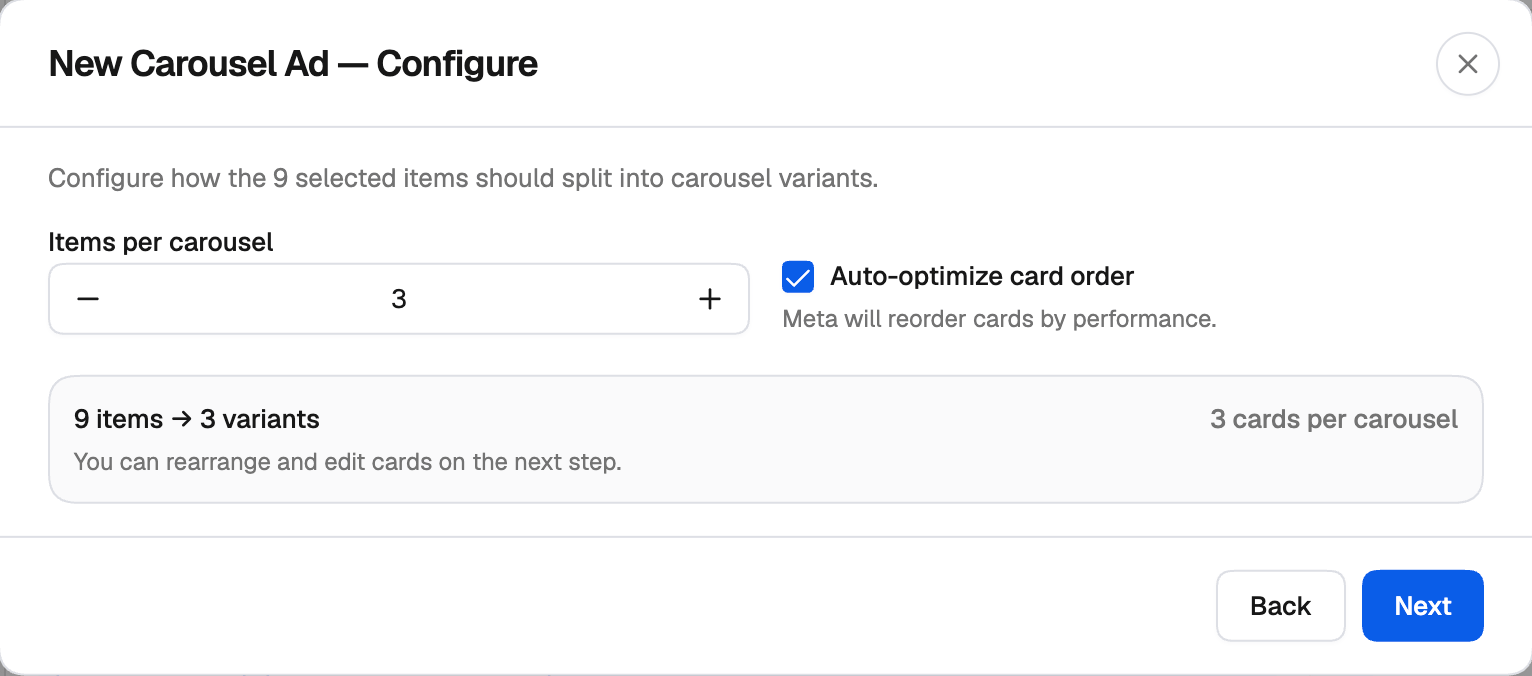
1
Add carousel
With Carousel selected, click + Add carousel in the Carousel media card. The New Carousel Ad window opens.
2
Select media
Click Add images and/or Add videos and pick everything you want to use — up to 200 items.
3
Configure
Set Items per carousel (2 to 10, 3 by default). Leave Auto-optimize card order on to let Meta reorder the cards by performance. The summary shows how your pool splits — for example 9 items → 3 variants.
4
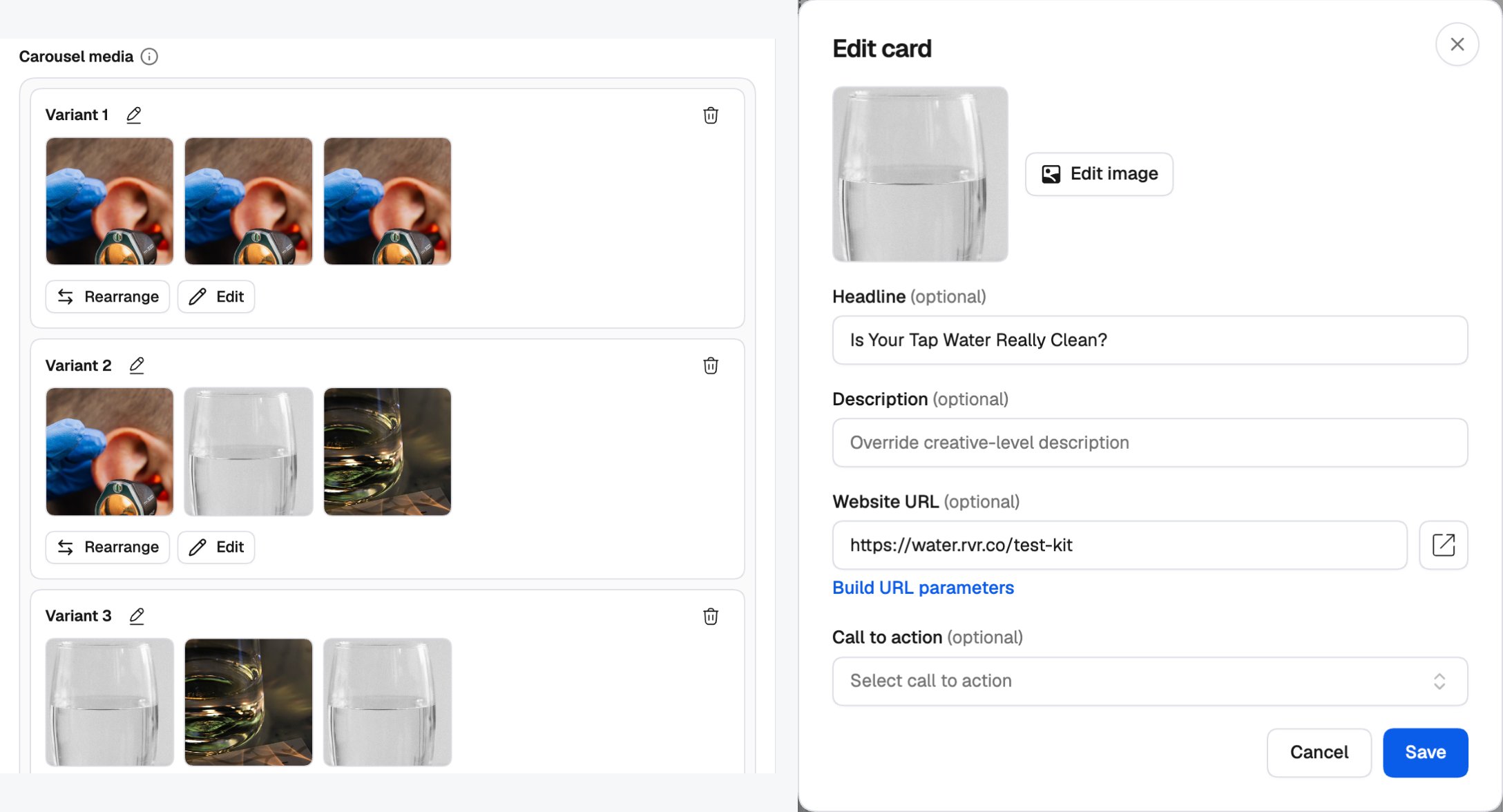
Arrange
Drag cards to reorder them, or move them from one carousel to another. Each carousel needs at least two cards. Click Save.
Flexible
Give Meta several media items and let it choose the best format — single image, video or carousel — for each person and placement.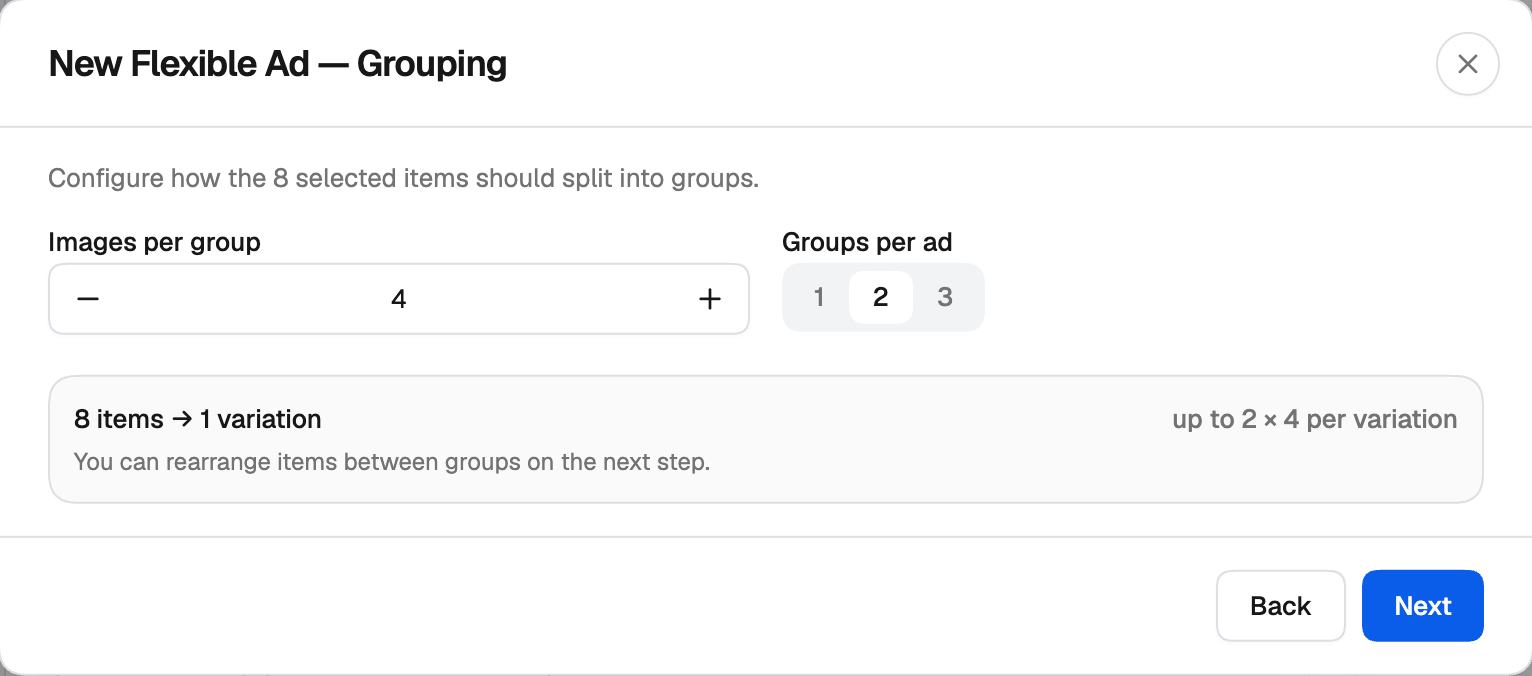
1
Add flexible media
With Flexible selected, click + Add flexible media. The New Flexible Ad window opens.
2
Select media
Click Add images and/or Add videos and pick your media.
3
Grouping
Set Images per group (1 to 10) and Groups per ad (1 to 3).
4
Arrange
Drag items between groups, or Add empty group. Click Save.
Flexible is only offered for Sales and App Promotion campaigns — the objectives Meta supports it for.
Catalog ads
Show products from your Meta product catalog — Meta picks the products each person is most likely to engage with. Catalog ads are always carousels. There are two ways to set them up.Per ad: Catalog Plus
On a Sales campaign, pick Catalog Plus as the Creative source on the ad. The format switches to Carousel, and the Ad creative card asks for:- Catalog — the product catalog this ad promotes.
- Preferences — Show all products, or Only certain products and then pick a Product set.
For the whole campaign: Advantage+ catalog
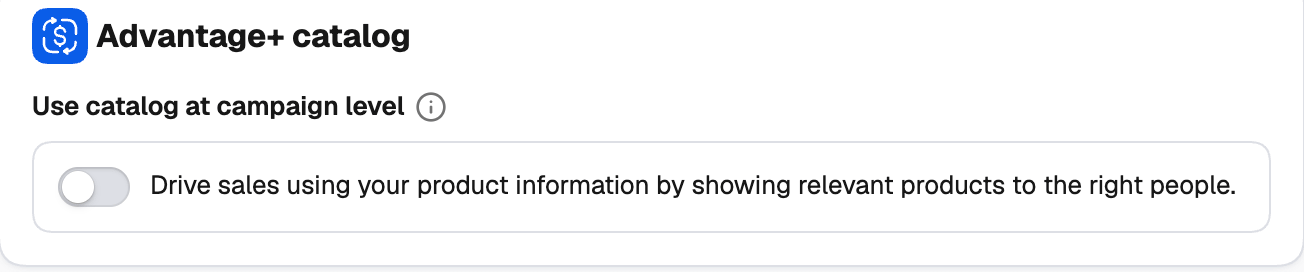
On the Campaign level, turn on Use catalog at campaign level in the Advantage+ catalog card and select the Catalog. Then:- Every ad in the campaign becomes a catalog carousel — the creative source and format are locked.
- Each ad set picks what it promotes in the Promoted products card: Show all products or Only certain products (with a Product set).
The catalogs listed are the ones in the ad account you’re launching in. No catalog yet? Connect one in Meta Commerce Manager first.
Product details in your copy
In catalog mode, the Primary text, Headline and Description fields get a macro picker. Insert the product’s Name, Price, Brand or Description, and Meta fills it in for each product shown.Existing posts
Choose Use existing post in Ad setup to run an already-published Facebook or Instagram post as the ad, keeping its likes, comments and shares. The post keeps its own format. See Using existing posts.Other options
- Multi-advertiser ads (recommended), in the Ad setup card — lets the ad appear alongside ads from other businesses when people are in a shopping mindset, which can increase its reach.
- Advantage+ creative enhancements, in the Ad creative card — Meta’s automatic creative tweaks. Available for single image or video and carousel ads (not for flexible or catalog ads). The count shows how many you have on; click it to choose.
Related
Creating a simple campaign
Every setting on the campaign, ad set and ad levels.
Generate campaign variations
Multiply your setup into many campaigns, ad sets and ads.